Troubleshooting
Q: How to restore factory settings?
A: Device should be powered on. Press and hold RESET
button for 10 seconds and then release. Wait for router
reboot.
Q: My laptop cannot receive the router signal?
A: Check if the laptop’s wireless interface is turned on
and enabled. If yes, please check if all drivers
of wireless card are installed properly.
Conrm if is enabled correct function
in router (Access Point).
■ To nish connection settings click “Save/Apply” but-
ton.
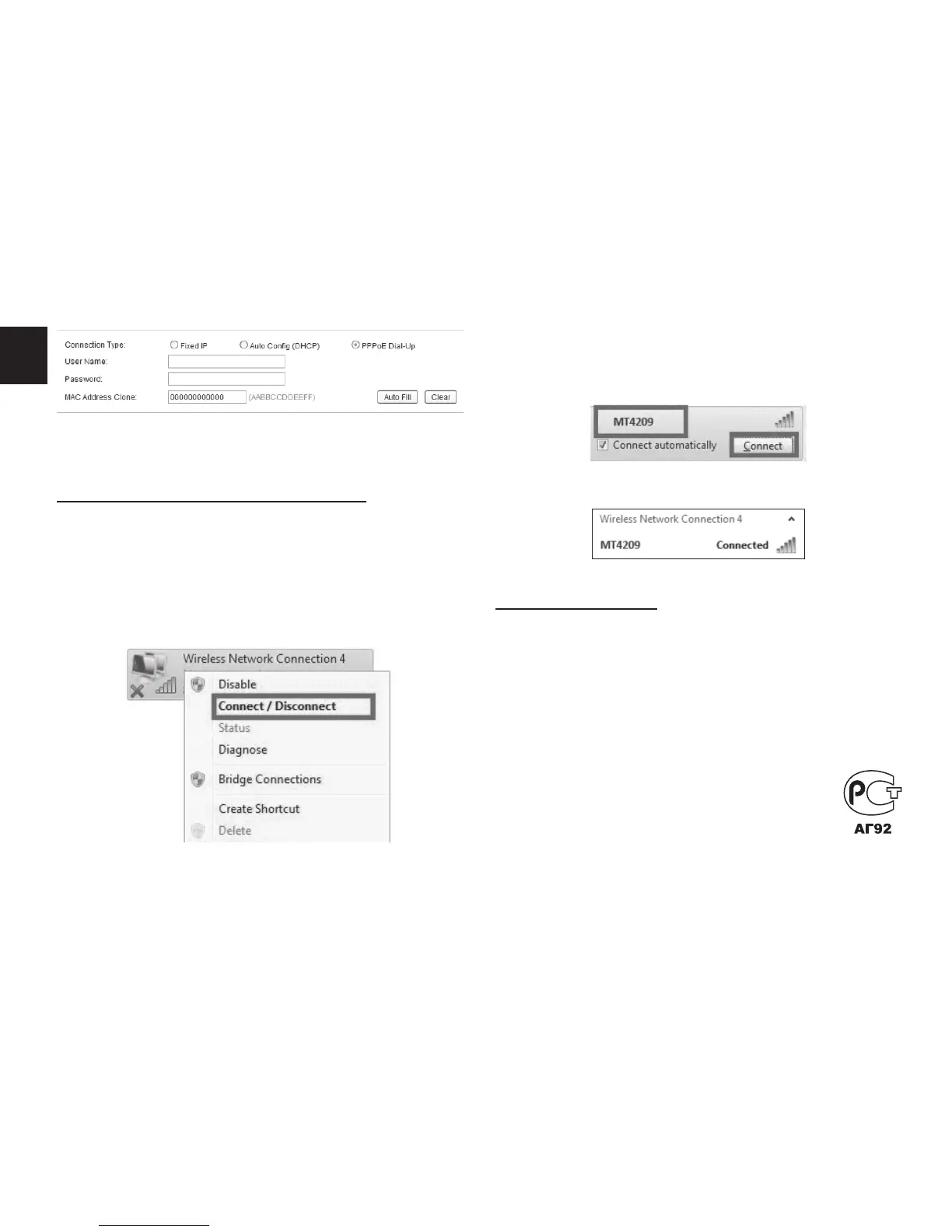
Wireless connection to the router
For example Windows 7 OS:
■ Navigate to “Start>Control Panel>Network and
Internet>Network and Sharing Center>Change
Adapter Settings>Wireless Network Connection”.
Then right-click “Wireless network connection” and
select “Connect/disconnect”.
■ Enter Wi-Fi key and click “OK”
Note: Default SSID and Network key is printed on
the serial label on the bottom of the device.
■ Connection is succesfull.
Due to continuous development specication and appearance of
product are subject to change without prior notice. For technical
support please visit www.media-tech.eu.
■ Select the wireless network name of your router
(SSID) and click “Connect”.


 To Previous Page
 Loading...