Time setting
program
MQ-L500N User's manual
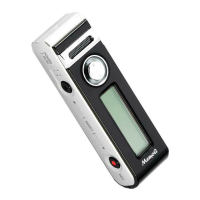
Powerbank & Digital voice recorder
Cautions in use
- Do not leave product alone in high temperature more than 40 degrees or direct sunlight for a long period of time.
- To use product with other devices, check the compatibility each other first.
- We are not responsible for the loss of recordings caused by misuse, after-sale service, others.
- We are not responsible for the damage caused by the use of product and for the third party's claim for compensation.
- Decomposition, remodeling, impact or usage at low temperature, high temperature, humid place can be the cause of breakdown.
※ Please be sure to read user's manual before use and use product safely and properly.
※ The pictures in user's manual can be different from the real thing and contents can be changed
without prior notice to improve performance.
- After connecting USB cable to USB terminal for body(ⓑ), charging it by connecting to the charging adaptor(option) or PC USB port.
- In charging by connecting product to PC with USB cable, in case of low power supply current, charging speed can be slow.
- During charging, product and charger can be a little hot. That is normal phenomenon and does not influence the life or function of product.
- During charging, like below picture, Battery remains LEDⓓ is changed to lighting in order according to battery capacity.
When charging is completed, all LED are turned on.
ⓐ Charging terminal for external device
ⓑ Charging/USB terminal for body
ⓒ Powerbank button
ⓓ Battery remains LED
ⓔ Recording LED
ⓕ Microphone
ⓖ Recording switch
Name of each part
- You can install product easily by using magnet.
- Attach magnet on the groove of product and put product near steel desk,
steel electronic appliances, etc. and product is attached.
Using magnet
Composition
Caution : Be sure to use a certified charging adapter (rated output DC5V/500mA or higher).
Damage to the product due to a defective charging adapter may result in paid repair.
Charging body
Main body USB cable
Place to attach magnet
Magnet User's manual
Magnet
ⓓBattery remains LED
Battery remains LED(ⓓ)
Flickering
Turned on
5%under 10% 30% 60% 100%
Connecting it to PC
- After connecting USB cable to the USB terminal(ⓑ) of body, connect the other end to the USB port of PC.
- For playback, please use the music playback software of PC.
- When this device is connected into the USB port of PC, it is recognized as a "Removable disk (MEMOQ)",
and copy, movement, deletion, playback of file is possible.
-
After connecting USB cable to charging terminal for external device(ⓐ), connect the other end to the connector of external device.
- Press Powerbank buttonⓒ, and the charging of external device starts.
- During recording, it can not charge external device.
USB cable
ⓑCharing/USB terminal for body
USB cable
ⓑCharing/USB terminal for body
Caution : To connect it to PC, keep recording switch(ⓖ) in the state of STOP
Caution : When you separate product from PC, please be sure to perform "hardware safety removal".
When you remove product from PC by force, fatal error on product can occur.
Recording switch(ⓖ)
in state of STOP
- You can check battery remains by pressing Powerbank buttonⓒ.
- Battery remains is indicated for 5 seconds.
- If the remaining battery is low, charge it before use.
Checking battery
remains
ⓐ Charging terminal for external device
ⓒPowerbank button
ⓒPowerbank button
Charging external
device from body
How to use time setting program
② After checking the settings according to the usage environment, click the "START" button.
③ If the "DATE_TIME.CFG" file is normally created in the product, disconnect the product from
the USB port to complete the setting.
①
After connecting the product's USB terminal to the PC's USB port, run the "TIME SETUP" program
stored in the product.
Caution : The date and time set on the PC are displayed.
If the date and time are displayed differently, please check the PC settings.
Caution : If the product is not separated immediately after clicking the START button,
a time error will occur as much as the delayed time.
Caution : If the product is not separated from the PC after clicking the START button,
the setting will not be completed.
Caution : Time setting program only works on Window OS. (Doesn't work on macOS)
Battery remains LED during charging.
Flickering
Turned on
0% · · · · · · · · 100%
XHQ
HQ
+2
+1
0
-1
-2
Off
On
Mode (Record Quality)
Schedule Recording
Date_Time
VOS Level
2023-01-01 13:00:00
Start Time :
hour
:
hourminute
Duration :
13 145
DATE_TIME.CFG
Creation button
VOS LEVEL
*Displayed only when 'ON'
Current date and time
Recording sound quality
Scheduled recording
ON/OFF
User guide
My PC
My PC
(Basic setting)
(Basic setting)
(Basic setting)


 To Next Page
 Need help?
 General