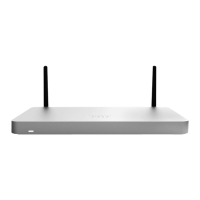
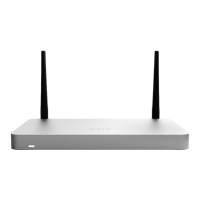
All Meraki MX devices must have an IP address. This section describes how to configure your local area
network before you deploy it. A local management web service, running on the appliance, is accessed
through a browser running on a client PC. This web service is used for configuring and monitoring basic
ISP/WAN connectivity.
Setting up a static IP address
To ensure that the client PC is redirected to the local web service in the following step, you must disable
all other network services (e.g., Wi-Fi) on your client machine.
Do the following to configure basic connectivity and other networking parameters:
1. Using a client machine such as a laptop, connect to one of the ten LAN ports of the MX.
2. Using a browser on the client machine, access the appliance's built-in web service by browsing
to http://setup.meraki.com. (You do not have to be connected to the Internet to reach this address)
3. Click Uplink configuration under the Local status tab.
4. Choose Static for the IP Assignment option.
5. Enter the IP address, subnet mask, default gateway IP and DNS server information.
Setting up a DHCP IP address
By default all MX devices are configured to DHCP from upstream WAN / ISP servers. Simply plug one of
the MX's WAN / Internet ports into your upstream circuit and wait a few minutes for the unit to negotiate
a DHCP address.
Icon
When the WAN connection is fully enabled, the Internet 1 or 2 LED 1 will turn green.
Additional settings
Please note that all these settings below are accessible only via the local management console.
Setting VLANs
If your WAN uplink is on a trunk port, choose VLAN tagging > Use VLAN tagging and enter the
appropriate value for VLAN ID for your network.
Setting PPPoE
PPPoE authentication may be required if you are connecting the MX to a DSL circuit. You need to know
your authentication option and credentials (supplied by your ISP) in order to complete these steps.
Choose Connection Type > PPPoE.
Select your Authentication option.
If you select Use authentication, enter appropriate values for Username and Password.


 To Next Page