EasyManua.ls Logo

Mercury 130W - User Manual

Mercury 130W
3 pages
Print Icon
To Next Page IconTo Next Page
Loading...
Peace Technologies | Business Support
1
MERCURY 130W (TYPE - A ETR MACHINE) MANUAL
1. WIFI set up for CU unit
Press the STL button on the machine until STARTED
From your computer access the WIFI icon and connect to CU set up
WIFI
Enter 192.168.1.1 on your Browser
After connecting click login and you will have such a window
Enable Wi-Fi connection parameters
Set up the SSID (WIFI name) and the password for that WIFI
Submit WIFI and log out
Press C button on the machine and restart it
Press QTY button to print such message showing WIFI is connected and
date and time ok
2. Making A Sale
a. Single transaction
Switch on the machine by holding the VD/MODE button
Press TOTAL 1………. Or registration mode
Enter the price which you want to sell at VAT inclusive
Press SH PLU (for 130w/181) or PRC (for Incotex 130f)
Enter the PLU CODE number and press PLU
press TOTAL to issue out the receipt
b. Selling with QTY
Press TOTAL 1………. Or registration mode
Enter the number of quantities and press QTY button
Enter the price which you want to sell at VAT inclusive
Press SH PLU (for 130w/181) or PRC (for Incotex 130f)
Enter the PLU CODE number and press PLU
press TOTAL to issue out the receipt
Peace Technologies
Question and Answer IconNeed help?

Do you have a question about the Mercury 130W and is the answer not in the manual?

Summary

WIFI Setup for CU Unit

Making a Sale

Single Transaction

Steps for conducting a single sales transaction on the machine.

Selling with Quantity

Instructions for selling items when a quantity is specified.

Multiple Transaction

Voiding a Sale

Selling with Client;Buyers PIN

Simplified Buyer PIN Entry

Making a Credit Note

Making a Debit

Making a Copy

Overview

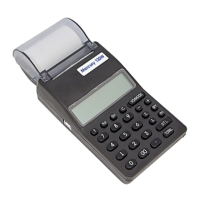
The MERCURY 130W is an Electronic Tax Register (ETR) machine designed for business support, facilitating sales transactions and tax compliance. It features integrated Wi-Fi connectivity for communication with a Control Unit (CU), enabling seamless data transfer and setup.

Function Description:

The primary function of the MERCURY 130W is to process sales transactions, including single item sales, multiple item sales, and sales involving quantities. It is capable of calculating VAT-inclusive prices and associating sales with specific Product Look-Up (PLU) codes. A key feature is its ability to record buyer's PINs for VAT claims, which is crucial for businesses and customers with VAT obligations. The machine also supports voiding sales, issuing credit notes, and making debit entries. For record-keeping and auditing, it can print copies of receipts.

Important Technical Specifications:

While specific technical specifications like processor speed or memory capacity are not detailed in the provided manual, the device's operational capabilities imply certain underlying features:

  • Connectivity: Wi-Fi enabled for connection to a Control Unit (CU). This requires setting up Wi-Fi parameters such as SSID (Wi-Fi name) and password. The device uses a specific IP address (192.168.1.1) for browser-based configuration.
  • Input Interface: Features a numeric keypad for entering prices, quantities, PLU codes, and buyer PINs. Dedicated buttons like "STL," "TOTAL," "SH PLU" (or "PRC"), "VD/MODE," "VOID ALL" (or "SH 00"), "QTY," "SH +PY1," "minus," "plus," and "decimal point" are used for various functions.
  • Display: The machine has a display that shows status messages (e.g., "STARTED," "cl pin," "01.000," "rCP n," "d 00") and prompts during operation.
  • Printing: Equipped with a thermal printer to issue receipts, credit notes, and debit notes, including buyer's PINs and transaction details.

Usage Features:

The MERCURY 130W offers a range of user-friendly features for efficient transaction processing:

  • Wi-Fi Setup:
    • Initiated by pressing the "STL" button until "STARTED" is displayed.
    • Configured via a computer by connecting to the "CU set up WIFI" network and accessing 192.168.1.1 in a browser.
    • Allows enabling Wi-Fi connection parameters, setting SSID and password.
    • Confirmation of Wi-Fi connection is indicated by pressing the "QTY" button, which prints a message with date and time.
  • Making a Sale (Single Transaction):
    • Turn on by holding the "VD/MODE" button.
    • Press "TOTAL 1" (or enter registration mode).
    • Enter the VAT-inclusive price.
    • Press "SH PLU" (for 130w/181) or "PRC" (for Incotex 130f).
    • Enter the PLU CODE number and press "PLU."
    • Press "TOTAL" to issue the receipt.
  • Making a Sale (Selling with Quantity):
    • Press "TOTAL 1" (or enter registration mode).
    • Enter the number of quantities and press "QTY."
    • Enter the VAT-inclusive price.
    • Press "SH PLU" (for 130w/181) or "PRC" (for Incotex 130f).
    • Enter the PLU CODE number and press "PLU."
    • Press "TOTAL" to issue the receipt.
  • Making a Sale (Multiple Transactions):
    • Press "TOTAL 1" (or enter registration mode).
    • Enter the VAT-inclusive price for the first item.
    • Press "SH PLU" (for 130w/181) or "PRC" (for Incotex 130f).
    • Enter the PLU code and press "PLU."
    • For subsequent items, enter the price, press "SH PLU" or "PRC," enter the PLU code, and press "PLU."
    • Press "TOTAL" to issue the receipt for all items.
  • Voiding a Sale:
    • Full Cancellation: Press "VOID ALL" (130F) or "SH 00" (130,181).
    • Partial Cancellation: Press "VDMODE" twice (130w,181).
    • Important Note: Sales can only be voided before pressing "TOTAL."
  • Selling with Client/Buyer's PIN:
    • Used only when the buyer has VAT obligations and wishes to claim VAT.
    • Press "SH +PY1" to prompt for PIN entry.
    • For PINs starting with 'A', press '1'; for PINs starting with 'P', press '2'.
    • The machine displays "cl pin."
    • Enter numerical keys for the PIN.
    • For the last digit (if a letter), enter its ASCII code (e.g., 'A' is 065, 'J' is 074) and press "TOTAL."
    • Press "STL" to confirm, then "STL" again to return to sales.
    • The receipt will include the buyer's PIN.
  • Simplified BUYERS PIN Entry:
    • Press "TOTAL," then "SH PY1."
    • For PINs starting with 'A', press '1'; for PINs starting with 'P', press '2'.
    • Displays "CL pin."
    • Start pressing numeric keys for the PIN.
    • Press "TOTAL."
    • For the last digit (if a letter), enter the letter according to the ASCII code table and press "TOTAL."
    • Press "STL" to confirm, then "STL" again to return to sales.
  • Making a Credit Note:
    • Press the "minus" button (displays "rCP n").
    • Enter the receipt number (e.g., 20).
    • Press "total" (displays "- 0").
    • Proceed with the sale as usual.
  • Making a Debit:
    • Press the "plus" button (displays "rcp n").
    • Enter the receipt number.
    • Press "total" (displays "d 00").
    • Enter the amount to debit and sell.
  • Making a Copy of a Receipt:
    • When the machine displays "0.00," press the "decimal point" button.
    • Enter "279."
    • Press "SH QTY." (Note: The example CU Invoice Number 090003440000000279 is provided, but the manual instructs to enter "279" for a copy, implying this might be a specific code or a placeholder for the actual receipt number).

Maintenance Features:

The manual does not explicitly detail maintenance features such as cleaning instructions or troubleshooting guides. However, implicit maintenance aspects include:

  • Restarting: The instruction to "Press C button on the machine and restart it" suggests a simple restart mechanism for resolving minor operational issues, particularly after Wi-Fi setup.
  • Confirmation Prompts: The device uses prompts like "Press STL key to confirm if the writings are correct" during PIN entry, which helps in verifying data accuracy before finalization, potentially reducing errors that might require corrective actions.
  • Error Handling (Implicit): While not explicitly stated, the ability to void sales and issue credit/debit notes serves as a mechanism for correcting transaction errors.

Mercury 130W Specifications

General IconGeneral
BrandMercury
Model130W
CategoryCash Register
LanguageEnglish