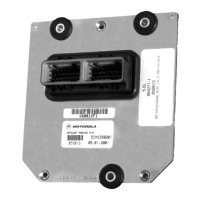
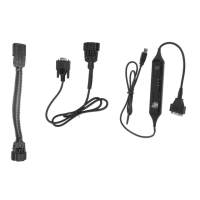
CDS G3 INTERFACE KIT
Products of Mercury Marine
© MERCURY MARINE. All rights reserved. Reproduction in whole or in part without permission is prohibited.
Alpha, Axius, Bravo One, Bravo Two, Bravo Three, Circle M with Waves Logo, K-planes, Mariner, MerCathode,
MerCruiser, Mercury, Mercury with Waves Logo, Mercury Marine, Mercury Precision Parts, Mercury Propellers,
Mercury Racing, MotorGuide, OptiMax, Quicksilver, SeaCore, Skyhook, SmartCraft, Sport-Jet, Verado,
VesselView, Zero Effort, Zeus, #1 On the Water and We're Driven to Win are registered trademarks of Brunswick
Corporation. Pro XS is a trademark of Brunswick Corporation. Mercury Product Protection is a registered service
mark of Brunswick Corporation.
W6250 Pioneer Road
Fond du Lac, WI 54936-1939
Page 8 / 8 © 2016 Mercury Marine 90-8M0114146 eng FEBRUARY 2016
6.
On the next screen, select Install the software automatically (Recommended). Click Next to continue.
7.
When the wizard has finished installing the software, click Finish to close the window. Once the installation is completed,
the green power (PWR) light on the CDS G3 SmartCraft diagnostic interface will illuminate solid green.
8. Repeat steps 1–7 for all USB ports on your PC.
9. Open CDS G3. The CAN P and CAN H status indicators should be yellow or green, depending on if the engine is
connected and powered up. The software will also detect the SmartCraft diagnostic interface cable.
Lower left corner of CDS G3 home screen
a - CAN status
b - Interface cable detected


 To Previous Page
 Loading...