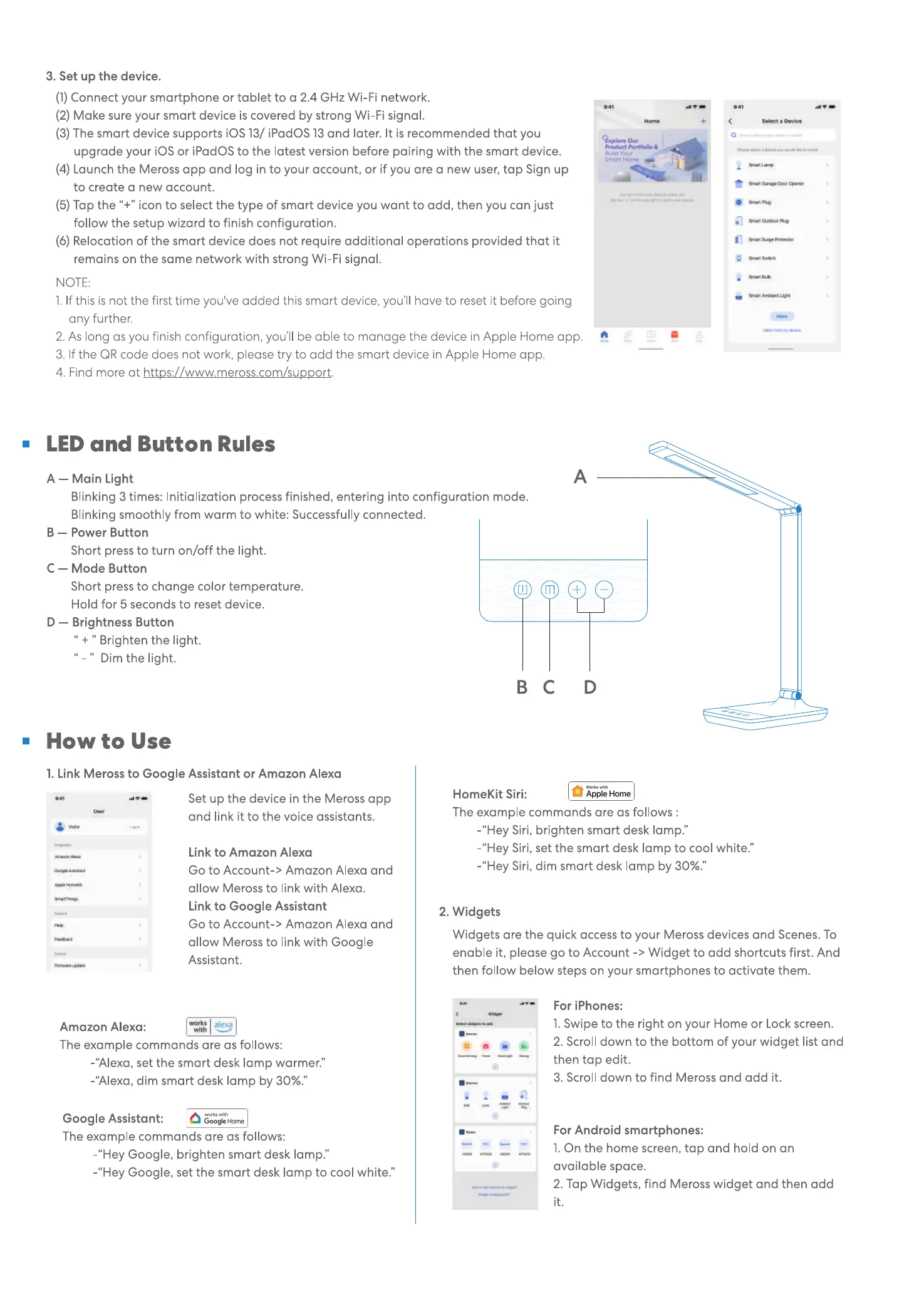
3. Set up the device.
(1)Connect your smartphone or tablet to a 2.4 GHz Wi-Fi network.
(2) Make sure your smart device is covered by strong Wi-Fi signal.
(3) The smart device supports iOS 13/ iPadOS 13and later. It is recommended that you
upgrade your iOS or iPadOS to the latest version before pairing with the smart device.
(4) Launch the Meross app and log in to your account, or if you are a new user, tap Sign up
to create a new account.
(5) Tap the "+" icon to select the type of smart device you want to add, then you can just
follow the setup wizard to finish configuration.
(6) Relocation of the smart device does not require additional operations provided that it
remains on the same network with strong Wi-Fi signal.
NOTE.
1.If this is not the first time you've added this smart device, you'll have to reset it before going
any further.
2. As long as you finish configuration, you'll be able to manage the device in Apple Home app.
3. If the QR code does not work, please try to add the smart device in Apple Home app.
4. Find more at https://www.meross.com/support.
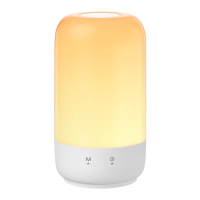
• LED and Button Rules
A — Main Light
Blinking 3 times: Initialization process finished, entering into configuration mode.
Blinking smoothly from warm to white: Successfully connected.
B — Power Button
Short press to turn on/off the light.
C Mode Button
Short press to change color temperature.
Hold for 5 seconds to reset device.
D — Brightness Button
" + " Brighten the light.
Dim the light.
C
•
How to Use
1.Link Meross to Google Assistant or Amazon Alexa
B
HomeKit Siri:
D
Apple Home
Amazon Alexa:
Set up the device in the Meross app
and link it to the voice assistants.
Link to Amazon Alexa
Go to Account-> Amazon Alexa and
allow Meross to link with Alexa.
Link to Google Assistant
Go to Account-> Amazon Alexa and
allow Meross to link with Google
Assistant.
rkS
With
The example commands are as follows:
-"Alexa, set the smart desk lamp warmer."
-"Alexa, dim smart desk lamp by 30%."
Google Assistant:
The example commands are as follows:
-"Hey Google, brighten smart desk lamp."
-"Hey Google, set the smart desk lamp to cool white."
The example commands are as follows :
-"Hey Siri, brighten smart desk lamp."
-"Hey Siri, set the smart desk lamp to cool white."
-"Hey Siri, dim smart desk lamp by 30%."
2. Widgets
Widgets are the quick access to your Meross devices and Scenes. To
enable it, please go to Account -> Widget to add shortcuts first. And
then follow below steps on your smartphones to activate them.
For iPhones:
1. Swipe to the right on your Home or Lock screen.
2. Scroll down to the bottom of your widget list and
then tap edit.
3. Scroll down to find Meross and add it.
For Android smartphones:
1. On the home screen, tap and hold on an
available space.
2. Tap Widgets, find Meross widget and then add
it.


 To Next Page
 Loading...