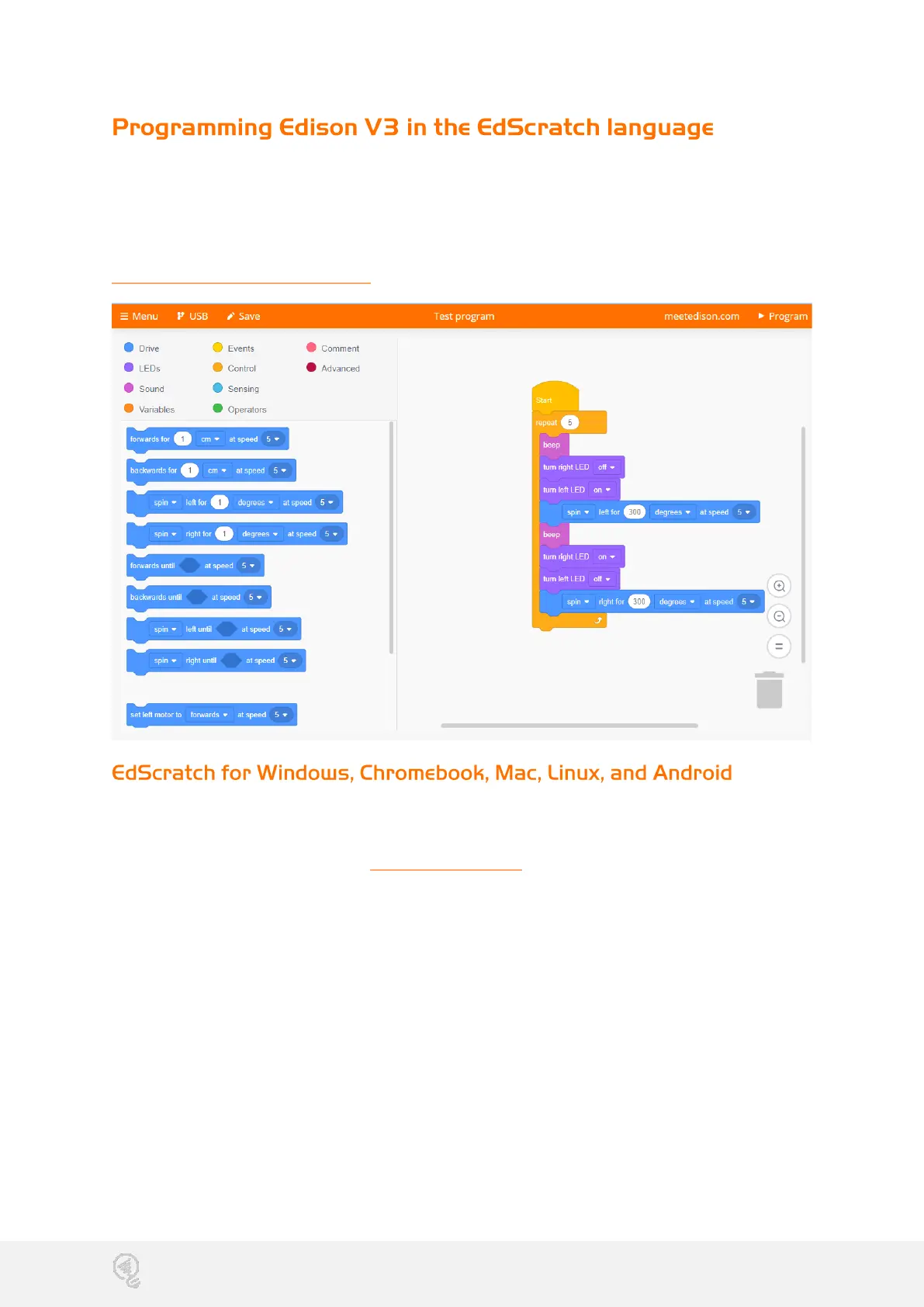
EdScratch is a vertical block-based programming language for the Edison robot
based on Scratch. EdScratch combines the ease of drag-and-drop programming with
powerful functionality and flexibility.
The EdScratch programming language app is at this URL:
https://www.edscratchapp.com/
Running a test program is a great way to get started using EdScratch. Follow these
steps to test EdScratch on your computer:
1. Open the EdScratch app at edscratchapp.com using one of the following
browsers Chrome, Edge, or Opera.
2. When EdScratch opens click ‘Menu’ and select ‘Load Demos.’ Select the
program called ‘Test_Program’ which will load in the programming environment.
3. Plug the Edison V3 robot’s USB cable in to the computer’s USB-A port.
4. From the EdScratch app, press the ‘Program’ button (top right corner).
5. A popup window will appear asking to connect to Edison V3. Select ‘Edison V3 –
Paired’ and click ‘connect’.
6. The program will download to Edison V3 and you will hear the ‘success’ sound
(the same tune Edison plays when you turn Edison on).
7. Disconnect Edison from the USB port and press the triangle button on Edison to
run the program.


 To Next Page
 Loading...