8
USING THE ON-SCREEN GUIDE
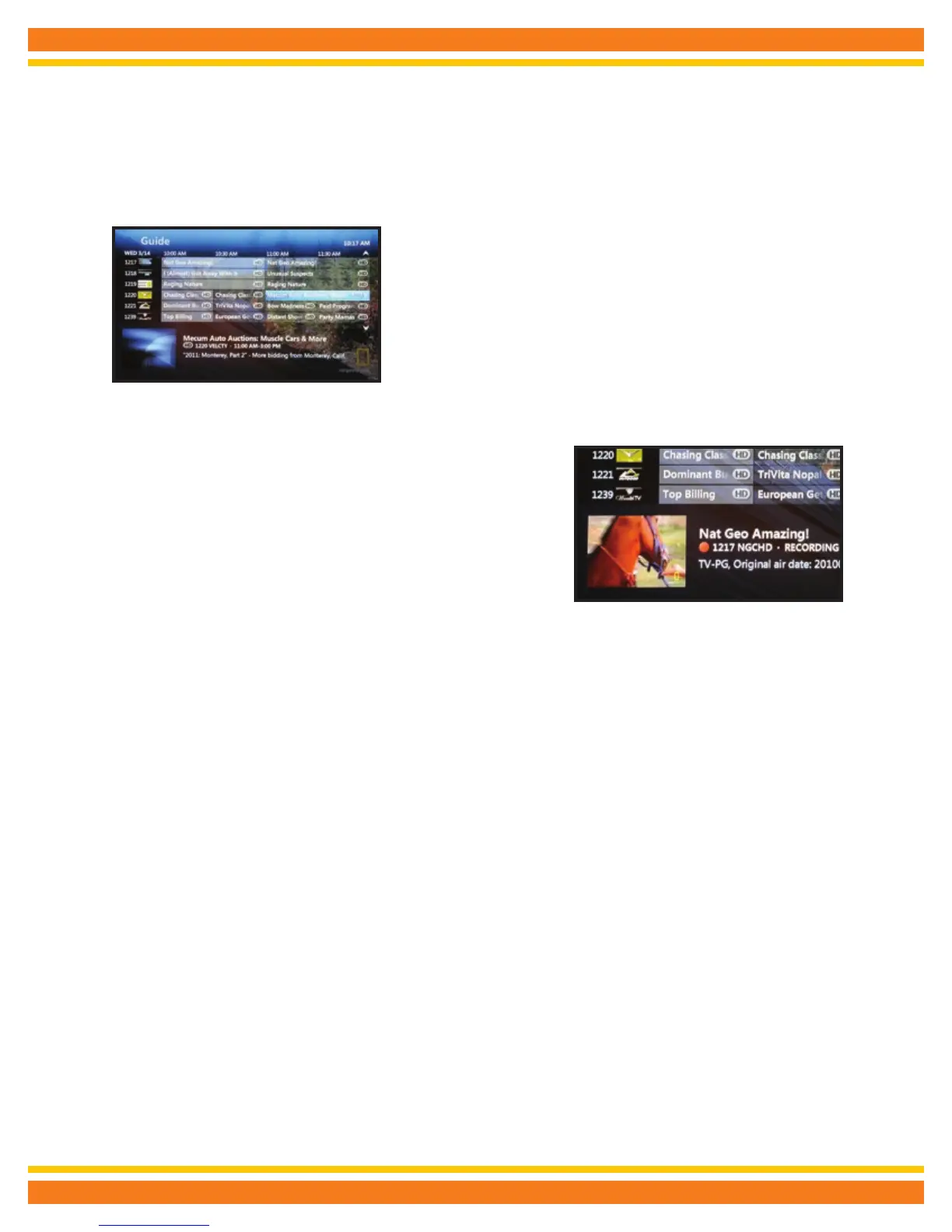
Use the guide to find out which shows are on and which ones are coming up.
CALLOUTS:
Information - Provides details about a highlighted program including the title,
time, rating, description and cast information if available.
Guide - Displays program listings by time and channel.
Programming view - Displays 1½ hours of program listings.
1. Press (GUIDE).
2. Use (UP/DOWN ARROWS) to scroll through and highlight a program.
3. Press (OK) to change the channel to that program.
Quick tip: To view a list of all programs on a channel, use (LEFT ARROW) to highlight the channel logo and number and press (OK)
and to go forward or backward in the guide in 24-hour intervals, press (REW/FF).
PICTURE-IN-PICTURE BROWSING
Find out what’s playing on other channels without missing a moment of what you
are currently watching.
1. Press (UP/DOWN ARROWS) or (LEFT/RIGHT ARROWS) to scroll through the
program listings while watching live TV.
2. Press (OK) to select a program or to get more information about an upcoming
program.
3. Press (EXIT TO TV) to close the browse panel.
Quick tip: When you press (LAST) on your remote, Plex Advanced TV will change channels to the last channel you were watching.
You will also see a pop-up of the last 5 channels you viewed with Picture-in-Picture. This pop-up will disappear after 10 seconds or
press (LAST) again to exit this screen immediately.



 To Next Page