46
Windows 10
Start
Press and release the power button for 1 second.
(Note: if there is no answer when you press the power
button, the device may need to be reloaded).
Power off / Reboot
From the Start screen, press the power button
> Standby / Power off / Reboot
Lock the screen
Press the power button.
Wi-Fi connection
Select the network icon on the taskbar, select the
desired WiFi network, connect, then type the password
and follow the instructions.
Bluetooth connection
With the Bluetooth connection, you can use all the
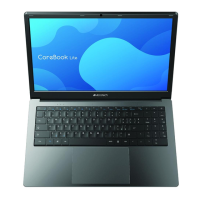
wireless device with your CoreBook Lite.
Changing the Language of the System
From Settings go to Date/Time and language >
Geographical area and language


 To Next Page