5
Control Panel Setup
Once setup is complete, you can control most aspects of the Audiolink Pro using its control
panel.To launch the control panel in your operating system, check the following instructions:
The control panel has the following sets of controls:
Configuration:
Device: Please chose the Audiolink Pro USB audio device.
Output: the 2 channel output of Audiolink Pro.
Format: you can set your Audiolink Pro playback sampling rate from 16bit/44.1kHz~24bit/96kHz.
Input: the 2 channel input of Audiolink Pro.
Format: you can set your Audiolink Pro input sampling rate from 16bit/44.1kHz~24bit/96kHz.
Latency setting: shorter latency time will require more CPU resources, 4~11msec for an average
PC. If you hear interference noise such as a “POP…”, increase latency to higher setting such as
8~20msec.
References to the driver attitude under Windows audio sequencer programs such as Cubase,
sonar or Samplitude:
The Audiolink Pro runs under hard disk recording programs in "Full Duplex Mode" (simultaneous
admission and rendition) but usually only with ASIO Multimedia drivers, the Windows WDM
driver only permits one direction (admission or rendition) at the same time. We recommend that you
download the Audiolink Pro ASIO2ks ASIO driver from our homepage www.miditech.de, or copy
it from the installation CD-ROM. The ASIO2ks driver makes it possible to use monitoring- and full
duplex- modes. Additionally, the latency time of the audio signal will be substantially reduced.
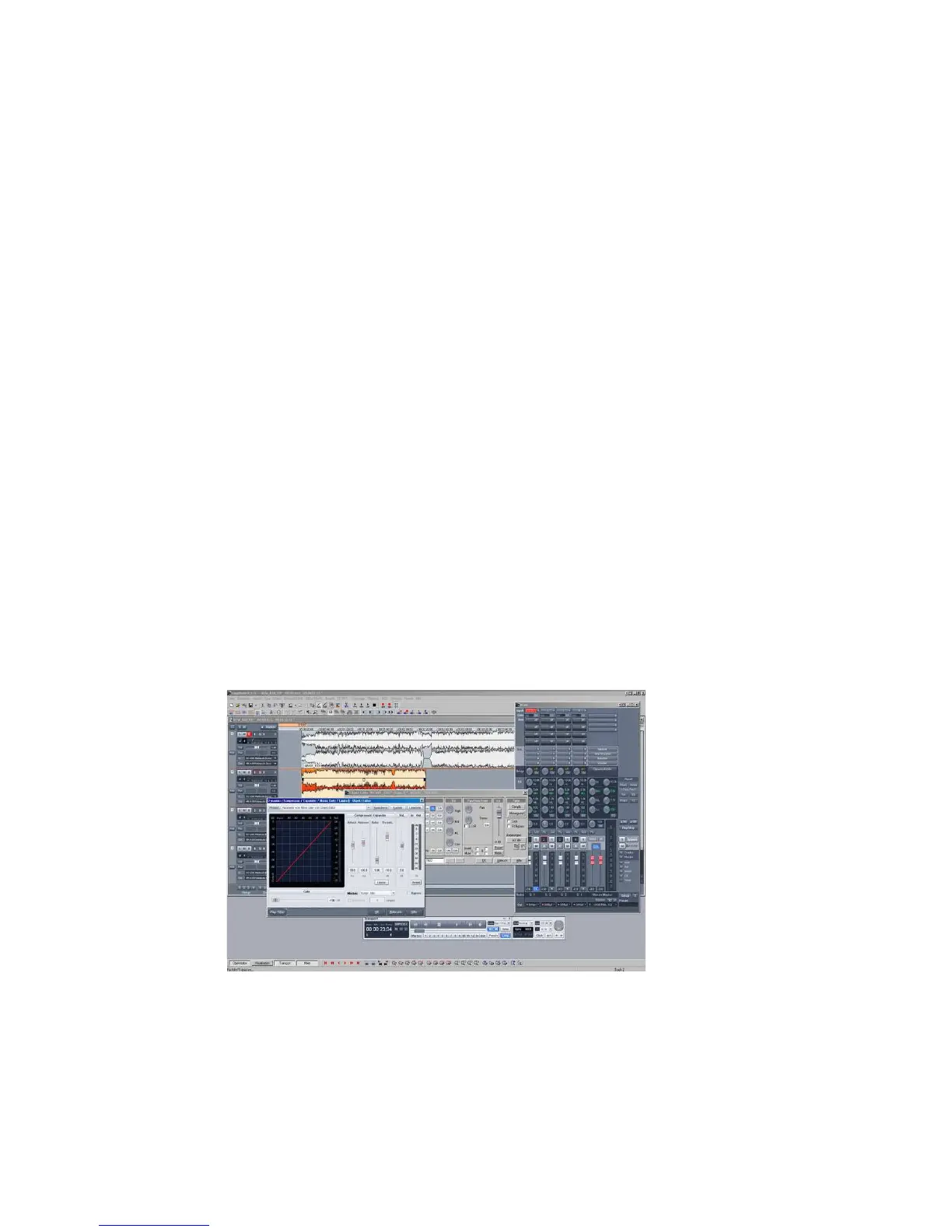
Hard disk-recording software "Magix Samplitude SE"
The bundled software, which is shipped with the Audiolink Pro, is special software for multiple
hard disk recording, cutting and editing recorded music and speech.
Regarding the driver set-up in "Samplitude SE"


 To Next Page