7
millnorway.com
EN
Control Panel
ATTENTION! In the event of a power cut, the thermostat will reconnect with WiFi
where all the temperatures are saved.
WARNING! BEFORE THE HEATER IS TURNED ON, IT MUST BE ATTACHED TO A WALL.
IF THE HEATER IS NOT INSTALLED CORRECTLY OR IS INSTALLED ASKEW, THIS MAY
CAUSE THE HEATER TO MALFUNCTION OR IN THE WORST CASE, BE DAMAGED
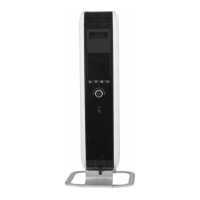
1. Display (shows the desired room temperature by default)
2. WiFi indicator
3. Power indicator — Shows whether the heater is using power or not
4. Control button (+) (increase temperature)
5. Control button (–) (reduce temperature)
6. WiFi button
7. Settings button
8. LED lights indicating how much power the heater is using
Instructions
TIPS! The thermostat can be used as a regular electronic thermostat (i.e. the
heater will maintain a constant temperature 24 hours a day). Please see the section
explaining usage without WiFi connection for further information
The heater will stay in open window mode for maximum 1 hour, it then will go back
to normal heating mode.
Usage without WiFi connection
Set desired temperature without WiFi connection
Press the arrow buttons to set the desired temperature. The heater keeps an even
You can enable/disable child lock from the app. But in addition, you can also enable/disable
child lock from the heater itself.Turn off the heater using the main power switch. Turn the heater
back on, within 5 seconds press the and hold . After 3 seconds the display will show "CHL",
once you see "CHL" release and the heater enables/disables child lock.
temperature the whole day and night.
Child lock
For models PA500LWIFI3M, GL500LWIFI3M, PA900WIFI3MP, GL900WIFI3MP,
PA1000WIFI3MP and GL1000WIFI3MP please follow the steps below to enable/
disable open window function:
Press to enter menu. Use + and - button to navigate the menu until you see "Fo" in the
display. Press to enter open window function mode. Press + or - button to choose
between "On" or "Off". Select option by pressing . This will enable or disable the open
window function. You can also disable/enable open window function from the app if con-
nected to WiFi.


 To Next Page
 Loading...