The Mirabella Genio Smart Aurora Sky Projector with Bluetooth speaker (KEYCODE: I003992) is a smart device designed to project a starry sky onto your ceiling, complete with floating colorful clouds, creating the visual experience of the milky way and galaxy nebula within your room. It also functions as a Bluetooth speaker.
Function Description:
The projector creates a dynamic visual display of stars and nebulae, enhancing the ambiance of any indoor space. Its integrated Bluetooth speaker allows for audio playback, which can be synchronized with the visual projections through a music sync mode. The device can be controlled manually via onboard buttons or through the Mirabella Genio smartphone application, offering a range of customization options for both lighting and sound.
Important Technical Specifications:
- Classification of Lasers: Class 1
- Work Temperature: -10~40℃
- Wireless Type: WiFi 2.4Ghz
- Laser Color: Green
- LED Colors: Green, Red, Blue
- Application: Indoor use
- Control by: Amazon Alexa, Google Home, APP
- Dimensions (cm): 16L9W14.5H
- Power Input: 12V 1A
Usage Features:
Manual Control:
The projector features three main buttons for manual operation:
- Power Button: A short press turns the device ON/OFF. A long press and hold activates the pairing mode for Wi-Fi or Bluetooth.
- Sound Button: Pressing this button enables the music sync mode, allowing the visual projections to respond to the audio being played.
- Mode Button: This button cycles through different projection modes automatically, offering various visual effects.
Bluetooth Speaker Functionality:
- Activation: The Bluetooth feature is ON by default when the projector is powered on, indicated by a voice prompt "Bluetooth Mode".
- Pairing: To pair, turn on Bluetooth on your smartphone and search for new devices. Select "Genio projector" from the list. A voice prompt "Bluetooth pairing Successful" confirms successful pairing.
Smart Control via Mirabella Genio App:
Connection Preparation:
- Ensure your phone is connected to a 2.4Ghz Wi-Fi network (not 5GHz). Verify this in your phone's Wi-Fi settings by checking that the SSID does not end with "5G" or "5GHz".
- Confirm a strong Wi-Fi signal (at least two bars) at the device's installation location. If the signal is weak, consider relocating the device or using a Wi-Fi extender.
- Download and install the "Mirabella Genio" APP from the App Store or Google Play.
Bluetooth Pairing Method (Recommended):
- Turn on your phone's Bluetooth.
- Press and hold the POWER button on the projector until the blue LED light starts blinking, indicating it's ready to pair.
- Open the Mirabella Genio APP and tap the "+" icon in the top right corner.
- The APP will automatically discover the projector. Tap "Go to add".
- Select the plus symbol "+", then enter your 2.4Ghz Wi-Fi network name and password (do not use 5G networks).
- Wait for the projector to be added to your Genio APP.
EZ Method (Alternative Pairing if Bluetooth Fails):
- Turn OFF Bluetooth on your phone.
- Connect the projector to power and switch it on. Wait for the blue LED to start blinking rapidly (2 blinks per second). If it doesn't blink, press and hold the POWER button until it does.
- Launch the Mirabella Genio APP, tap the "+" symbol, choose "Electrical", and then select "Star Projector" from the menu.
- Follow the in-app instructions to complete the network pairing process.
- Troubleshooting Time-out Errors:
- If the light never stops blinking: Check phone settings; ensure "local network" permission is enabled for the Genio APP (especially for iOS 14 users).
- If the light stops blinking but fails to "register on cloud": This indicates a communication error with your router. Disable 5Ghz Wi-Fi and keep only 2.4Ghz Wi-Fi active.
- Ensure correct 2.4Ghz Wi-Fi name and password are entered.
- Verify good Wi-Fi signal and no obstructions (glass/metal shades).
- Confirm 5Ghz Wi-Fi signal is turned off on the router.
- Note: This projector does not support the slow blinking AP method.
APP Interface Features (Subject to firmware updates):
- On/Off: Toggle the projector's power.
- LED Color and Laser Speed: Adjust the colors of the LED lights and the speed of the laser projection.
- Choosing Profiles: Select from pre-set projection profiles.
- Adjusting Music: Control music playback and synchronization.
- Timer/Countdown: Set schedules for the projector's operation.
Maintenance Features:
- Resetting: To connect to a different Wi-Fi network or Genio account, go to the projector's settings page in the APP, select "remove device", then reset the projector and pair it again.
- Offline/Reconnect Issues: If the projector goes offline and doesn't reconnect after a power failure, remove the device from the APP, reset the projector, and pair it again.
Important Warnings:
- Keep away from children; adult supervision is required for use by children.
- Use the product according to instructions.
- Do not stare directly at the projection lens.
- Do not disassemble or assemble the device yourself.
- For indoor use only (best in a dark environment).
- Use only the provided adapter.
- Do not point the laser light at people or pets.
- Keep away from water to prevent damage.
- Do not cover the laser light.
- CAUTION: Class 1 Invisible Laser Radiation Present. Avoid long-term viewing of laser.

 Need help?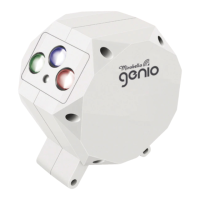

 To Next Page
 General