Product Number: QG0005-05 Revision: A0; Date: 6/18/10 7
NV9000 Control System
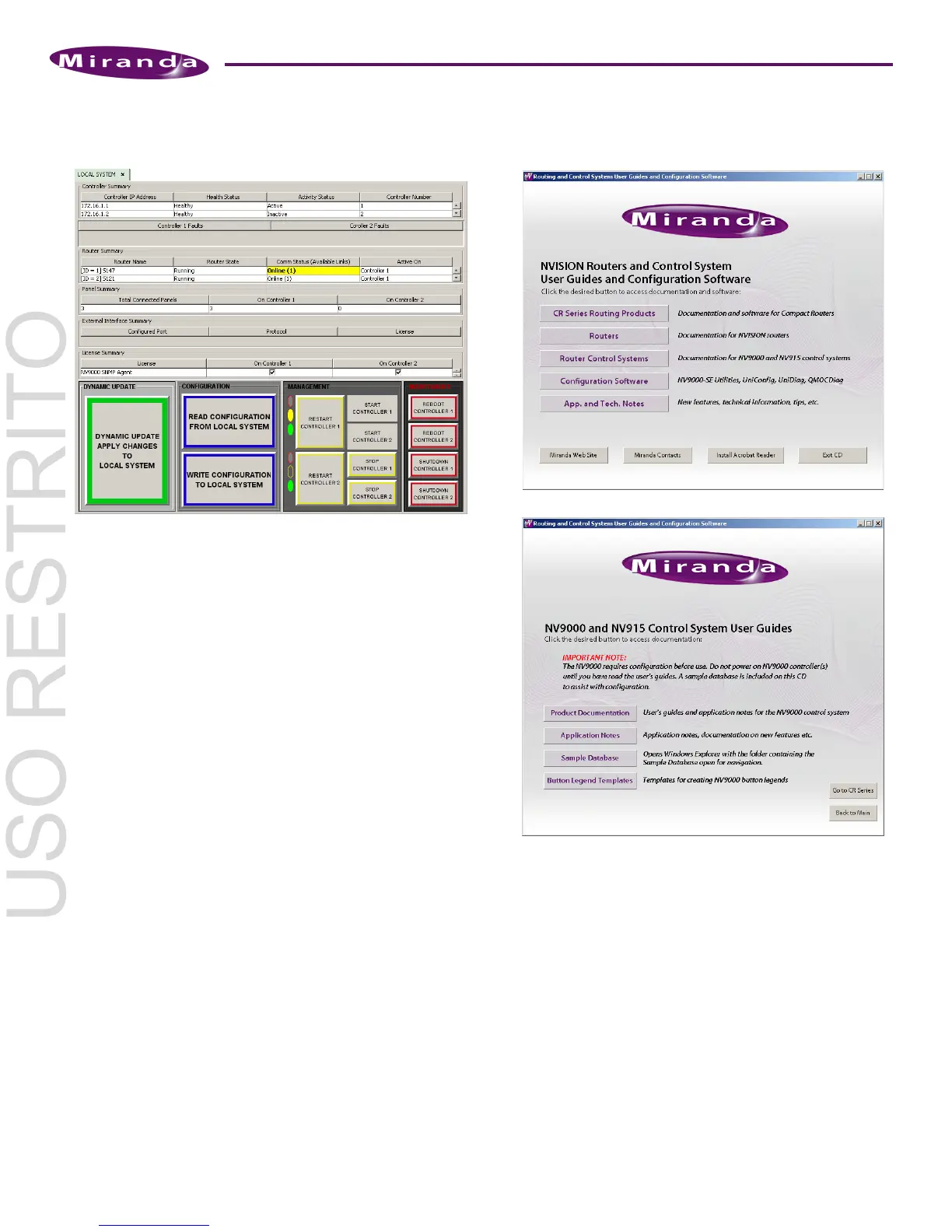
In the ‘System Management’ pane, click the icon of the
system controller you want to configure. The system man-
agement page opens:
S The system controller icon must be green, otherwise the page
does not open. Yellow icons represent system with warning-
level errors. Red icons indicate severe errors or disconnected
systems.
There are two remaining steps:
• Click ‘Write configuration to ‹your system›’. Wait until
the write completes. Progress indicators appear and
then disappear.
• Click ‘Restart Controller 1’ to start the controller with
the new configuration. It takes about 30 seconds. Wait
until the restart completes.
If you have a redundant system, also click ‘Restart Con-
troller 2’.
As an alternative, you can click ‘Dynamic Update Apply
Changes to Local System’.
From this point onward, you can define (and refine) your
NV9000 configurations and test them.
Sample Configuration
You can either use Miranda’s sample configuration as a start-
ing point or begin with a new (empty) configuration. When
you begin to define a new configuration, we suggest you fol-
low the order of the pages in the ‘Configuration’ pane. Refer
to the User’s Guide or on-line help for detailed information.
Follow these steps to obtain the sample configuration.
1) Load the SB0033 CD in your CD-ROM drive. The main
screen appears:
Click ‘Router Control System’. The next window appears:
Click ‘Sample Database’. The folder containing the data-
base opens. It contains a .zip file that you should copy to
your file system or a USB memory device.
2) Launch NV9000-SE Utilities. Choose ‘Import from ZIP
archive...’ from the ‘File’ menu. Browse to select the .zip
file. Click ‘Open’. Give the configuration a name. SE takes
a few seconds to save the configuration.
Follow these steps to load the configuration in a system con-
troller:
3) In NV9000-SE Utilities, with the configuration open, go to
the ‘System Management’ pane and click the controller’s
icon. (It must be green.) Then click ‘Write configuration to
‹your system›’ in the system management page.
Click ‘Start’ or ‘Restart’.


 To Next Page
 Loading...