
 Need help?
Do you have a question about the Mitone MITSG10 and is the answer not in the manual?
Lists iPhone models and iOS version requirements for the Smart Gear App.
Procedure to manually set up the device by scrolling through TIME, UNIT, USER, SLEEP, CAL, MOVE TIME, VIBRATION, and PAIR.
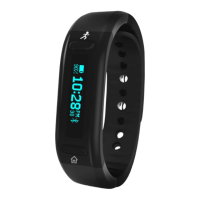
The MiTone Smart Gear Fitness Tracker (MITSG10) is a wearable device designed to help users track their fitness activities and receive notifications from their smartphone. This guide provides instructions for setting up and using the device, with a strong recommendation to use the accompanying Smart Gear App for an enhanced experience.
The MiTone Smart Gear Fitness Tracker primarily functions as a personal activity monitor, automatically counting steps and calculating calorie burn throughout the day. It also allows users to set daily goals and compare their current statistics against these targets. Beyond fitness tracking, the device offers real-time information such as time, date, and battery power. When paired with a smartphone, it extends its functionality to include weather updates, incoming call notifications, and text message alerts. The device is designed to provide a quick glance at daily activity and essential information, making it a convenient tool for monitoring personal health and staying connected.
The MiTone Smart Gear Fitness Tracker offers both app-based and manual setup options, providing flexibility for users.
The Smart Gear App, available for Apple iPhones (4S, 5, 5C, 5S, 6, 6plus with iOS 7.0 or higher) and Android smartphones (Samsung Galaxy SIII, S4, S5, Note II, Note III/IIII; LG Nexus 4, Optimus G; Motorola Moto X; HTC One X with OS 4.3 (Jelly Bean) or higher and Bluetooth 4.0), significantly enhances the device's setup and ongoing use.
To pair the device with the Smart Gear App:
The app streamlines the process of configuring settings, tracking progress, and managing notifications, offering a more comprehensive and user-friendly experience compared to manual setup.
For users who prefer not to use the app, the MiTone Smart Gear can be set up manually:
The device provides real-time information accessible by pressing button S1 repeatedly to scroll through various screens:
Note on Bluetooth: On all daily information screens, a Bluetooth icon will appear if Bluetooth is ON. If the icon is absent, Bluetooth is OFF. To toggle Bluetooth ON or OFF from any Daily Activity screen, press and hold the S1 button.
For the following functions, the device must be paired with a smartphone using the Smart Gear App:
These features enhance the device's utility beyond basic fitness tracking, allowing users to receive important notifications directly on their wrist.
Proper maintenance ensures the longevity and optimal performance of the MiTone Smart Gear Fitness Tracker.
It is recommended to charge the battery for 3-4 hours before the first use.
A fully charged battery is expected to last approximately 7 days under normal use conditions. To preserve battery life and ensure proper functionality, it is advised not to let the battery discharge below 10% before recharging. Some functions may be disabled if the battery level falls below 10% to conserve power.
When the time comes to dispose of the product, it is important to do so responsibly. Waste electrical products should not be discarded with household waste. Users are encouraged to recycle these products where facilities exist. For specific recycling advice, consult your Local Authority or retailer, adhering to the guidelines of the Waste Electrical and Electronic Equipment Directive.
 General
| Model | MITSG10 |
|---|---|
| Battery Life | Up to 7 days |
| Water Resistance | IP67 |
| Connectivity | Bluetooth 4.0 |
| Category | Fitness Trackers |
| Compatibility | Android, iOS |
| Sensors | Heart rate monitor |

 To Next Page