EasyManua.ls Logo

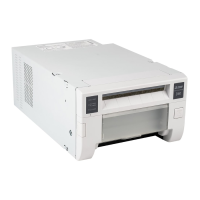
Mitsubishi Electric CP30DW - User Manual

Mitsubishi Electric CP30DW
32 pages
Print Icon
To Next Page IconTo Next Page
Loading...
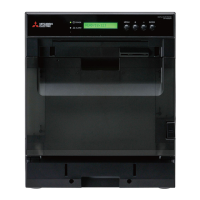
DIGITAL COLOR PRINTER
MODEL
CP30DW
OPERATION MANUAL
THIS OPERATION MANUAL IS IMPORTANT
TO YOU.
PLEASE READ IT BEFORE USING YOUR
DIGITAL COLOR PRINTER.
This digital color printer complies with the requirements of the EC
Directive 89/336/EEC, 73/23/EEC, 93/42/EEC and 93/68/EEC.
The electro-magnetic susceptibility has been chosen at a level that
gains proper operation in residential areas, on business and light
industrial premises and on small-scale enterprises, inside as well as
outside of the buildings. All places of operation are characterised by
their connection to the public low voltage power supply system.

Other manuals for Mitsubishi Electric CP30DW

Questions and Answers

  • L
    lenglishJul 31, 2025
    How to troubleshoot printing issues on a Mitsubishi Electric CP30DW Printer?
    • M
      Melanie SmithJul 31, 2025
      If your Mitsubishi Electric Printer is not printing, several issues could be the cause. Make sure a ribbon cartridge is loaded and not empty. Also, check that a paper cassette is loaded with paper and that the paper supply isn't exhausted. Remove any stacked paper from the outlet and ensure that the flap and access cover are closed. Verify that the correct ribbon cartridge is installed and that it matches the paper type set on your computer. Confirm the paper size is correct, reload the paper cassette to resolve paper misfeeds. If the access cover opens during printing, power off, close the cover, and power back on. For mechanical or system errors, power off the device and contact your dealer.
  • J
    Joshua ReedAug 7, 2025
    What to do if the image is not printing on a Mitsubishi Electric CP30DW Printer?
    • J
      Jennifer LeeAug 7, 2025
      If the image is not being printed on your Mitsubishi Electric Printer, first, check if the image data is being sent to the unit. Also, verify the ribbon cartridge and print paper are not exhausted. Ensure the paper cassette is loaded correctly. If the status indicator is blinking slowly, the thermal head may be too hot; wait for the temperature to decrease.
  • D
    dramosAug 15, 2025
    How to fix a Mitsubishi Electric CP30DW when the ribbon cartridge cannot be unloaded?
    • N
      Nicole PatelAug 15, 2025
      If the ribbon cartridge cannot be unloaded from your Mitsubishi Electric Printer, power the unit off, then on again. After restarting, press the RIBBON EJECT button. If the issue persists, contact your dealer.
  • N
    Nicholas LewisAug 22, 2025
    What to do if the ribbon cartridge cannot be loaded in a Mitsubishi Electric CP30DW?
    • J
      John WalkerAug 22, 2025
      If the ribbon cartridge cannot be loaded into your Mitsubishi Electric Printer, check if the unit is powered on. Also, verify that another ribbon cartridge isn't already loaded.

Summary

Safety Precautions and Warnings

Power Requirements and Grounding Safety

Details voltage, frequency requirements, and mandatory earthing for apparatus safety.

Handling and Usage Warnings

Covers general warnings about abnormalities, inserting objects, heavy objects, power cord care, and liquid exposure.

Cabinet and Damage Prevention

Warns against opening the cabinet and using damaged units due to electrical hazards.

Installation and Handling Precautions

Slot and Component Safety Warnings

Warns about inserting fingers into slots and touching hot thermal heads/metal parts.

Special Features and Product Overview

Front Panel Features and Functions

Control Buttons and Indicators

Explains the functions of the power button, dimmer, mode button, and status display.

Slots, Sensors, and Covers

Details the ribbon cartridge slot, eject button, size indicator, print stack sensor, and access cover.

Status Display Indicator Details

Indicator Meanings and Functions

Explains the meaning and behavior of the DATA, RIBBON, PAPER, and ALARM indicators.

Status Indicator for Ink and Errors

Describes the status indicator for ink ribbon amount, error status, and thermal head temperature.

Rear Panel Connections and Controls

Connections and Settings Configuration

Before Operation: Paper Loading

Print Paper Loading Procedures

Before Operation: Ribbon Loading

Printer Driver Installation

Troubleshooting: Status Display Errors

Error Codes and Countermeasures

Lists status indicator errors (e.g., E1, E2, E3) and their corresponding causes and remedies.

Troubleshooting: Overcoming Paper Jams

Paper Jam Clearance Steps

Provides detailed instructions for clearing paper jams, including ribbon cartridge handling and dial usage.

Before Calling for Service

Common Symptom Resolution

Offers checks and remedies for common issues like power not turning on or no printing.

Printer Specifications

Mitsubishi Electric CP30DW Specifications

General IconGeneral
BrandMitsubishi Electric
ModelCP30DW
CategoryPrinter
LanguageEnglish

Related product manuals