EasyManua.ls Logo

Mitsubishi HD-5000 - User Manual

Mitsubishi HD-5000
117 pages
Print Icon
To Next Page IconTo Next Page
Loading...
visit our website at
w w w.mitsubishi-t v.com
MENU
ENTER
A/V RESET FORMAT
CANCEL
POWER
SYSTEM
RESET
HD-5000 HDTV Receiver/Controller
DEVICE
CH+
ADJUST
CH –
VOL+VOL –
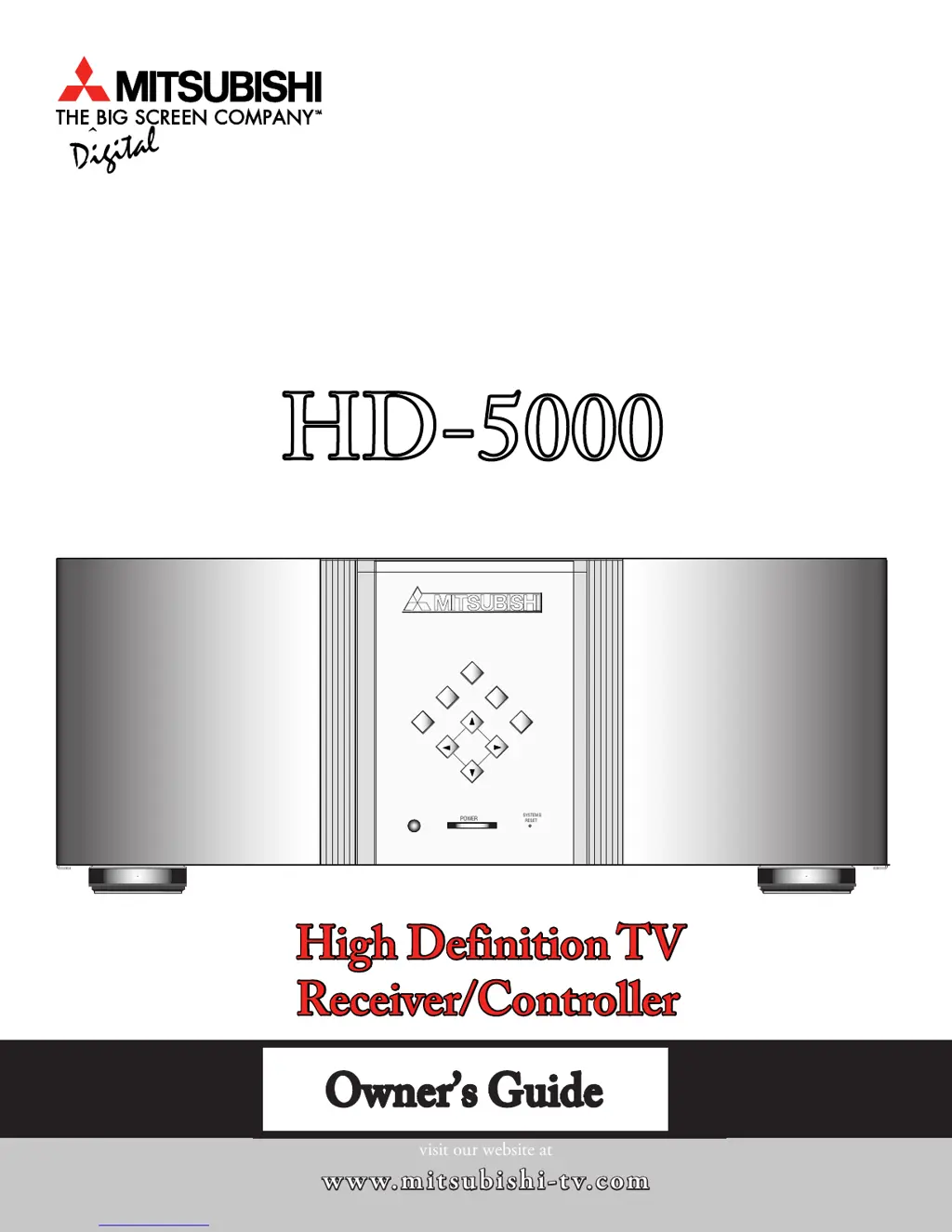
HD-5000
High Definition TV
Receiver/Controller
Owners Guide

Table of Contents

Questions and Answers

  • K
    Kimberly RoySep 23, 2025
    What does it mean DVCR analog/digital problems on my Mitsubishi HD-5000?
    • R
      Ricky WrightSep 23, 2025
      If the tape is currently playing but no picture displays, you may have a mismatch of the media with the display. Press the DEVICE key to display the Device Selection menu. Press ENTER for the DVCR device. From the pop up box, if digital is selected, try analog, or if analog is selected, try digital.
  • J
    Jason AdamsAug 23, 2025
    What to do if the Device does not respond to key presses from the remote of my Mitsubishi HD-5000 TV Receiver?
    • C
      christina96Aug 23, 2025
      If your device isn't responding to remote key presses, several factors could be at play. First, ensure your remote is properly set up for NetCommand use (refer to the HD-???? Owner’s Guide for setup instructions). If the remote is set up, the incorrect manufacturer may have been selected during setup. To correct it, select Change on the Edit NetCommand menu, then select the device to display the manufacturer selection and change it if necessary. Also, the IR emitter may be incorrectly placed, so make sure the IR emitter is facing the IR sensor in the device and is not plugged into the IR emitter Output NetCommand. Finally, be sure that the IR emitter cannot 'see' the HDTV Receiver IR Sensor.
  • J
    Joshua WilliamsAug 25, 2025
    Why is my IEEE ???? Device not listed in the Device Selection menu of my Mitsubishi HD-5000?
    • S
      Shannon FieldsAug 25, 2025
      If your IEEE ???? device isn't showing up in the Device Selection menu, first check the Review screen in the Edit NetCommand Setup (via the Main menu) to ensure the device is checked. Also, make sure the IEEE ???? plug is securely connected and that the IEEE ???? Device has been powered on. Keep in mind that device discovery can take up to a minute. Ensure the device is an Audio/Video device.
  • A
    Alex BakerAug 26, 2025
    What to do if an IEEE ???? device has been plugged in but does not appear in the Device Selection menu (not discovered) of my Mitsubishi HD-5000 TV Receiver?
    • D
      David PowersAug 27, 2025
      If an IEEE ???? device isn't appearing in the Device Selection menu after being plugged in, ensure the IEEE ???? connection to the HDTV Receiver or another device is secure and not loose. Also, verify that the IEEE ???? device is powered on, along with all other devices in the IEEE ???? chain. Note that device discovery can take up to a minute. Also, the IEEE ???? cable may be too long. Finally, the IEEE ???? device may use an incompatible protocol.
  • N
    Natasha MendozaAug 27, 2025
    What to do if I cannot record to or from the IEEE ???? device, including Dub recordings, on my Mitsubishi HD-5000 TV Receiver?
    • R
      Rebekah SwansonAug 27, 2025
      To initiate a recording to an IEEE ???? device, first select the source device to record, such as Ant-DTV (NOT the recording device). Then press the REC key. The Record/Connect menu will display, allowing setup of the recording. Ensure the source device for the recording is powered on, and for dubbing, ensure the destination device is also powered on. Check that the correct media is in the device (analog tape for analog recording, or digital tape for digital recording). The program may be copy-protected, or there may be too many IEEE ???? devices in the network, causing insufficient bandwidth. If the source device has a higher speed (S ???) than the record device, reverse the devices if possible.
  • J
    Juan HeathSep 18, 2025
    Why the IEEE ???? device cannot be selected on my Mitsubishi HD-5000?
    • S
      Steven ParsonsSep 18, 2025
      Both IEEE ???? devices and Ant-DTV cannot be displayed in the PIP. Also, the device may be busy, either recording or a peer-to-peer connection has been established. Cancel the recording or peer-to-peer connection.
  • M
    Mrs. Jennifer RussellSep 15, 2025
    Why does the DEVICE MENU button not display a menu on my Mitsubishi HD-5000 TV Receiver?
    • R
      Rebecca KnightSep 15, 2025
      The IEEE ???? device may not provide a menu.
  • A
    Andrew NobleSep 16, 2025
    Why I cannot control the IEEE ???? device from the Transport Menu on my Mitsubishi HD-5000?
    • C
      Christopher RiosSep 16, 2025
      The device may not support the command. Also, the selected function may be gray (such as Record for a DVD, which does not support the Record function).
  • A
    Amanda LindseySep 6, 2025
    What to do if I see Excessive digital artifacts on my Mitsubishi HD-5000?
    • T
      Tiffany LewisSep 6, 2025
      Excessive digital artifacts may occur if the IEEE ???? cable is too long (maximum of ?? feet between devices). Also, a slow device in the middle of the IEEE ???? network may cause this issue. Move slower devices to the end of the network so that connections for faster devices do not pass through them.
  • D
    David SweeneySep 3, 2025
    What to do if I cannot see a picture from a DV Camcorder on my Mitsubishi TV Receiver?
    • G
      George HessSep 4, 2025
      If you cannot see a picture from a DV Camcorder, go to the Device Selection menu and select analog connection. Alternatively, connect the DV Camcorder to an analog input (for example, Input-?). Then, go to Setup in the main menu, select Edit NetCommand, and select Change. On the Change screen, select the camcorder. On the Name screen, check Analog Connection. Then select the device and on the following screen, select which analog input was used, and check audio and/or video.

Summary

IMPORTANT SAFEGUARDS

Heed Warnings

Follow all warnings on the appliance and in operating instructions.

Water and Moisture

Do not use near water or immersion.

Object and Liquid Entry

Never push objects or spill liquids into the unit.

Servicing

Do not attempt self-service; refer to qualified personnel.

CHAPTER ONE

Special Features

Highlights key features of the HDTV Receiver/Controller.

Unpacking Your New HD-5000

Lists the included items in the package for the HD-5000.

Front Control Panel

Details the buttons and indicators on the front of the unit.

Back Panel

Describes the various input and output connectors on the rear.

CHAPTER TWO

NetCommand Overview

Introduces the NetCommand system and its capabilities.

NetCommand Supported Devices

Lists devices compatible with the NetCommand system.

Connecting an Antenna

Instructions for connecting antennas for digital broadcasts.

Connecting an Analog Antenna, Wall Outlet Cable, or Cable Box

Guides for connecting analog antenna sources and cable boxes.

CHAPTER THREE

NetCommand Setup - Getting Started

Provides initial steps and guidance for setting up NetCommand.

Programming the Remote Control to Control the HD-5000 and Net Command

Instructions for programming the remote for HD-5000 and NetCommand devices.

NetCommand Setup

Details the initial setup screens for the NetCommand system.

Edit NetCommand

Explains how to add, change, delete, or review NetCommand settings.

CHAPTER FOUR

3 D Graphical ViewPoint Menu System

Describes the 3D graphical on-screen operating system.

Device Selection Menu

Allows selection of devices, audio sources, and power control.

PIP;POP Device Selection Menu

Enables selection of sources for Picture-In-Picture display.

Menu Screens (Overview)

Provides an overview of various menu screens like Setup, Antenna, Clock, Captions.

CHAPTER FIVE

Remote Control Functions: Overview

Provides a detailed overview of all remote control buttons and functions.

Remote Control Functions: Channel Selection, PIP and POP

Explains channel selection and the operation of PIP/POP features.

Remote Control Functions: Using PIP and POP

Details how to change PIP/POP sources, images, and formats.

Remote Control Functions: Display Formats

Describes various screen format options for matching picture to monitor.

Mitsubishi HD-5000 Specifications

General IconGeneral
BrandMitsubishi
ModelHD-5000
CategoryTV Receiver
LanguageEnglish