11 12
10. FEATURES FROM YOUR PHONE
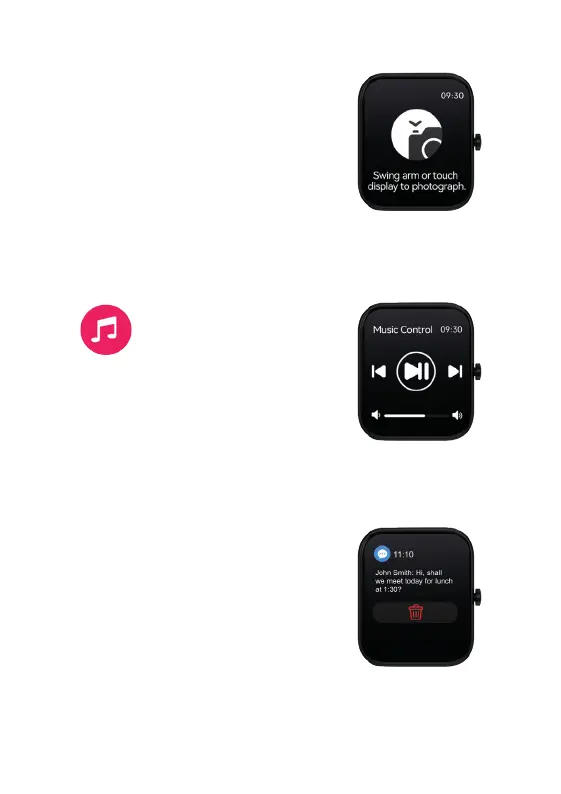
REMOTE CAMERA
On the phone App, select your device. Then scroll
to the option: ‘Rotate Wrist to Take Photo’ under the
Tools section.
The camera on your phone will open and the screen
on your Watch Core will change to the Photograph
screen. Depending on your phone, you may have to
switch to selfie-mode.
Set up your phone to point at the desired subject and use your Watch Core to
take the photo by either: tapping the screen of your Watch Core or rotating your
wrist. Your Watch Core photos will be automatically saved to a new album on
your phone.
MUSIC CONTROL
For this feature to sync with your Watch Core make
sure all permissions are allowed on your phone.
Open your preferred music App on your Smartphone.
Your music will need to be playing for the
Watch
Core to sync correctly within the App.
From the Watch Core
home screen swipe left once to the Music Control feature.
You can now use your Watch Core to play/pause, skip tracks and adjust the
volume of your music playing on your phone or connected Bluetooth device.
MESSAGES
You will need to make sure permissions
are allowed on your phone.
In the App select your device, then ‘Notifications’.
From here you can choose which Apps have
permission to send notifications to your Watch
Core.
From the Watch
Core home screen, swipe down to
locate your messages.
The Watch
Core will buzz to alert you of a new message/notification. Up to 10
messages can be stored on the watch at one time.


 To Next Page