5 6
LET’S PAIR THE APP TO YOUR WATCH
IMPORTANT!
Please install and open the App on your phone, then follow the
instructions below as numbered:
1. In the App, tap the device icon to open the device screen.
2. Tap ‘Add new device’ to find the Watch Core in device list.
3. Accept the App instructions for location permission.
4. Select ‘MIXX WatchCore’ on your phone.
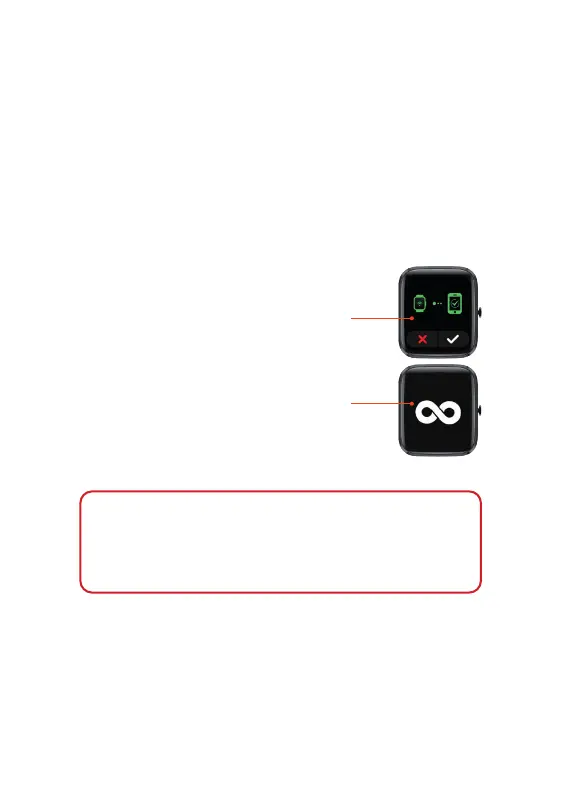
On your watch screen, you should now see a
graphic to confirm the device pairing.
Tap the tick to confirm.
5. Once paired you will see an infinity symbol on
your Watch Core screen. You should now be
successfully paired with your Watch Core.
NOTE: Please DO NOT try to pair your MIXX Watch
Core using
the Bluetooth settings on your phone directly.Unpair with your
phone’s Bluetooth settings and start from the ‘IMPORTANT!’
message above to pair with the FREE WoFit App.
To UNBIND, tap the device icon, select your device and choose
Cancel pairing from the bottom of the list of options.
ET’S LINK TO...
Open the WoFit app
Tap the ‘Mine’ icon to reveal your settings.
Select ‘Connect via 3rd Party Platform platform’.
Select connect to ’Apple Health’.
Open your Apple Health app and tap your profile picture.
In your Apple Health profile select: Apps in your privacy settings.
Select ‘WoFit’ from the list.
Finally, activate the categories that you want WoFit to track.
ET’S LINK TO...
Open the WoFit app
Tap the ‘Mine’ icon to reveal your settings.
Select ‘Connect via 3rd Party Platform platform’.
Select connect to ’Google Fit’.
Choose a Google account to connect your WoFit app.
Allow WoFit to access your Google account
WoFit is now connected to your Google Fit app.


 To Next Page
 Loading...