44 45
FX
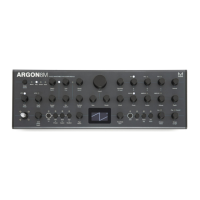
ARGON8X features 3 incredibly powerful independent and user configurable stereo FX
engines and a separate per-voice waveshaping distortion pre-FX engine. The FX types are:
Chorus, Phaser, Flanger (Pos), Flanger (Neg), Tremolo, LoFi, Rotary, Stereo Delay, Ping-Pong
Delay, X-Over Delay and Reverb and can be rearranged in any order in series. 1>2>3. Any
effect can go in any slot, but you may only use 1 type of each effect per preset.
• Distortion: This encoder allows us to control the Distortion amount. The distortion is a
waveshaping overdrive and as such is incapable of bit- crushing effects.
• FX Level: Holding the ‘Shift’ button and (or when latched in shift mode) this encoder
allows us to control the FX level amount within this patch.This parameter affects the
Dry/Wet mix of the of the FX engine’s audio output with the pre-FX signal. When set to
minimum, only the dry signal will be heard. When set to maximum, only the FX engine’s
signal will be heard.
• A: This encoder allows us to control the first parameter of the selected effect.
• B: This encoder allows us to control the second parameter of the selected effect.
Tip: Turn the ‘FX1,2 and 3 B’ encoder into the negative range to access synced delay
times with delay type FX.
• C: This encoder allows us to control the third parameter of the selected effect.
• D: Holding the ‘Shift’ button and (or when latched in shift mode) this encoder allows us
to control the fourth parameter of the selected effect.
• E: Holding the ‘Shift’ button and (or when latched in shift mode) this encoder allows us
to control the fifth parameter of the selected effect.
• F: Holding the ‘Shift’ button and (or when latched in shift mode) this encoder allows us
to control the sixth parameter of the selected effect.
• FX1: This button allows to select 1st FX slot for control with encoders A-F with a single
click. With multiple clicks it will cycle through the effect type used in that slot.
• FX2: This button allows to select 2nd FX slot for control with encoders A-F with a single
click. With multiple clicks it will cycle through the effect type used in that slot.
• FX3: This button allows to select 3rd FX slot for control with encoders A-F with a single
click. With multiple clicks it will cycle through the effect type used in that slot.
Note: You can hold FX1, 2 or 3 when cycling through FX types to clear that slot.
You can press FX1 + FX2 + FX3 to jump to the ‘FX Preset Load’ page to save or load FX
presets.
FX
• Delay Mode: The delay mode control unlocks several different variations of delay,
introducing new Clean and Long settings. This setting can also be found on-screen in the
relevant FX slot page that any delay is loaded into. The modes are:
- Colour: The original classic colouring delay that saturates and smears delay tails slightly.
- Clean: A crystal clear delay with no smear to the feedback tails. Offers the same time
scaling as Standard.
- Long: Our pristine Clean delay with up to 4x Colour or Clean delay times.
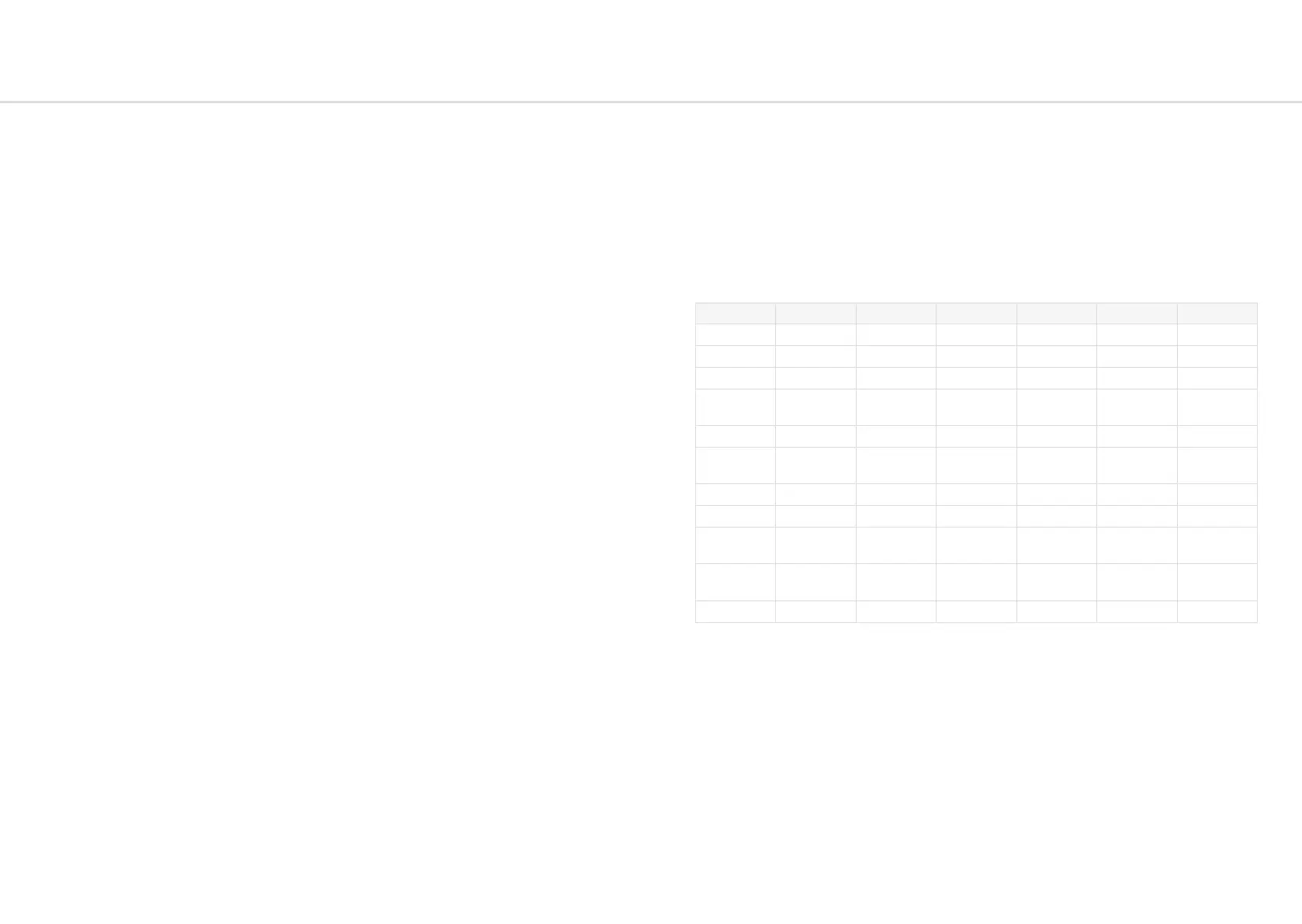
FX A B C D E F
Chorus Dry:Wet Mix Mod Depth Mod Rate Time Feedback Phase
Phaser Dry:Wet Mix Mod Depth Mod Rate Frequency Feedback Phase
Flanger (Pos) Dry:Wet Mix Mod Depth Mod Rate Frequency Feedback Phase
Flanger
(Neg)
Dry:Wet Mix Mod Depth Mod Rate Frequency Feedback Phase
Tremolo Dry:Wet Mix Phase Rate Shape - -
LoFi
Redux
Amount
SR Redux Bitcrush BC Amount Noise -
Rotary Dry:Wet Mix LFO Rate Vibrato Balance Width -
Stereo Delay Dry:Wet Mix Time Feedback HPF LPF -
Ping-Pong
Delay
Dry:Wet Mix Time Feedback HPF LPF Mod Depth
X-Over
Delay
Dry:Wet Mix Time Feedback HPF LPF -
Reverb Dry:Wet Mix Time Size Dampening Pre-Delay Modulation
FX Presets
ARGON8X can store up to 100 FX presets on board and comes loaded with 60 factory FX
presets for you to instantly switch up your sound. FX presets range from simple single-FX
presets to complex multi-FX presets.
To easily navigate to the FX preset page simply press all thee FX slot buttons (FX1, FX2, FX3)
at the same time. Loading an FX preset will apply preset FX settings to the currently loaded
patch, but you need to save the patch to save the new FX settings to the patch.
FX Preset saving can be done on-screen once you have navigated to the FX preset pages.
Saving here will save the FX settings from the currently loaded patch into the selected FX
preset slot.


 To Next Page
 Loading...