5
HOT SPOT
SSID INFORMATION
NOTES
6
BATTERY BACKUP
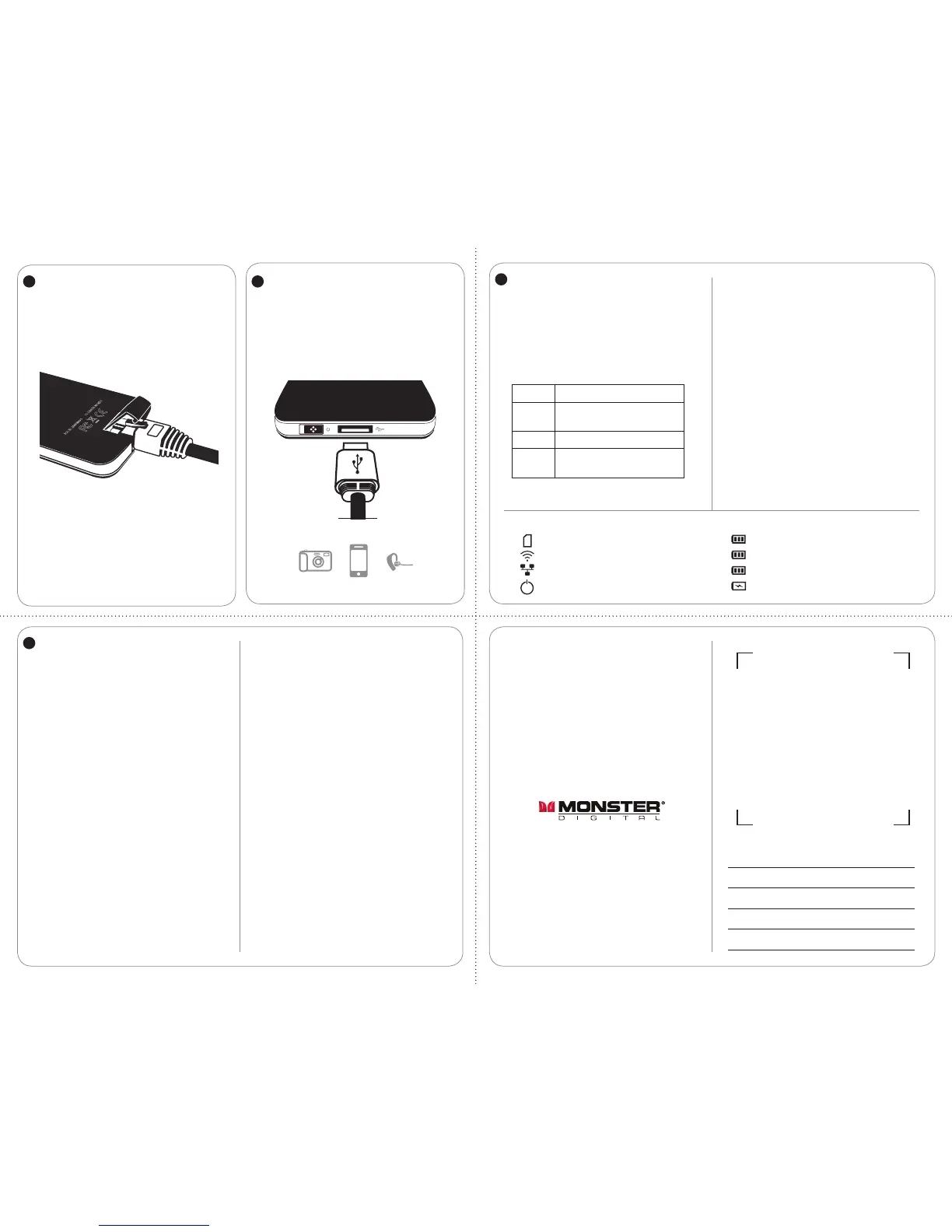
If you have wired internet, plug the
Ethernet cable into OTG Cloud to
create a hotspot for wireless access.
Please see advanced manual
to see how to set up hotspot
To charge you phone, headset or other
device via USB connect the charging
cable to OTG Cloud and the device to
be charged. Power is available when
the power switch is both on or o.
TO DEVICE
TO ROUTER
7
SETTINGS
Rename the SSID – You can change the
default SSID name of OTG Cloud to just
about anything you want in “settings”
via the App or Browser.
By Browser
1. Click Settings
2. Click Router, than click Next
3. Click DHCP Client, than click Next
4. In the box to the right of SSID
type in the new name
Spaces are not allowed!
My OTGCloud = FAIL
My_OTGCloud = OK
On this same screen you
can set encryption.
- Click WPA2 (AES)
- Click AES
- Pre-Shared Key: Enter 8-26 digits
(
no spaces or symbols
)
5. Click Finish
6. Follow the countdown to the update
7. Click OK
8. Go to your Wi-Fi settings and select
the name you just changed to in order
to reconnect to OTG Cloud.
By App
1. Click Settings
2. Click Password Setting
3. In the box to the right of SSID
type in the new name
Spaces are not allowed!
My OTGCloud = FAIL
My_OTGCloud = OK
On this same screen you
can set encryption.
- Click WPA2 (AES)
- Click AES
- Pre-Shared Key: Enter 8-26 digits
(
no spaces or symbols
)
4. Click Finish
5. Wait about 20 seconds
for the OK prompt
ATTACH SSID HERE
Monster, the MC logo, the Monster logo, and Monster Digital, are trademarks
or registered trademarks of Monster Products, Inc., or its subsidiaries in the
U.S. and other countries. On-The-Go Cloud is a trademark of Tandon Digital.
Tandon Digital is the official licensee of the Monster Digital brand and logo.
iPhone, and iPad, are trademarks of Apple Inc., registered in the U.S. and
other countries. App Store is a service mark of Apple Inc. Windows and
Vista are registered trademark of Microsoft Corporation in the United States
and other countries. Android and Google Play are trademarks of Google Inc.
Trademarks and registered trademarks are property of their respective owners.
www.MonsterDigital.com
©2015 Monster Digital
P.O. Box 941774 Simi Valley,
CA 93094
19 7
-
000044
-
P2
Download the advanced
setup guide at:
www.MonsterDigital.com/
OTGCloud/AdvancedSetUpGuide
8
A NOTE ABOUT FILE TYPES
OTG Cloud SYMBOL KEY
OTG Cloud will transfer any le type
but if your device doesn’t have the
capability to view, play or read
that le you will need to get the
right app or media player.
App Category File Types:
Color/Battery Charge Status:
Green
=
50
-
100% charge
Orange
=
20
-
50% charge
Red
=
0
-
20% charge
Blue
=
Charging
Green
=
Memory Card Connected
Green
=
Wi-Fi activity
Green
=
Ethernet Connected
Green
=
OTG Cloud is On
JSYK - Just So You Know:
Wi-Fi repeater mode vs. Router mode
In Wi-Fi repeater mode transfer speeds are
½ that of router mode. That is because ½ of
the bandwidth is going to read the storage
connected to OTG Cloud and ½ is for internet
bandwidth. Router mode is full duplex while
Wi-Fi repeater mode half duplex.
Reset Button
2-second push – Use if OTG Cloud is hung up
or slow. This simply reboots or “power cycles”
and clears the cache.
10-second push – If you are experiencing
serious problems this will restore the unit to the
factory default settings including SSID, Password
and Encryption. Push and hold
for 10 seconds if you forget your password.
Photo jpg, png, gif, bmp
Video
mp4, mov, mpeg,
avi, 3pg
Audio AAC, mp3, wav, ai
Doc
PDF, ppt, pptx, doc,
docx, xlxs, xlxs, txt


 To Previous Page
 Loading...