M O O V C Y C L I N G
Highlights
• Learn when and why you should be shifting gears.
o “Your cadence is very low. An easier gear will help you increase
cadence and reduce knee strain.”
• Moov knows the terrain you’re riding.
o “If you stand during a climb, try using a slightly tougher gear. Shift
back to an easy gear when you sit back.”
• Audio updates let you know your progress without looking down.
o “3 miles complete. Total time, 20 minutes, 15 seconds. Moving speed
for this mile, 16.4 miles per hour.”
Suggestions for Testing
• Mount your mobile device to your handlebars
• Ride with one headphone in if you feel comfortable
Putting on Moov & Your Headphones
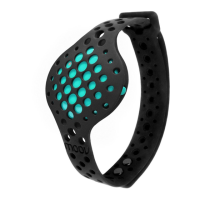
Before starting a program, put your Moov on your ankle. Place your Moov into the large
strap, and put it on with a snug and comfortable fit. To secure Moov, insert the end of the
band into the loop on the other end and then insert the clasp into the ankle strap and
press it into the band to ensure that the clasp is flat and in line with the band.
If possible, mount your mobile device on your handlebars in order to experience the live
screens, which give you data like distance, speed, time, cadence Moov Power and your
route
Moov Cycling gives audio updates every mile or kilometer depending on how your units
are set. Wear headphones or turn your volume up loud in order to hear these updates.
Be sure to be safe with your headphone use! Try wearing only one headphone to make
sure you are aware of your surroundings on the road.
Live Screens & Audio Updates
Moov gives you the important data you need while cycling right on your phone and
provides occasional audio updates so you don’t even have to look down.
Audio updates occur at each mile/kilometer and let you know your distance, time,
average cadence, and average Moov power. Moov coaching also occurs over audio to
help you remember when to shift gears. Real-time coaching aims to teach you to save
energy so you can ride farther and faster.
There are three live screens during your ride: map, cadence, and Moov Power. You can
see your time, distance, and speed on whichever screen you are on.
The Map screen shows you where you are and highlights the route you have traveled on
the map. The estimated grade (steepness) of where you are riding is also highlighted
here (IPhone 6 and 6 Plus only).


 To Next Page
 Loading...