!
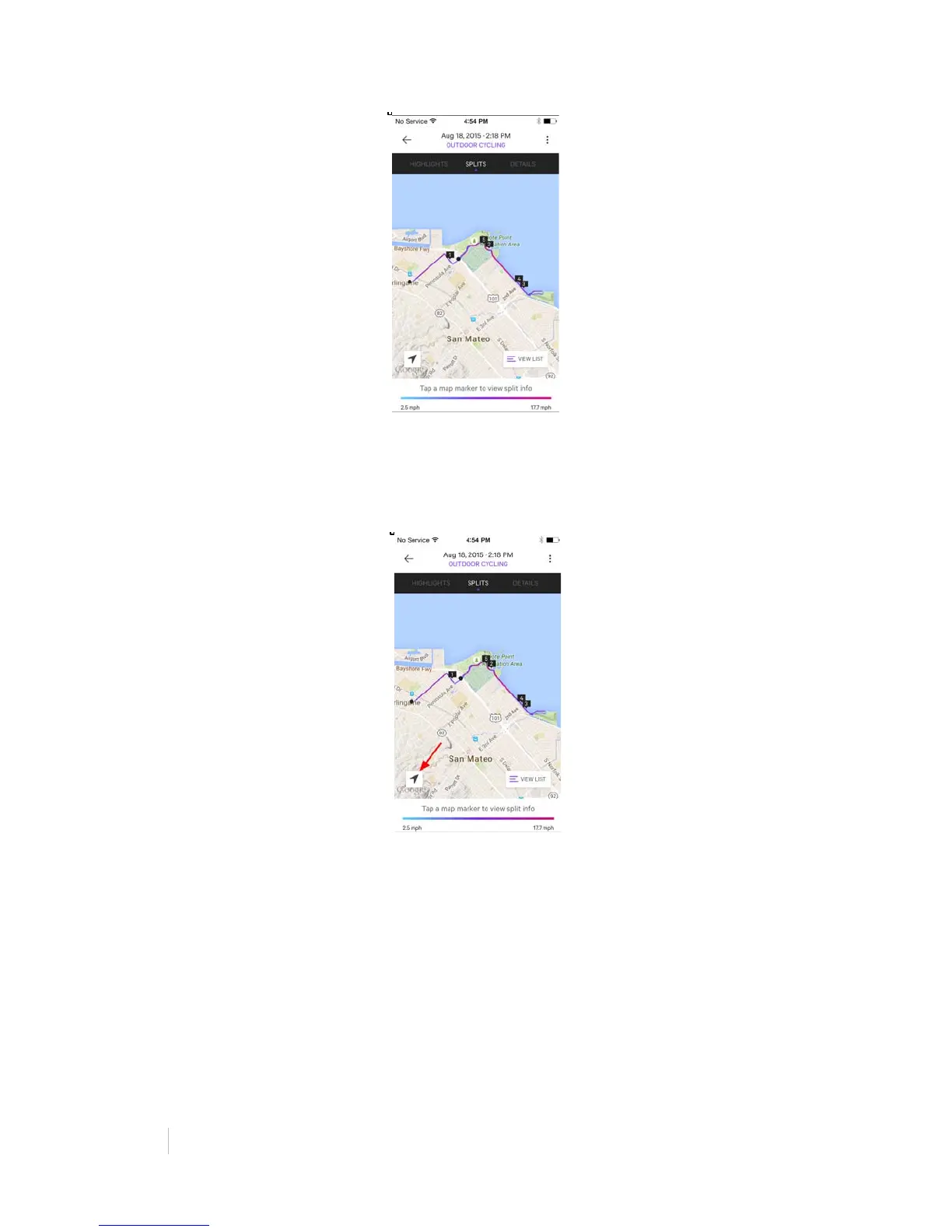
When you go to the map, the screen will automatically be locked so you can only see the
current selection on the map. This makes it easier to swipe between screens. To change
this, tap the map icon and you will be able to explore more of the map that isn’t
immediately in view. To go back to your current location, tap the location icon.
The Cadence screen shows your cadence in real-time and how it relates to different
exertion levels and terrain (Climb & Endurance, Brisk, and High - Sprinting). An arrow
moves based on your cadence to show which zone your in. Gear icons show when you
should be in high or low gear based on your cadence for the greatest efficiency.


 To Next Page
 Loading...