Important
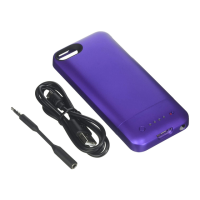
The juice pack
PRO
comes charged and ready
to
go,
but
after the initial
use,
normal charging will
take
only
2.5
to
3.5
hours for maximum
power-
AND you can then
charge it while the iPhone
is
inserted
or
separately.
Charging
your
iPhone 4S/4 using the juice
pack
PRO
If
your iPhone
is
drained
of
power
or
if
you
want
to
extend the battery life
of
your iPhone, simply snap
the
iPhone into the juice pack
PRO.
Make sure
that
the pin
connector
is
securely inserted into the
bottom
of
the
iPhone and the switch
is
turned
On
(green). When
the
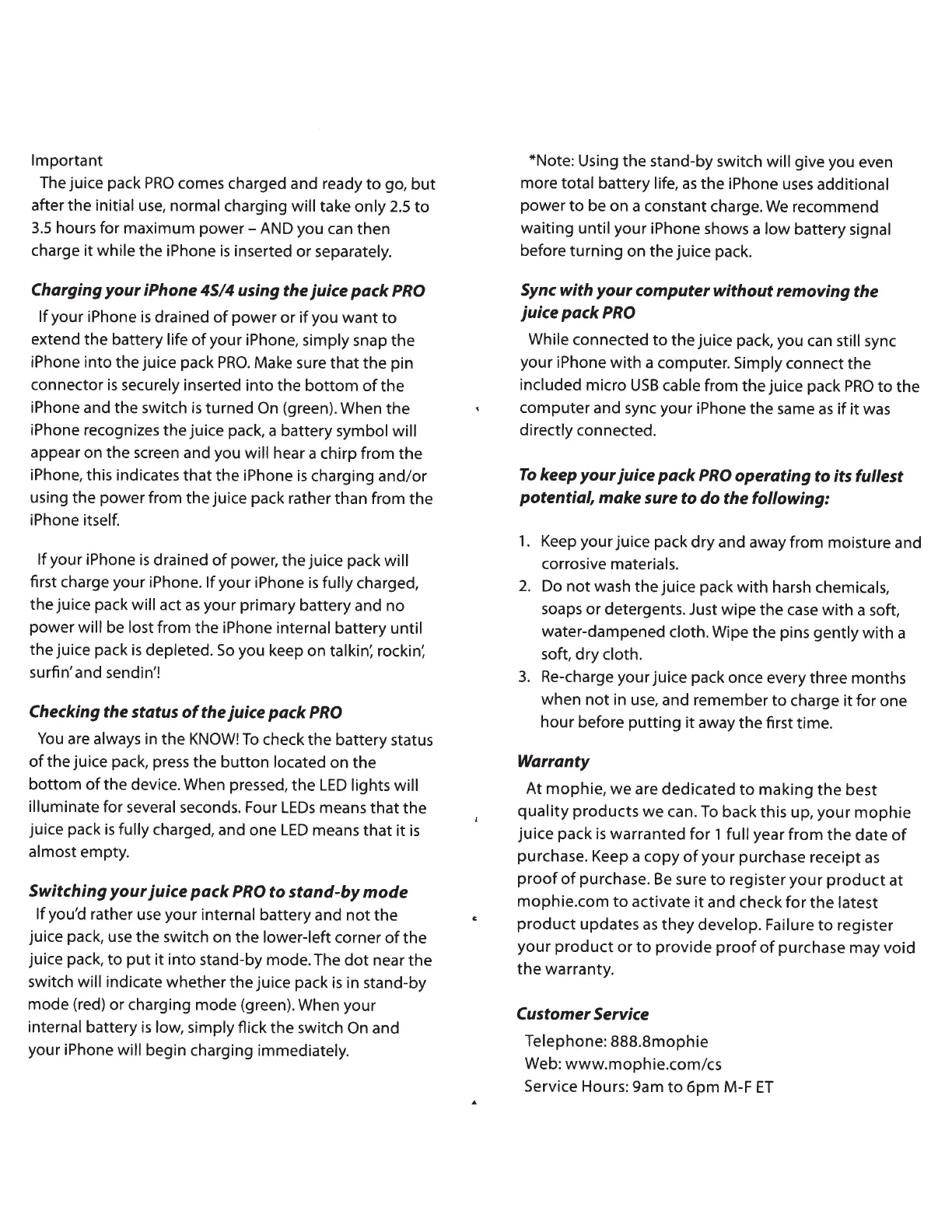
iPhone recognizes the juice pack, a battery symbol
will
appear on the screen and you
will hear a chirp from
the
iPhone, this indicates
that
the iPhone
is
charging
and/or
using the power from the juice pack rather than from
the
iPhone itself.
If
your iPhone
is
drained
of
power, the juice pack will
first charge your iPhone.
If
your iPhone
is
fully
charged,
the juice pack
will
act
as
your primary battery and no
power
will
be lost from the iPhone internal battery until
the juice pack
is
depleted.
So
you keep on tal
kin: roc
kin:
surfin' and send in'!
Checking
the status
of
the juice
pack
PRO
You
are
always in the
KNOW!
To
check the battery status
of
the juice pack, press the
button
located on the
bottom
of
the
device. When pressed,
the
LED
lights
will
illuminate
for several seconds. Four
LEOs
means
that
the
juice pack
is
fully
charged, and one
LED
means
that
it
is
almost empty.
Switching
your
juice
pack
PRO to
stand-by
mode
If
you'd rather
use
your internal battery and
not
the
juice pack,
use
the switch on the lower-left corner
of
the
juice pack,
to
put
it
into
stand-by mode. The
dot
near
the
switch
will
indicate whether the juice pack
is
in stand-by
mode (red)
or
charging mode (green). When your
internal battery
is
low, simply flick the switch
On
and
your iPhone
will
begin charging immediately.
*Note: Using the stand-by switch
will
give you even
more total battery
life,
as
the iPhone
uses
additional
power
to
be on a constant charge.
We
recommend
waiting until your iPhone shows a
low
battery signal
before
turning
on
the
juice pack.
Sync with
your
computer
without
removing the
juice
pack
PRO
While connected
to
the juice pack, you can still sync
your iPhone
with
a computer. Simply connect the
included
micro
USB
cable from
the
juice pack
PRO
to
the
computer and sync your iPhone the same
as
if
it
was
directly connected.
To
keep
your
juice
pack
PRO operating to its
fullest
potential,
make
sure to do the
following:
1.
Keep your juice pack
dry
and away from moisture and
corrosive materials.
2.
Do
not
wash the juice pack
with
harsh chemicals,
soaps
or
detergents. Just
wipe
the
case
with
a soft,
water-dampened
cloth.
Wipe
the
pins gently
with
a
soft,
dry
cloth.
3.
Re-charge your juice pack once every three months
when
not
in
use,
and remember
to
charge
it
for one
hour
before
putting
it
away
the
first time.
Warranty
At
mop
hie, we are dedicated
to
making
the
best
quality
products
we can.
To
back this up,
your
mophie
juice
pack
is
warranted
for
1
full
year
from
the
date
of
purchase. Keep a
copy
of
your
purchase receipt
as
proof
of
purchase.
Be
sure
to
register
your
product
at
mophie.com
to
activate
it
and check
for
the
latest
product
updates
as
they
develop. Failure
to
register
your
product
or
to
provide
proof
of
purchase may
void
the
warranty.
Customer
Service
Telephone:
888.8mophie
Web:
www
.mophie.com/cs
Service Hours: 9am
to
6pm
M-F
ET





 To Next Page