17
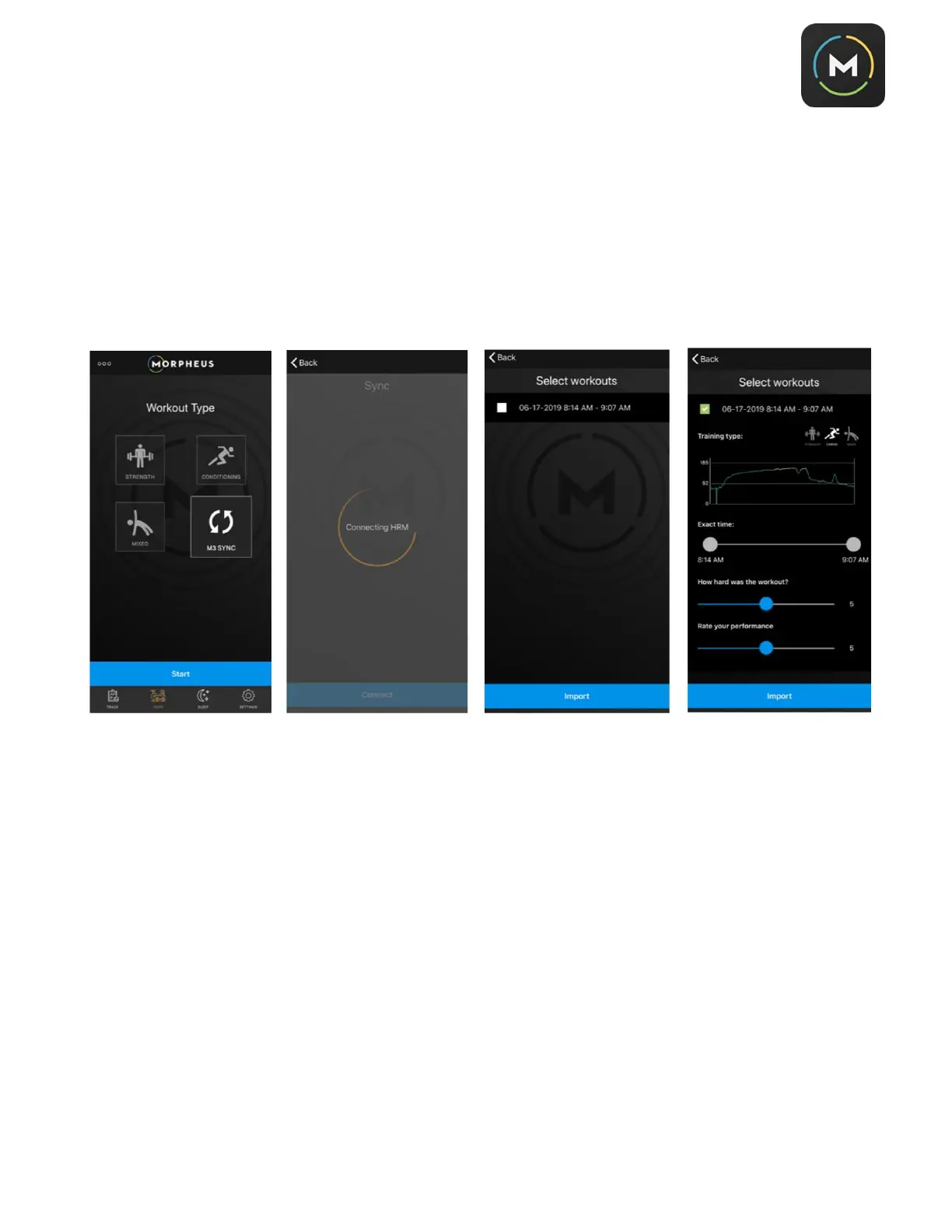
When you are ready to transfer your workout data to the Morpheus app, you should be wearing the M3 chest
strap with the transmitter fully attached to the strap.
1. Open the Morpheus app and touch the
Train
icon on the bottom.
2. Touch the
M3 Sync
icon in the middle of the screen.
3. The app will then connect to the M3 (which is why you’ll ideally need to be wearing it)
4. You will see a list of any workouts that are currently stored on the M3 transmitter
5. Touch the box to the left of the workout you want to upload and you will see the workout details
appear on the screen.
6. Touch the icon that best describes the type of training that was completed (Strength, Cardio, or Mixed)
7. You will see a heart rate graph of your workout. Below that there is an
Exact Time
toggle bar that
allows you to edit out the beginning and/or end of your workout.
a. Reminder that the M3 starts recording when you put on the chest strap with the transmitter
connected and it stops recording when you disconnect the transmitter. Example: if you put on
the M3 5 minutes before your workout starts and you remove it 5 minutes after your workout
ends, you can edit out the beginning 5 minutes and ending 5 minutes by dragging the
Exact
Time
toggle bar right and/or left.
8. Answer the 2 questions by moving the slider scale anywhere from 0 to 10.
a. When rating workout difficulty (RPE), 10 is the most difficult and 0 is the least.
b. When rating your performance, 0 is your worst performance; 10 is your best performance.
9. Touch
Import
.
10. You will be asked if you’d like to delete all workout data from the M3 that has not yet been uploaded to
the Morpheus app. If there are no other workouts to upload, choose
Yes
to free up memory on the
M3.



 To Next Page