4
f When you have made your selection, confi rm that you want
it to be saved in position 01. The number 01 will change to
02 and you can continue re-ordering tracks.
g Continue steps c,d,e and f above, making up to 64 selections.
h Play your selection
When the selection has played, you can play it again in the
normal way or cancel it by pressing STOP, or turning the
System off.
Always get the best sound
There are pre-selected ‘equaliser settings’. These are automatic
settings which ensure each kind of music played sounds good.
Select any one of these by pressing one or more times.
PASS - This is the ‘off’ setting. There will be no change in the sound.
CLASSIC - Use when listening to classical music
ROCK - Use when listening to rock music
POP - Use when listening to pop music
JAZZ - Use when listening to jazz music
you want to play MP3
music from your mobile
player or USB drive?
You can play MP3 music you have saved on your USB drive or your
mobile player. However, there are international standards on USB
products. Currently about 5% of products do not follow these. If you
have a product which doesn’t confi rm to USB 1.1 or 2.0 standards,
it may not work as described in this section. The device you connect
must be fully compatible with Microsoft Windows 2000 or Windows
XP, without a driver.
a Switch to the CARD-USB function by pressing one or
more times. If you have an MP3 player, connect it via a USB
cable. If you have a fl ash drive, plug it into the USB socket in
the front of the System.
b Start the music playing
main unit remote control
you want to play MP3 music from your mobile
player or USB drive?
12
Pausing a CD during play
Press once to pause. Press again to cancel the pause.
Repeating a track, an album or the CD
Press once or more to repeat one track, the entire CD or the album/folder.
Moving forward or back one track at a time
Press once to move forward or back.
Fast forwarding or fast rewinding
Press and hold
Playing tracks in a different order
You can decide which order the tracks of an album are played in,
by creating your own program. You can also play a track more than
once. When re-ordering or repeating tracks from a CD you have up
to 64 ‘slots’ to allocate tracks to.
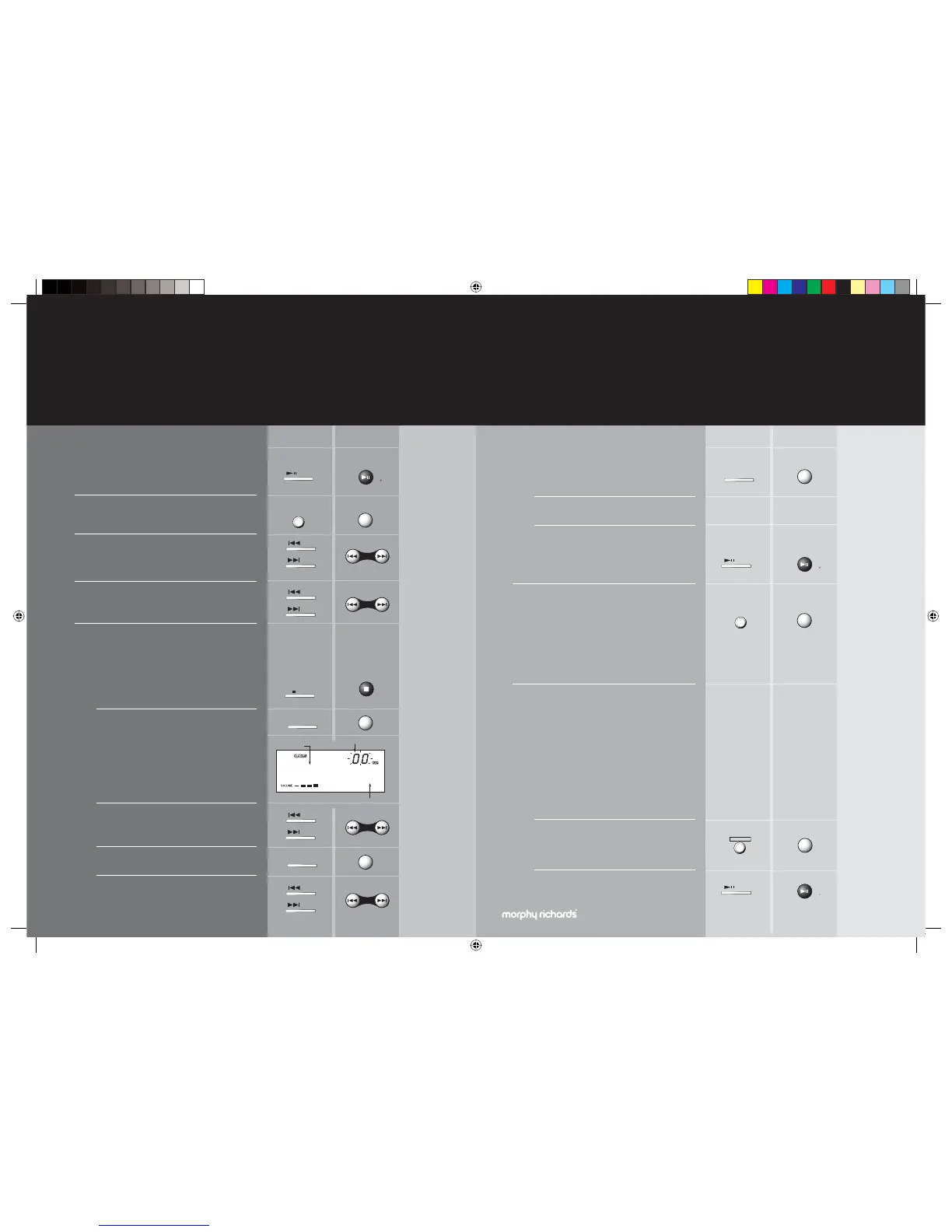
a Stop the System playing. Enter the program feature.
b The word MEMORY will show. You are now ready to
program your selection.
c Go to the album which you want to select the fi rst track
from. The right hand number will change as you scroll
through your albums.
d Confi rm that the album number is correct.
e Select the track you want to play fi rst in the selection.
The left hand number will change as you scroll through the
CD’s tracks.
main unit remote control
what else you can do, when playing your MP3 CD’s
11


 To Previous Page
 Loading...