MARTIN
LOGAN
•
"'
g::
trt
(wl-fl
se
tup
&
stm.sbutton]
<000
Q-
•
NETWORK
REQUIREMENTS
•
A
w
ir
eless
ro
uter
•
A
high-speed internet connection for
rel
iab
le pla
yback
of
internet b
ased
mus.ic
~rv
i
ces
.
• If
your
ro
uter
does
no
t have a
WPS
bu
ll
on
,
h
ove
your
w i-fi
n
etwor
k password
ready
before
connec
ti
ng
t
he
soundba
r.
•
Ensure that t
he
network to
wh
ic
h
you
ore
trying
to
connect is
not
hi
dden.
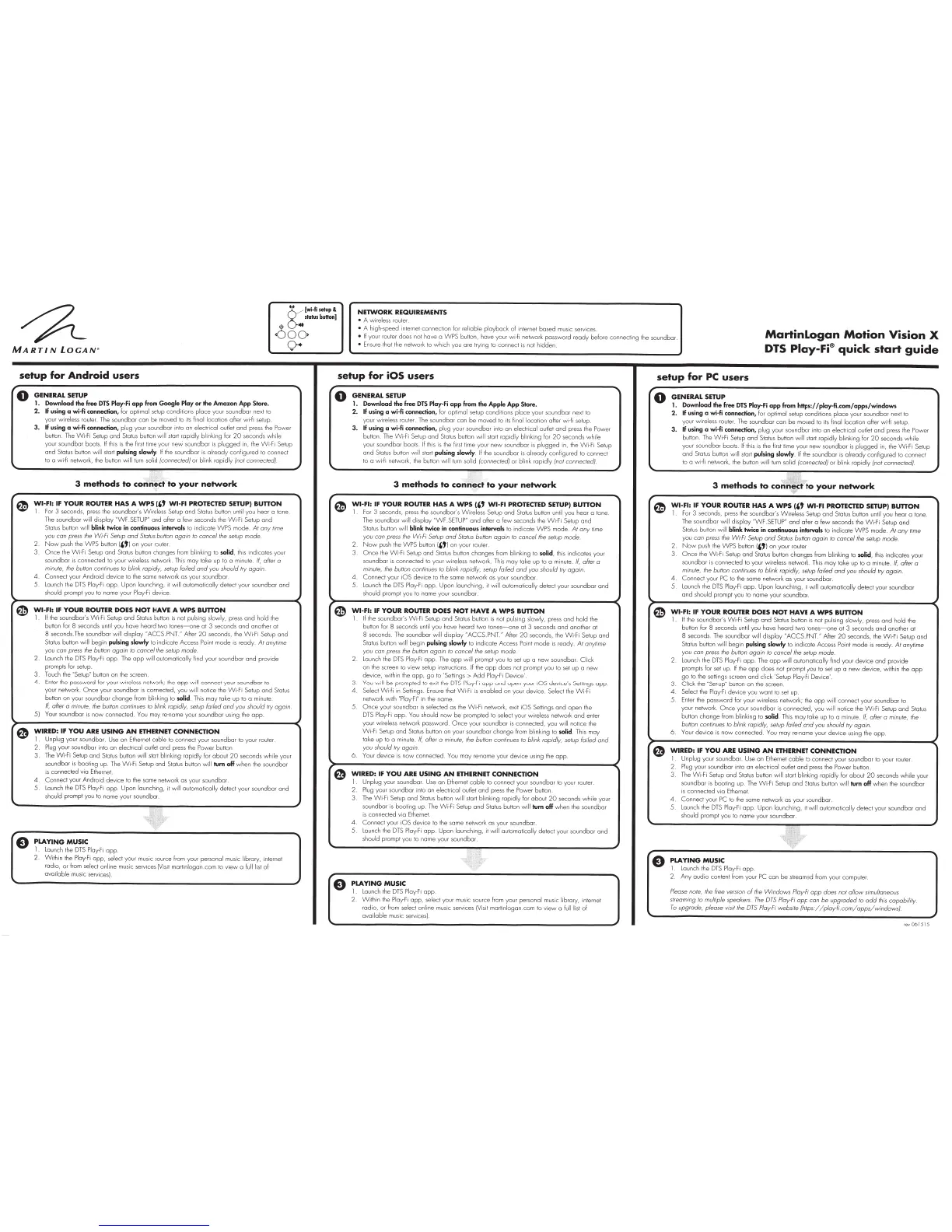
MartinLogan
Motion
Vision
X
DTS
Play-Fi®
quick
start
guide
setup
for
Android
users
setup
for
iOS
users
setup
for
PC
users
0
GENERAL
SETUP
1.
Download
the
free
DTS
Play·Fi
app
from
Gaagle
Play
or
the
Amazon
App
Store.
2.
tf
using
a wi-fi
connection
,
lor
op
timal setup conditions
place
yo
ur sound
bar
next
to
your
wire
l
ess
router. The
soundbo
r
ca
n
be
moved to its final
l
oca
t
ion
af
t
er
w
i-
fi
s
et
u
p.
3.
tf
using
a
wi-fi
connection,
p
lug
your
soundba
r into
an
electrical o utl
et
and press the
Power
bu
non. The W i
-Fi
Setup
and
Status button
wi
ll
start ra
pid
ly
blinki
ng
fo
r
20
seconds
whi
le
you
r
soundbo
r boots.
If
this is the f
ir
st
li
me
you
r
neW
soundba
r is p
lugged
in, the W
i-
Fi
Setup
and
Status button
will
start
pulsing
slowty
. If
the soundbor is
al
ready
c
onf
i
gu
r
ed
to
connect
to
o
wHi
nelv-lork,
th
e button
w ill
turn
so
lid
(connected)
or
blink
rapid
ly
(not
con
nected)
:,\,
..
:,
..
3
methods
to
co
~#
~
~
t
to
your
network
WI-FI:
IF
YOUR
ROUTER
HAS
A
WPS
"'
WI-FI
PROTECTED
SETUP)
BUTTON
I
f or
3
seconds, pr
ess
t
he
soundbor's
Wire
l
ess
Setup a
nd
Sta
tus
button until
you
hear a t
one.
The soun
dbar
wi
ll
display
~wF.SE
T
UP
w
and
after a
few
seconds the
Wi
-f
i Setup a
nd
Status button w i
ll
blink
twice
in
continuous
intervals
to
indica
te
WPS
m
ode
.
At
any
time
you
con
press
the
Wi
-
Fi
Setup a
nd
Status
button
ag
a
in
to
cancel
the
setup
mod
e
2.
Now
push t
he
WP
S
button!
,,
,
on
you
r r
ou
ter.
3.
Once
the
Wi
-Fi
Set
up
and
Status button changes from b li
nking
to
solid
,
this indicates your
soundbar
is connected
to
you
r w ireless
netv.lork.
This
may
to
ke
up
to
a
min
ute.
If,
after
a
minute, the button continues to blink rapidly, setup
foiled
and
you should
try
again.
4.
Connect
your
Android
dev
ic
e
to
t
he
some
nel\.vork as your sound
bor
5.
launc
h the
DTS Ploy-Fi
app
.
Upon
l
aunch
in
g,
it
wi
ll
automatic
all
y
de
tect
yo
ur sound
bar
and
should
prompt
you
to
name
you
r
Play-Fi
dev
i
ce
WI-FI:
IF
YOUR
ROUTER
DOES
NOT
HAVE
A
WPS
BUTTON
li
t
he
sou
ndbar'
s W
i-Fi
Setup
and
Sta
tus
b
utt
on
is
not
pulsi
ng
sl
owly,
press a nd hold
the
button for
8
se
conds
unti
l
you
have
hea
rd
1\.vo
ton
es--on
e a t
3
seconds
and
another at
8
seconds. The
soundbar
w ill
displa
y
~ACCS
.
P
N
T."
After
20
seco
nd
s, the Wi-Fi Setup
and
Sta tus button
wil
l
beg
in
pulsing
slowly
to
ind
icate Access Point
mode
is r
eady
.
At
anytime
you
con
press
the
button o
goin
to
cancel
th
e setup mode.
2.
laun
ch
th
e
DTS
Ploy-F
i
app
. T
he
app
w i
ll
au
t
oma
ti
cal¥
fi
nd
your soun
dba
r a nd
provide
promp
ts for setup.
3.
Touch the
"Setup'
button
on
the screen
4.
Enter the password for
you
r w ireless
nel\.vo rk;
the
app
will
connec
t
your
sound
ba
r to
your
nel\.v
or
k.
Once
you
r
so
und
bor
is
co
nnecte
d,
you
w ill
notice t
he
W i
-f
i Se
tu
p and Status
button
on
yo
ur soundbar
cha
nge
from blinking to
solid
.
Th
is
may
take up
to
a
minute
If,
after
a
m
inute,
the
button
continues to blink rapidly, setup
foiled
a
nd
y
ou
should try again.
5)
Yo
ur soun
dbar
is
now
co
nnect
ed.
Yo
u
may
re-name your
so
un
dba
r using the
app.
WIRED: IF
YOU
ARE
USING
AN
ETHERNET
CONNECTION
I .
Unplug
your soundbor. Use o n
Et
hernet
cab
le to connect
you
r
soundbor
to
your router.
2.
Plug
your
soundbar
into
on
elec
tr
ic
al
outlet
and
pre
ss
the
Power
bullon.
3.
Th
e
Wi
·f i Setup
and
Status
buno
n
w ill
st
art
blinking rapi
dly
f
or
about
20
seconds
wh
ile
yo
ur
soun
dba
r is
boo
t
ing
up
.
Th
e
Wi-
f i
Se
t
up
and
Status button
will
tum
off
w hen the
so
und
bar
is
co
nn
ec
t
ed
via Ethernet
4 .
Connect
your
Andr
o
id
device
to
th
e same
nel\.vork
as
your
soundbor
5
launch the
DTS
Play-Fi a
pp
.
Upon
l
aunc
hi
ng,
it
w i
ll
au
tomat
ica
l¥
de
t
ec
t
your
sou
ndbar
a
nd
should pr
omp
t
you
to n
am
e
your
sound
bar
PLAYING
MUSIC
I
lau
n
ch
the
DTS
Play-Fi
opp
2.
Wi
thin t
he
Play-F
i
app
,
select
yo
ur mu
sic
source from your personal music
library,
internet
r
ad
io,
or
from sel
ec
t
onl
ine
music
s
erv
ices
{V
is
it
mar
t
inlogon.
co
m
to
view
o fu
ll
list
of
ava
il
able
mus
ic services).
0
GENERAL
SETUP
1.
Download
the
free
DTS
Play·Fi
app
from
the
Apple
App
Store .
2.
If
using
a
wi-fi
connection, for
opt
i
ma
l
setup
cond
itio
ns
place
yo
ur soundbor next to
you
r
w i
re
less
ro
uter. The
sou
n
dbor
con
be
moved
to its final l
ocat
ion
alter
wi
·l
i
setu
p.
3.
If
using
a wi-fi connection,
plug
your soun
dba
r into a n
el
ec
tr
ica
l
outlet
and
pr
es
s t
he
P
owe
r
bull
on. The Wi-fi
Se
tup
and
Status
button
w ill
start r
apid
ly blinking
fo
r
20
seco
n
ds
w hile
your
soundbar
boots.
If
this is the first ti
me
yo
ur new
soundOOr
is
pl
ugged
in, the
Wi
-F
i
Se
t
up
and
Status button
wi
ll
sta
rt
pulsing
slowly
.
If
the
so
u
ndbar
is
alrea
dy
confi
g
ured
to
connect
to
o
w i-fi
nelw
or
k,
the button w ill
tu
rn
so
lid
(c
onnected
}
or
blink ra
pi
dly
(not
con
nec
ted).
~-
~
:-.
3
methods
to
con~
;
e
_
~t
to
your
network
WI·FI:
IF
YOUR
ROUTER
HAS
A
WPS
("
WI-FI
PROTECTED
SETUP)
BUTTON
1
For
3
seconds, press the sound
bar'
s
Wi
rele
ss
Se
tup
and
Status button
until
you
hea
r a tone
The soundbar
wi
ll
di
sp
lay
NW F
.
SETUP~
and
ahe
r
a few
se
con
ds
th
e W i-f i Setup a nd
Status button
will
bl
ink
twice
in
continuous
intervals
to
indi
ca
te
WPS
mode.
At
any
time
you
con
press the
Wi
-Fi Setup
and
Status
button
agai
n
to
ca
nce
l
the setup
mode.
N
ow
push
th
e
WPS
button
1
-''l
on
your
ro
uter
Once
the
Wi
-
fi
Setup
an
d Status button
changes
from blinking
to
solid
,
th
is i
nd
i
ca
tes
you
r
sound
bor
is
connec
ted
to
you
r
wire
less
netw
ork
. This
may
take
up
to a minute.
If,
after
a
minute, the button continues
to
blink rapidly, setup
Fo
il
ed
and
you
sho
uld try
again
.
4.
Co
nnect
yo
ur
i
OS
d
ev
ice
to
the
same
networ
k
a s
your
soundbar.
5
l
aun
ch
the
DTS
Play-Fi
a
pp.
Upon
l
aun
chi
ng
,
it
wi
ll
au
tomati
ca
lly
detect your sou
nd
bo
r
and
should
prompt
you
to
n
ame
your
soundbor.
WI-FI:
IF
YOUR
ROUTER
DOES
NOT
HAVE
A
WPS
BUTTON
1
If
t
he
soundbar's
Wi
-F
i
Setu
p and Status button
is
no
t p u
ls
ing
5l
owly,
press
and
ho
ld
the
button
for
8
seconds
until
you
have
hea
rd
lwo
t
ones--on
e
at
3
seconds
and ano
t
he
r
at
8
seconds. T
he
so
u
ndbar
wi
ll
display
·
ACCS.PN
T."
After
20
seconds, the
W i
-F
i
Setup
and
Status button
will
begin
pulsi
ng
slowly
to
ind i
cate
Access
Po
int m
ode
is r
eady
.
At
anyt
i
me
you
con
press
th
e
button
aga
in to
cancel
the setup mode.
2.
l
aunc
h t
he
DTS
Playf
i
app
. The
app
w ill
prompt
you
to
set
up
a new
soundbor
.
Click
on
t
he
screen to
view
se
t
up
instructions.
If
the
app
does
not
prompt
you
to
set
up
o
new
de
vi
ce
, w ithin t
he
op
p, go to '
Settings>
Add
P
la
y-Fi
Device'.
You
w i
ll
be
pro
m
pted
to
ex
it
th
e DTS
Play-F
i
opp
and
open
yo
ur
iOS
dev
ice's Settin
gs
ap
p.
4
Se
l
ect
Wi--fi in
Se
ttings. Ensu
re
th
at
Wi
-
fi
is
enab
l
ed
on
yo
ur
device
. Select the
Wi
-f
i
nel\.vork
w i
th
"Piay-Fi"
in the n
ame
5.
Once
your
so
und
b
or
is
se
l
ec
t
ed
as the
Wi
-f i
netwo
rk,
ex
it
iOS
Settings
and
ope
n the
DTS Play-Fi
app
.
You
should n
ow
be
prompted
to
se
l
ect
your wireless
nelwor
k
and
en
ter
you
r w ireless
nel\.vo
rk
password.
Onc
e
yo
ur
soundba
r is connected,
yo
u
w i
ll
no
ti
ce
the
Wi-F
i Setup a
nd
S
ta
t
us
bu
tt
on on
your soundOOr
change
from
blinking
to
solid
.
Th
is may
ta
ke
up
too
minute.
If,
after
a
minute, the
bullon
con
tinues to bl
in
k rapidly, setup
Foiled
and
you should try again.
6 .
Your
device
is
now
co
nnect
ed
.
Yo
u
may
re-
na
me
yo
ur
dev
ice
us
i
ng
t
he
op
p
WIRED: IF
YOU
ARE
USING
AN
ETHERNET CONNECTION
1
Unplug
your soun
dbo
r.
Use
an
Ethernet
ca
bl
e
to
co
nnect
yo
ur sou
ndba
r to
you
r router
2
Plug
your sound
bor
into
an
electr
ical
out
le
t a
nd
pr
ess
th
e
Power
bu
tton.
3.
The
Wi-f
i
Setup a nd Status bu
tt
on
w ill
st
art
blinki
ng
r
apid
ly for
about
20
seconds
wh
ile
your
so
un
dba
r is
boot
ing up. The
Wi
-Fi Setup a
nd
Status button
w ill
turn
off
when
t
he
soun
dbor
is
con
n
ec
ted
via
Ethernet
4.
Connec
t
you
r
iOS
dev
i
ce
to
the some n
etwork
as
yo
ur sou
nd
bor.
5.
lau
n
ch
the
DTS Play-Fi
a
pp
.
Upo
n
launching,
it
w ill automati
ca
l
ly
de
t
ec
t
yo
ur
soun
dbar
and
should
pr
ompt
you to nome
yo
ur
soundbor
.
~
--
PLAYING
MUSIC
1 l
aunch
the
DTS Pla
y-F
i
app
W ithin the
Pla
y-f
i
app
,
se
l
ec
t your music source from
yo
ur
personal mu
sic
libra
ry, int
erne
t
rad io,
or
lrom
se
l
ec
t
on
l
in
e
music serv
i
ces
(Visit
m
ar
tinlogan.
com
to
vi
ew
o full list
of
av
ailable
music service
s)
0
GENERAL
SETUP
1.
Download the
free
DTS
Play-Fi
app
lram
hnp
s:
//
play·
fi.c
om
/
apps
/
window
s
2.
If
using
o
wi-fi
connection
, for optima l setup co
nd
itions
pl
ace
your
so
und
bar
next
to
your w ireless route
r.
The
so
und
bar
can
be
moved
to i
ts
fi
na
l
l
oca
ti
on
afte
r
wi
-fi
setup.
3.
If
using
a wi
-fi
c
onnection
,
plug
your sound
ba
r i
nto
an
electri
cal
outlet
and
press the
P
owe
r
button. The
Wi-Fi
Setup
and
Status button w ill
start
rapi
dly
blinking fo r
20
se
co
n
ds
w hile
your
so
u
ndba
r
boo
t
s_
If
th
is
is
th
e first time
your
new
soun
dbar
is plug
ge
d
in,
th
e W
i-f
i Setup
and Status
bu
tton
w i
ll
start
puls
i
ng
sl
owfy
. If
the soun
dbar
is a
lr
ead
y
con
fi
gur
ed
to c
onn
ect
to
a
wi·f
i n
elw
ork,
the button
w ill
turn solid
(
co
n
nec
ted}
or
blink r
ap
idly
(not c
onnected
}.
WI-FI:
IF
YOUR
ROUTER
HAS
A
WPS
("
WI-FI
PROTECTED
SETUP) BUTTON
1
For
3
seco
nd
s, pr
ess
the
soundOOr's W ireless
Se
t
up
a
nd
Status button
until
you
h
ea
r a to
ne
The sound
bar
w ill d i
splay
NWF
.
SE
TU
P"
and after a few seconds the
Wi-
f i Set
up
and
Status
bu
tt
on
w ill
bl
i
nk
twi
ce
in
continuous
i
nterval
s
to
i
ndi
cate
WPS
m
ode.
At
a
ny
lime
you
can
press the
Wi
-Fi
Setup
and
Status
button
ag
ain to
can
ce
l
the
se
t
up
mode
.
Now
pu
sh
the
WP
S
button
,
,,
)
on
your
router.
Once
t
he
W i·Fi
Set
up
and
Status but
to
n ch
ang
es from
bl
inki
ng
to
solid
,
th
is i
nd
i
ca
t
es
your
soundbar is
con
nected
to
your
wire
less
ne
lwork
.
This
may
to ke up to o minute.
If,
after
a
minu
te , the button continues to blink rapid
ly,
set
up fo
il
ed
and
yo
u
should
try
ag
ain.
4.
Co
nnect
you
r
PC
to t
he
some
ne
two
rk as yo ur sou
ndbo
r
5
la
un
ch
th
e
DTS Ploy-f i
opp
.
Upo
n launchi
ng
,
it
wi
ll
automa
t
ically
de
tect
you
r soun
dba
r
and should prom
pt
you
to
na
me
your sound
ba
r
WI-FI:
IF
YOUR
ROUTER
DOES
NOT
HAVE
A
WPS
BUTTON
1
If
the
so
un
dba
r'
s W i-f i Set
up
and Stat
us
bu
tt
on is
not
pu
lsi
ng
sl
ow
ly,
pr
ess
and
h
old
t
he
b
utt
on for
8
secon
ds
un
ti
l
you
have h
eard
1\.vo
to
nes--on
e
ot
3
seconds a
nd
ano t
he
r a t
8
seconds. T
he
so
un
dbor
w ill
di
sp
lay "
ACCS
.PNT:
After
20
seconds, the W i
-f
i Setup
and
Sta
tus
button
wi
ll
beg
in
puls
i
ng
slowly
to
i
ndica
te
Ac
ce
ss
Point
mode
is
r
ea
dy
.
At
on
y1ime
you
ca
n press t
he
bu
Ho
n
ag
ain to cancel t
he
setup
mode
.
2.
launch the
DTS Plo
y-
f i
opp
. T
he
op
p
w ill
auto
ma
ti
cally
find
yo
ur
dev
i
ce
and p
ro
vid
e
prompts for set up .
If
t
he
a
pp
does
not pr
omp
t
you
to
se
t
up
a new d
ev
i
ce
, w ithin
th
e
opp
go to t
he
sellln
gs
scr
een
a
nd
click
'Set
up
Pl
ay-f
i D
ev
ic
e'.
3.
Clic
k
t
he
"Set-up"
button on t
he
scre
en
.
4
Select
t
he
Play-F
i
de
vice
you
wo
nt to set up
5
E
nt
er the
password
for your
w irele
ss
n
etwor
k; the
opp
wi
ll
connec
t
you
r soundb
ar
to
yo
ur
ne
l\.vork.
Onc
e
your sound bar is
connec
t
ed
,
you
w ill
n
otic
e the W i
-fi
Se
tup
an
d Status
button ch
ange
from blinking to
solid
.
This may
ta ke up
to
a minute.
If.
a
fter
a
minute,
t
he
button cont
in
ue
s to blink rapidly,
se
tup fo
il
ed
and you s
ho
uld
try
aga
in
6
Your
de
vi
ce
is
now
c
onnec
t
ed
.
Yo
u may
re-name
yo ur d
evice
using
th
e a
pp.
e
Wl
1
RED
:
IF
YOU
ARE
USING
AN
ETHERNET
CON
NECTION
Unpl
ug
you
r sou
ndbor.
Use
on
E
th
ernet
cable
to
con
nect
yo
ur soun
db
ar
to
you
r router.
2
Plug
your
soun
dba
r into
on
electrical
ou
tlet
and
pre
ss
th
e
P
ow
er
bu
tt
on
.
3.
The W i
-F
i Setup
and
Sta
tus
bu
tt
on
w ill
st
art
blink
ing
r
api
dly
f
or
about
20
seconds
wh
i
le
your
sound
ba
r is
boo
ting
up
. T
he
Wi-f
i Setup
an
d
Status
button
will
tum
off
w hen the sound
ba
r
is
co
nnec
ted via Ethe
rn
et.
4
Co
nnec
t y
ou
r
PC
to the
sa
me
netvvork
as your sound
bo
r
5
launch the DTS Pla y-
Fi
ap
p. U
pon
launc hing , it w ill automat
ic
a
ll
y
det
e
ct
your
so
un
dbm
and
s
ho
uld
promp
t
you
to
no
me
yo
ur soundbor.
PLAYING
MUSIC
l
la
u
nc
h the
DT
S Ploy-Fi
app
.
2.
Any
au
dio content from
your
PC
can
be
stream
ed
from
yo
ur compute
r.
Please
note , the free version
of
the
Windows
Pl
ay-Fi
app
does
not
all
ow
simultaneous
streaming to m
ultip
le speakers.
Th
e
DTS
Pla
y-
Fi
app
co
n
be
upgraded
to
odd
th
is
ca
pability
To
upgrade,
please
v
is
it the
DTS
Play-F
i
webs
ite (
hHps
:/
/ pla
y-
fi
.
co
m/
app
s/ wi
nd
ow
s}
rev06
15 15


 To Next Page
 Loading...