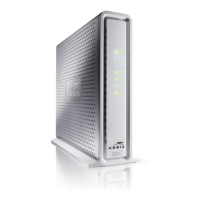
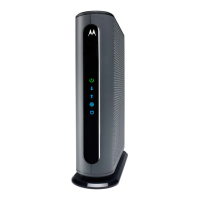
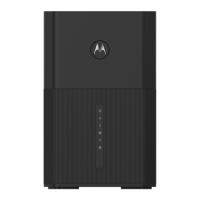
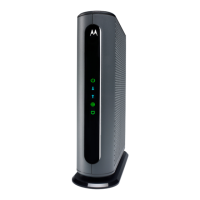
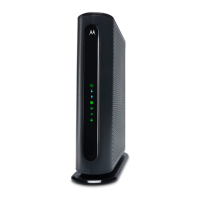
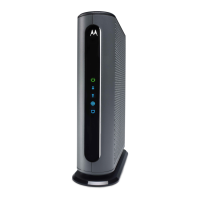
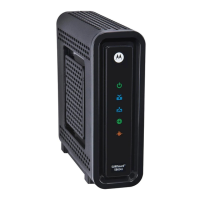
connection light to stop flashing and remain solidly lit. This may take up to 15 minutes.
You should have a recent cable bill handy because it has your account number and you’ll
probably need that.
If you’re asked for information about the MG7540, you can find this on the label on the bottom of
the MG7540.
Activate
For some service providers, you activate by calling them. Many service providers including Comcast
and Cox prefer that you activate by opening the Web browser of a computer that’s plugged into one of
the MG7540’s Ethernet ports.
If you don’t have a computer, you can use the Web browser of a Wi-Fi device such as a smartphone or
tablet. In that case you’ll need the unique Wireless Network Name and Password printed on the
bottom of your MG7540. You’ll use these in setting up your wireless device to connect to the MG7540.
Once you’ve connected, you can open the browser of that wireless device.
For Comcast XFINITY Users Only:
If the activation page does not appear, please go to www.xfinity.com/internetsetup for more
information and to activate your modem.
Here is a list of phone numbers for some major cable service providers. (Note that this list is subject to
change.)
Comcast 1 (855) 652-3446
Time Warner 1 (855) 704 4503
Bright House 1 (888) 289-8988
Suddenlink 1 (877) 794-2724
Cable One 1 (877) 692 2253
Cox 1 (888) 556-1193
RCN 1 (866) 832-4726
Once your MG7540 is activated either online or by phone, your service provider will provision your
MG7540 service. Typically this takes less than 5 minutes, but in some cases this may take 30 minutes
or longer to complete.
Try to browse the Web using a device connected via Ethernet or Wi-Fi to the MG7540. If browsing
works, Congratulations! Your MG7540 is working.
If your MG7540 is NOT working, see Troubleshooting Tips below.
Configuration Manager
You may not need to use the Configuration Manager. Here are some reasons for using the
Configuration Manager:
You want to change the wireless router setup. For instance, maybe you’re replacing a router and
want to use your existing Wireless Network Name and/or Password instead of the unique ones
that come with the MG7540.
You want to set up special Internet gaming settings.
You want to set up parental controls including white lists and/or black lists for certain users and
times.
You want to get performance information about the MG7540 modem and/or built-in router. This
can be helpful in optimizing wireless performance.
If you need to access the MG7540 Configuration Manager, open your Web browser. Type
http://192.168.0.1 in the address bar and press the Enter key.
In the login dialog box, type the following User Name and Password in lower case, then click OK.
User Name: admin
Password: motorola
The status page will appear. If the Status page doesn’t appear, please see the Troubleshooting Tips
below.
For details about the Configuration Manager, please see www.motorolacable.com/MG7540manual
Wireless Router
As noted before, the MG7540 has a unique Wireless Network Name/SSID and Wireless Security
Key/Password printed on the MG7540’s bottom label. If you don’t change these, you should set up



 To Next Page
 Loading...