• You want to set up special Internet gaming settings.
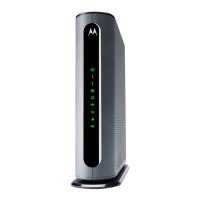
• You want to get performance information about the MG8702
modem and/or built-in router. This can be helpful in diagnosing
DOCSIS performance issues and optimizing wireless
performance.
If you need to access the MG8702 Configuration Manager,
open your Web browser. Type 192.168.0.1 in the address bar,
and press Enter. You will see security warnings. You can safely
ignore these and click through to access the Configuration
Manager (see Note below).
In the login dialog box, type the unique username and
password printed on the MG8702’s bottom label (case
sensitive), then click OK.
Username:
Password:
Next, the first time Wireless Setup screen will appear. If this
screen doesn’t appear, please see the Troubleshooting Tips
below. (See below under
WiFi Setup if you want to keep your
current network name and password and if you haven’t used
the app to do that.)
NOTE:
To reduce the risk of unauthorized access, your MG8702
is designed to accept access via
(https)
. To support secure access, your MG8702 includes a
self-signed certificate. Unfortunately, web browsers flag
self-signed certificates as insecure.
This means that if you open the MG8702 Configuration
Manager, your browser will display warnings that the site
is insecure. The MG8702 Configuration Manager is
secure, so you can safely
.


 To Next Page
 Loading...