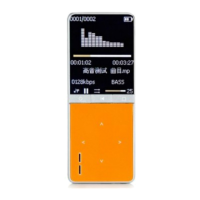
This document describes the MP103WOM MP4 Player, a portable device designed for multimedia playback, recording, and other functions.
Function Description
The MP103WOM is a versatile MP4 player capable of playing music, videos, and displaying photos. It also features a voice recorder, FM radio, and e-book reader. The device can function as a standard USB disk for file transfer and storage.
Important Technical Specifications
- Dimensions: 80mm x 40mm x 9.8mm
- Weight: 23.6g
- Screen: 1.8 TFT (128*160)
- Connectivity: High Speed USB2.0
- Memory: Nor Flash
- Voice Recorder Format: WAV (32K, 64K, 128K, 256Kbps)
- Music Formats: MP3, WMA
- MP3 Bit Rate: 8K bps - 320K bps
- WMA Bit Rate: 5K bps - 384K bps
- Max. Music Output: (L) 10mW + (R)10mW (32Ohm)
- FM Radio Receiver Frequency Range: 76MHz - 90MHz / 87MHz - 108MHz
- FM Radio Storage Units: 20 + 20
- Max. Headphone Output (FM): (L) 10mW + (R)10mW (32Ohm)
- Signal to Noise Ratio: 45dB
- Photo Format: JPEG, BMP
- Operate Temperature: 5 to 40 degree
- Multi-Languages Display: English, French, Germany, Italian, Dutch, Portuguese, Spanish
- Supported Systems: Windows / XP/Mac, etc.
Usage Features
Music Playback:
- To play music, enter Music Mode and press the Play button.
- Use Last/Next buttons to select previous/next tracks.
- Equalizer Mode: While playing music, press the Mode button to enter the submenu, then push Next to select "Equalizer Mode." Press Mode again to enter the equalizer submenu. You can choose from Natural, Rock, Pop, Classic, Soft, Jazz, and DBB. Push Next to select an EQ and press Mode to confirm.
- Synchronous Lyric Display: The player supports *.LRC lyric files. Ensure the lyric file has the same name as the music file. Press and hold Mode for a few seconds to display lyrics.
Video Playback:
- From the main menu, scroll to "MOVIE" (AMV files only) using Next and press Mode.
- Press Play to start video playback.
- While in the "Movies stop" interface, press Mode to access a submenu with options like Local Folder, Delete file, Delete all, Repeat (Normal, repeat one, Folder, Repeat Folder, Repeat all, Random, intro), and Exit.
Recording:
- From the main menu, scroll to "Record mode" using Next and press Mode.
- Press Play to start/pause recording.
- Press Mode for a few seconds to save the recording.
- Select Record Type: Press Mode to enter the record submenu, then push Next to scroll to "Record type." Press Mode to select it. Use Next to choose the desired type (32K BPS, 64K BPS, 128K BPS, 256K BPS) and press Mode to confirm. Press Play to start recording.
- Voice Record Files: From the main menu, scroll to "Play mode" using Next and press Mode. Press Play to play the file. Use Last/Next to select previous/next files.
- While in "Voice stop" interface, press Mode to access a submenu (Local Folder, Delete file, Delete all, Exit).
- While in "Voice play" interface, press Mode to access a submenu (Repeat, Replay mode, Exit).
FM Radio:
- From the main menu, scroll to "FM Mode" using Next and press Mode.
- Auto Search: Hold Last/Next for 2 seconds to start a channel search in 100 KHz intervals. Press Last/Next to stop tuning.
- Manual Tuning: Push Last for downward 100 KHz, Push Next for upward 100 KHz.
- Save Current Channel: Push Mode to enter the FM submenu, then press Mode again to save the channel.
- Listen to Saved Channel: Press Play to choose a saved channel.
- Record FM: Press Play to start recording. Press Mode for a few seconds to save the record. While in the "Record stop" interface, press Mode to enter the record submenu.
Photo Browsing:
- This function supports JPEG and BMP formats only.
- From the main menu, scroll to "Browsing pictures" using Last/Next and press Mode.
- Use Last/Next to choose the document, then press Play to display it.
- In stop mode, a submenu is available with options like Local folder, Playback set (Manual play, autoplay), delete file, delete all, and exit.
Settings:
- From the main menu, scroll to "Settings" using Next and press Mode.
- Options include:
- (System time): Setting system date and time.
- (LCD set): Screensaver setting.
- (Language): Choosing different languages.
- (Power off): Setting a countdown time in minutes for automatic shutdown.
- (Memory info): Checking memory space and usage status.
- (Firmware Ver.): Displaying the player's firmware version.
- (Firmware upgrade): For upgrading firmware.
- (Exit): Exiting the Setting interface.
E-book:
- From the main menu, scroll to "e-Document" using Next/Last and press Mode.
- Use Next or Last to choose the document, then press Play to read it.
- In "Manual play" mode, scroll text via Last or Next. Text can be scrolled automatically in "Auto play" set.
- Submenus:
- In stop mode: Local folder, playback set, deleted file, delete all, exit.
- In play mode: Bookmark select, bookmark delete, bookmark add, exit.
Game:
- Enter the main menu to access games (e.g., BoxMan).
USB Disk Functionality:
- The player acts as a standard USB disk, compatible with Windows/Mac/XP.
- It supports USB power supply, allowing use without battery when connected to a PC.
- To enter USB mode, when in "waiting mode," press Mode to return to the main menu and choose the desired operation (Connect, Downloading, Uploading).
Other Settings:
- Play mode (Play submenu): Choose different play modes (repeat, shuffle) for music or recorded files. Options include Normal, Repeat One, Folder, Repeat Folder, Repeat All, Random, Intro.
- Replay mode (Play submenu):
- A-B Repeat: While playing music or a recording, press Mode to enter the play submenu. Push Next to "Repeat Mode" option and press Mode. The 'A' symbol flashes, waiting for starter A. Push Next to select 'A'. The 'B' symbol flashes, waiting for ender B. Push Next to select B. The symbol becomes fixed, and repeat between A-B starts. Push Last to reset A point.
- Replay times (Play submenu): Determines the number of A-B repeats until exit.
Maintenance Features
Battery Level:
- The battery indicator displays full when charged. It will reduce with use.
- When the battery is almost completely run out, the battery icon will be completely white, and the unit should be charged via the mini USB.
- If not using the player, turn off the power to conserve battery.
Troubleshooting:
- No Power: Ensure the player is switched on.
- No Sound: Check volume (not at 0), earphones are connected correctly, earphone jack is clean. Damaged MP3 files may have background noise or not play.
- Strange characters on display: Ensure the correct language is chosen.
- FM has bad performance: Adjust player and earphone placement, switch off nearby power appliances. Earphone is used as an antenna.
- Cannot Download Music: Check USB cable, ensure player is properly connected to PC, verify driver installation, and confirm sufficient memory.
MPMANAGER Software:
- For movie and music synchronization and conversion, use the MPMANAGER software provided on the CD ROM.
- This software can also be used to update the player's firmware.
- The MPMANAGER manual is included on the CDROM.
Please note that design and characters may change without prior notice.


 To Next Page
 General