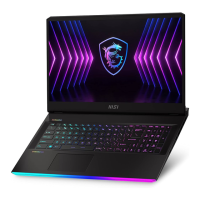
This document is a user guide for an MSI GE76 Raider 10UE-081IT notebook, a high-performance gaming laptop. The manual provides comprehensive information on the device's features, specifications, usage, and maintenance.
Function Description:
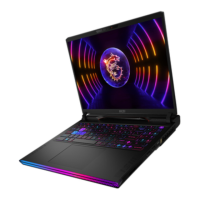
The MSI GE76 Raider 10UE-081IT is a gaming notebook designed for an immersive and efficient gaming experience. It integrates advanced hardware and software features to deliver high performance, superior audio, and customizable controls. The notebook is equipped with a full-featured keyboard, a touchpad, and various I/O ports for connecting external devices. It also supports multiple display configurations and includes MSI-specific utilities like Dragon Center, Cooler Boost, and SteelSeries Engine for enhanced control and optimization.
Important Technical Specifications:
- Physical Characteristics:
- Dimensions: 397 (W) x 284 (D) x 25.9 (H) mm
- Weight: 2.9kg
- CPU:
- Package: BGA
- Mobile Processor: The latest Intel® Core™ Processor Family
- Memory:
- Technology: DDR4 3200
- Memory Slots: 2 x SO-DIMM slots
- Maximum Capacity: Up to 64GB
- Power:
- AC/DC Adapter (option 1): 1 x 230W, 20V; Input: 100-240V~, 50/60Hz; Output: 20V, 11.5A
- AC/DC Adapter (option 2): 1 x 280W, 20V; Input: 100-240V~, 50/60Hz; Output: 20V, 14A
- Battery: 4-cell
- RTC Battery: Yes
- Storage:
- SSD: 2 x M.2 slots, supporting PCIe SSD devices
- I/O Port:
- USB: 1 x USB 3.2 Gen 2x2 Type-C, 1 x USB 3.2 Gen 2 Type-C (DisplayPort supported), 1 x USB 3.2 Gen 2, 2 x USB 3.2 Gen 1
- Audio: 1 x Mic-in/ Headphone-out combo
- Video: 1 x HDMI, 1 x Mini-DisplayPort
- LAN: 1 x RJ-45
- Card Reader: 1 x SD5.0
- Communication Port:
- LAN: Supported
- Wireless LAN: Supported
- Bluetooth: Supported
- Display:
- LCD Type (optional): 17.3" FHD/ UHD LED panel
- Video:
- Graphics: NVIDIA® GeForce® discrete graphics with NVIDIA® Optimus™ supported, Intel® HD UMA graphics
- VRAM: GDDR6, based on GPU structure
- Resolution: FHD
- Webcam:
- Security:
- Trusted Platform Module (optional): TPM 2.0, hardware-based encryption device. TPM functionalities can be de/activated in BIOS settings. Supports BitLocker for data encryption.
Usage Features:
- Getting Started: The manual guides new users through the initial setup, including connecting the AC adapter, opening the notebook, and powering it on.
- Comfortable Use: Provides ergonomic advice for comfortable notebook use, such as proper chair and desk height, backrest adjustment, foot placement, display angle, and regular breaks.
- Power Management: Details how to manage power supply, including proper use of the AC/DC adapter and battery. It explains how to set up and customize power plans in Windows 10 to optimize energy conservation or performance.
- Touchpad: Describes how to use and configure the integrated touchpad, including basic pointing and clicking, drag-and-drop functions, and customization options for left-handed users or cursor behavior.
- Storage: Explains the presence of HDD and SSD storage, and M.2 SSD slots for PCIe SSD devices, recommending contacting authorized dealers for service.
- Internet Connection: Provides instructions for connecting to the internet via Wireless LAN (Wi-Fi) and Wired LAN (Ethernet), including setting up Dynamic IP/PPPoE and Static IP connections.
- Bluetooth Connection: Guides users through activating Bluetooth and pairing Bluetooth devices.
- External Devices: Explains how to connect various external peripheral devices via USB, HDMI, DisplayPort, and mini DisplayPort, and how to manually add devices if not auto-detected.
- RAID Function (optional): Mentions support for RAID functions for data storage across multiple drives and provides a link to an instructional video.
- Boot Mode Selection: Instructs on how to select boot mode in BIOS, recommending UEFI for Windows 10.
- Windows 10 Restoration: Provides a link to a video tutorial on restoring Windows 10 using F3 Recovery and Windows 10 Settings.
- MSI One Touch Install: Mentions this one-click installer application for efficiently installing all necessary drivers and provides a link to an instructional video.
- Keyboard Functions:
- Windows Key: Used to open the Start menu and launch the shortcut menu.
- Quick Fn Launch Keys: Allows F1-F12 keys to be used with a single press. Users can enable/disable this feature by pressing Fn and ESC.
- F2 (Switch Display): Switches display output mode between LCD, external monitor, or both.
- F3 (Touchpad): Enables or disables the touchpad.
- F4 (Webcam): Enables or disables the webcam (off by default).
- F5 (Airplane Mode): Enables or disables Airplane Mode.
- F6 (Crosshair function): Enables or disables the crosshair function (requires True Color application).
- F7 (Dragon Center): Launches the Dragon Center utility for gaming optimization.
- F8 (Cooler Boost): Maximizes fan speed for cooling.
- F9 (SSE - SteelSeries Engine): Switches between keyboard configurations (for RGB illuminated keyboards).
- F10 (Keyboard Backlight LED Settings): Increases keyboard backlight brightness.
- F11 (Keyboard Backlight LED Settings): Decreases keyboard backlight brightness.
- Prt Sc (Screen Capture): Takes a screenshot to the clipboard.
- Sound Level Adjustment: Dedicated keys to increase, decrease, or mute speaker volume.
- Display Brightness Adjustment: Dedicated keys to increase or decrease LCD brightness.
- Multiple Monitors: Instructions on how to connect and configure multiple monitors using the Windows key + P shortcut.
- Application: True Color (optional): Keys to launch the True Color application and change different view modes.
Maintenance Features:
- Safety Instructions: Emphasizes reading safety instructions carefully.
- Battery Safety: Warnings against ingesting button cell batteries, improper battery replacement (explosion risk), exposure to fire/heat/crushing, and low air pressure.
- Power Cord Safety: Instructions to plug the power cord into an easily accessible AC outlet, disconnect power by unplugging, use grounded outlets for 3-prong plugs, use MSI-approved adapters, and avoid stepping on or covering the power cord.
- Environmental Conditions: Keep the notebook away from humidity and high temperatures. Avoid strong magnetic or electrical objects. Do not leave in environments above 60°C (140°F) or below 0°C (32°F). Operate under a maximum ambient temperature of 35°C (95°F).
- Liquid and Cleaning: Never pour liquid into openings. Do not use chemical substances to wipe surfaces.
- Damage/Malfunction: If the power cord/plug is damaged, liquid has penetrated, exposed to moisture, not working, dropped, or has obvious signs of breakage, get it checked by service personnel.
- Battery Care: Tips for optimizing battery life, including suspending system operation when idle, disabling unnecessary settings, connecting to AC/DC adapter when possible, and fully discharging the battery once a month.
- Green Product Features: Highlights reduced energy consumption, limited use of harmful substances, easy dismantling and recycling, reduced use of natural resources, extended product lifetime through upgrades, and reduced solid waste production through take-back policy.
- Environmental Policy: Encourages proper reuse and recycling of parts, contacting local collection points for end-of-life products, and visiting the MSI website for recycling information. Users can also contact gpcontdev@msi.com for disposal, take-back, recycling, and disassembly information.
- Upgrade and Warranty: Advises that certain components (memory modules, HDD, SSD, Bluetooth/WiFi combo card) may be upgradable or replaceable. Users should contact local dealers for upgrades or replacements to avoid voiding the warranty.
- Acquisition of Replaceable Parts: Notifies users that replaceable parts may be acquired from manufacturers within 5 years of product discontinuation. Contact the manufacturer via www.msi.com/support/ for details.

 Need help?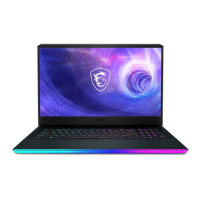




 To Next Page
 General