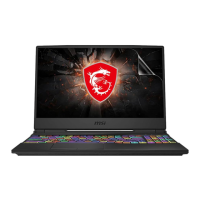
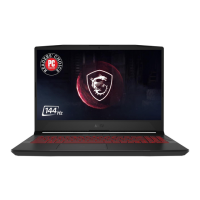
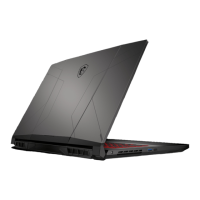
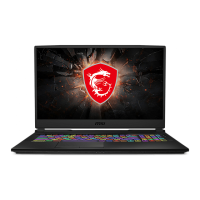
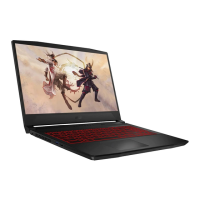
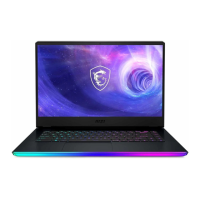
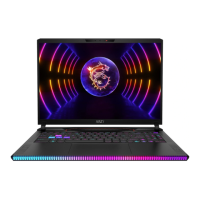
This document is a User's Manual for an MSI Notebook, providing comprehensive information on its features, specifications, and usage.
Function Description
The MSI Notebook is a finely designed portable computer intended for both general and professional use, including gaming. It offers a range of functionalities from basic computing tasks to advanced gaming experiences, supported by specialized MSI technologies. The notebook includes a built-in webcam for picture taking, video recording, or conferencing, and an internal microphone. Quick launch buttons provide access to specific applications or tools, such as "Cooler Boost" for maximizing fan speed and "Dragon Center" for gaming utility. The power button controls the notebook's on/off and sleep states, with an integrated LED indicating power and GPU mode (UMA or discrete). The touchpad serves as the primary pointing device, supporting standard mouse functions like point, click, drag, and drop. The keyboard is full-featured, with function keys for various system controls. The notebook supports wireless LAN (Wi-Fi) and wired LAN (RJ-45) for internet connectivity, as well as Bluetooth for pairing with external devices. It also supports multiple monitors for extended display setups.
Important Technical Specifications
Physical Characteristics:
- Dimension (15.6"): 383 (W) x 260 (D) x 27.5 (H) mm
- Dimension (17.3"): 419.2 (W) x 287.1 (D) x 28.15 (H) mm
- Weight (15.6"): 2.2 kg
- Weight (17.3"): 2.7 kg
CPU:
- Package: BGA
- Mobile Processor: The latest Intel® Core™ Processor Family
Core Chip:
Memory:
- Technology: DDR4, 2666
- Memory Slots: 2 x SO-DIMM slots
- Maximum Capacity: Up to 64GB
Power:
- AC/DC Adapter (option 1): 280W, 20V (Input: 100-240V~, 50/60Hz; Output: 20V, 14A)
- AC/DC Adapter (option 2): 230W, 19.5V (Input: 100-240V~, 50/60Hz; Output: 19.5V, 11.8A)
- AC/DC Adapter (option 3): 180W, 19.5V (Input: 100-240V~, 50/60Hz; Output: 19.5V, 9.23A)
- AC/DC Adapter (option 4): 150W, 19.5V (Input: 100-240V~, 50/60Hz; Output: 19.5V, 7.7A)
- AC/DC Adapter (option 5): 135W, 19.5V (Input: 100-240V~, 50/60Hz; Output: 19.5V, 6.92A)
- Battery: 6-cell
- RTC Battery: Yes
Storage:
- HDD: 1 x SATA interface for 2.5" HDD device
- SSD: 1 x M.2 slot (supports PCIe or SATA SSD device), 1 x M.2 slot (supports PCIe SSD device, optional)
I/O Ports:
- USB (option 1): 1 x USB 3.1 Gen 2, 2 x USB 3.1 Gen 1, 1 x USB 3.1 Gen 2 Type C
- USB (option 2): 3 x USB 3.1 Gen 1, 1 x USB 3.1 Gen 1 Type C
- Audio Connectors: 1 x Mic-in, 1 x Headphone-out (S/PDIF-Out supported)
- Video Connectors: 1 x HDMI, 1 x Mini-DisplayPort
- LAN: 1 x RJ-45
- Card Reader: 1 x optionally supports SD3.0/ SD/ MMC/ SDHC/ SDXC/ MS
Display:
- LCD Type: 15.6" HD/ FHD/ UHD LED panel or 17.3" HD/ FHD/ UHD LED panel
Video:
- Graphics: NVIDIA® GeForce® discrete graphics with NVIDIA® Optimus™ supported, Intel® HD UMA graphics, Virtual Reality optionally supported
- VRAM (option 1): GDDR5, based on GPU structure
- VRAM (option 2): GDDR6, based on GPU structure
Webcam:
Audio:
- Internal Speakers: 2 x stereo speakers
Communication Port:
- LAN: Supported
- Wireless LAN: Supported
- Bluetooth: Supported
Usage Features
- Ergonomic Comfort: Guidelines are provided for comfortable notebook use, including proper illumination, chair and desk height adjustment, backrest support, foot placement, LCD panel angle, and regular breaks.
- Power Management: Users can set up and customize power plans in Windows 10 to balance performance and energy conservation. This includes choosing existing plans (Balanced, Power saver, High performance, Gaming) or creating new ones, and adjusting settings for display turn-off, sleep mode, and brightness.
- Touchpad Control: The touchpad functions as a pointing device, allowing users to control the cursor, select items, and perform drag-and-drop operations. It can be customized through Windows settings.
- Keyboard Function Keys (Fn keys): The notebook features a full-functioned keyboard with Fn combination keys for quick access to various features:
- Fn + F4: Launch User Defined application.
- Fn + F5: Switch to ECO Mode for power saving.
- Fn + F6: Turn Webcam function on/off.
- Fn + F7: Switch between Turbo Mode (optional), Sport Mode, Comfort Mode, and ECO Mode for performance adjustment (available only with AC power).
- Fn + F10: Turn Airplane Mode on/off.
- Fn + F3: Enable/disable touchpad.
- Fn + F12: Enter Sleep Mode.
- Fn + F2: Switch display output mode (LCD, external monitor, or both).
- Windows Key + P: Bring up [Project] menu for multiple monitor display settings (PC screen only, Duplicate, Extend, Second screen only).
- Fn + Up/Down Arrow: Adjust LCD brightness.
- Fn + Left/Right Arrow: Adjust speaker volume.
- Fn + Ins: Mute/unmute speakers.
- Fn + Plus/Minus: Adjust keyboard backlight LED brightness (optional).
- Internet Connectivity:
- Wireless LAN: Connect to Wi-Fi networks by selecting from available networks and entering a security key if required. Airplane mode must be off for Wi-Fi to function.
- Wired LAN: Connect via an RJ-45 cable. Users can configure Dynamic IP/PPPoE or Static IP settings through Network & Internet settings.
- Bluetooth Connection: Pair Bluetooth devices by activating Bluetooth in Windows settings and selecting the desired device. Airplane mode must be off.
- External Devices: Connect various peripheral devices via USB, HDMI, DisplayPort, and Mini-DisplayPort. The system can auto-detect devices, or they can be manually added.
- RAID Function: The notebook may support RAID for data storage across multiple hard disk drives or solid state drives.
- BIOS Boot Mode: Users can select the boot mode (UEFI or Legacy) in the BIOS menu, with UEFI recommended for Windows 10.
- Windows 10 Recovery: Instructions are provided for restoring the Windows 10 operating system using [F3 Recovery] and [Windows 10 Settings].
- MSI One Touch Install: A one-click installer application for efficiently installing all necessary drivers.
Maintenance Features
- Safety Instructions: Emphasizes reading safety instructions, keeping the notebook away from humidity and high temperatures, using it on a stable surface, not covering ventilators, avoiding extreme storage temperatures (above 60°C/140°F or below 0°C/32°F), operating within 35°C/95°F ambient temperature, proper power cord placement, keeping strong magnetic/electrical objects away, avoiding liquid spills, and not using chemical substances for cleaning.
- Troubleshooting: In case of equipment issues (damaged power cord, liquid penetration, exposure to moisture, malfunction, physical damage), users are advised to contact service personnel.
- Battery Care:
- The notebook is equipped with a non-removable Li-ion or Li-polymer battery.
- Tips for optimizing battery life include suspending system operation when idle, turning off the system when not in use, disabling unnecessary settings, and connecting an AC/DC adapter when possible.
- For proper charging, users should save work and shut down programs before plugging in the AC/DC adapter. It is recommended to completely consume battery power once a month to optimize battery life.
- Upgrade and Warranty: Certain components (memory, HDD, SSD, ODD, Bluetooth/WiFi combo card) may be upgradable or replaceable. Users are advised to contact the local dealer or service center for product service and information, and not to attempt upgrades or replacements without understanding the process to avoid damage.
- Acquisition of Replaceable Parts: Replaceable parts may be available from the manufacturer for up to 5 years after product discontinuation, depending on regulations. Users should contact MSI support for details.
- Battery Reset Hole: A battery reset hole is provided for system firmware (EC) upgrades or system hangs. Users can power off, remove AC power, insert a straightened paperclip for 10 seconds, then reconnect AC power and power on.
- Ventilators: The notebook has multiple ventilators designed for cooling. Users must NOT block them for proper air circulation.
- HDD and SSD Maintenance: Do not attempt to remove or install HDD and SSD when the notebook is powered on. Consult an authorized retailer or service center for replacement.
- M.2 SSD Slot: For M.2 SSD cards, consult an authorized retailer or service center for correct specifications and installations.

 Need help?

 To Next Page
 General