
 Need help?
Do you have a question about the MSI Optix MAG301RF and is the answer not in the manual?
Lists the items included in the monitor package.
Step-by-step guide on how to assemble the monitor stand.
Details on the monitor's adjustment capabilities like tilt and height.
Identifies and illustrates the physical parts and ports of the monitor.
Instructions for connecting the monitor to a computer.
Explains the Navi Key for OSD navigation and the function of hotkeys.
Details the gaming-related settings and modes available in the OSD.
Explains professional modes, color settings, brightness, and contrast.
Describes input source selection and default Navi Key directions.
Covers language selection, transparency, OSD timeout, and RGB LED.
Configures power button behavior and on-screen information.
Manages HDMI CEC, Eco Mode, and system reset options.
Details model, resolution, refresh rate, response time, and input interfaces.
Covers VESA mounting, dimensions, weight, and operating environment.
Lists supported resolutions and refresh rates across various standards.
Solutions for no image, incorrect sizing, and power LED issues.
Fixes for fuzzy display, color problems, flickering, and waves.
Critical safety precautions for power, battery, and device environment.
Information on Low Blue Light and Flicker Free certifications.
CE, FCC, WEEE, RoHS, and other regional compliance statements.
Green product features, environmental policy, and screen time recommendations.
Information on obtaining technical assistance and product support.
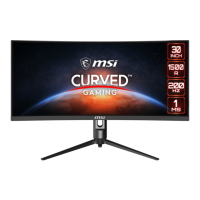
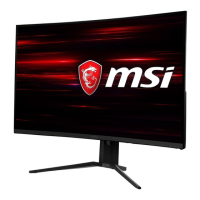
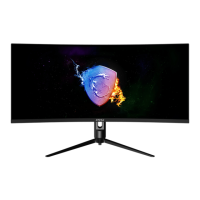
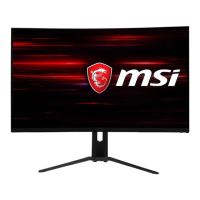
The MSI Optix MAG301RF is an LCD monitor designed to provide an enhanced visual experience for users, particularly in gaming and professional applications. This monitor is part of the Optix Series, known for its focus on delivering high-performance displays.
The Optix MAG301RF serves as a primary display unit for personal computers and other compatible devices. It is equipped with multiple input interfaces, including HDMI and DisplayPort, allowing for versatile connectivity with various systems. The monitor supports a range of resolutions and refresh rates, making it suitable for both general computing tasks and demanding visual applications like gaming.
A key feature of this monitor is its On-Screen Display (OSD) menu, which provides comprehensive control over various display settings. Users can navigate through these settings using a multi-directional Navi Key, which simplifies the process of adjusting image parameters, game modes, and other functionalities. The OSD is structured into several main categories: Gaming, Professional, Image, Input Source, Navi Key, and Setting, each offering a suite of customizable options.
The "Gaming" section of the OSD allows users to optimize the monitor's performance for different game genres. It includes preset game modes such as FPS, Racing, RTS, and RPG, each tailored with specific visual enhancements. Users can also fine-tune settings like Night Vision, which adjusts background brightness for better visibility in dark game scenes, and Response Time, to minimize motion blur. The MPRT (Moving Picture Response Time) feature can be enabled to further reduce blur, though it may affect other display settings like HDCR and Brightness. Adaptive-Sync technology is integrated to prevent screen tearing, ensuring a smooth visual experience across various refresh rates and input sources. Additionally, the Gaming menu offers a Refresh Rate display, allowing users to monitor the current refresh rate, and an Alarm Clock function, which can be set to activate a timer. Screen Assistance provides on-screen crosshairs or other visual aids for gaming.
The "Professional" section caters to users requiring specific visual accuracy or comfort for work-related tasks. It includes various Pro Modes like User, Anti-Blue, Movie, Office, and sRGB, each offering distinct color profiles. The Low Blue Light function is designed to reduce eye strain by adjusting the screen's color temperature to a warmer tone, particularly useful during extended use. The HDCR (High Dynamic Contrast Ratio) feature enhances image quality by increasing contrast, making details more pronounced.
Under the "Image" menu, users can adjust fundamental display parameters such as Brightness, Contrast, and Sharpness. These settings allow for personalized visual output, with Sharpness specifically improving clarity and detail. The Color Temperature can be set to Cool, Normal, Warm, or customized with individual RGB values, providing flexibility for color calibration. The Screen Size option allows users to select different aspect ratios (Auto, 4:3, 16:9, 21:9) to match content or preference.
The "Input Source" menu enables users to manually select between HDMI1, HDMI2, and DisplayPort inputs. An "Auto Scan" feature can be toggled on or off; when off, users can use the Navi Key to select the input source, especially when the monitor is in power-saving mode or displaying a "No Signal" message.
The "Navi Key" menu allows for customization of the hotkey functions assigned to the Navi Key's directional movements. By default, moving the Navi Key up, down, left, or right when the OSD is inactive activates Game Mode, Screen Assistance, Alarm Clock, and Input Source, respectively. Users can reassign these hotkeys to other functions like Brightness, Refresh Rate, Info. On Screen, or Night Vision.
The "Setting" menu provides general monitor configurations. Language selection is available for the OSD, with English as the factory default. Transparency of the OSD menu can be adjusted, as well as the OSD Time Out duration. The RGB LED backlight on the monitor can be turned on or off. The Power Button behavior can be configured to either turn off the monitor completely or put it into standby mode. The "Info. On Screen" feature displays monitor status information on the right side of the screen, which can be enabled or disabled. HDMI CEC (Consumer Electronics Control) is supported, allowing the monitor to interact with compatible audio-visual devices like Sony PlayStation® or Nintendo® Switch™. When HDMI CEC is enabled, the monitor can automatically power on or enter power-saving mode in sync with the connected CEC device. The Eco Mode setting, when enabled, allows for higher brightness, while a warning message appears if it's turned off. Finally, a Reset option is available to restore all OSD settings to their original factory defaults, except for the language setting.
The Optix MAG301RF is designed for user comfort and ease of use. Its stand offers multiple adjustment capabilities: tilt, height, and swivel. The tilt function allows the screen to be angled from -5° to 20°, while the height can be adjusted by up to 130mm. The swivel feature enables rotation of the display by 45° in either direction. These adjustments help users find an ergonomic viewing position, reducing strain during prolonged use.
The monitor's Navi Key simplifies menu navigation, making it intuitive to access and modify settings without fumbling with multiple buttons. The hotkey functionality further enhances convenience, providing quick access to frequently used features like game modes or input selection.
For connectivity, the monitor includes a USB 2.0 Type-B Upstream Port, which, when connected to a PC, enables the USB Type-A Downstream Ports on the monitor for peripheral connections. This acts as a USB hub, expanding the connectivity options for the user. A headphone jack is also included for audio output.
Maintaining the Optix MAG301RF involves simple steps to ensure its longevity and optimal performance. The monitor is designed with a cable routing hole to help manage cables, keeping the setup tidy and preventing damage to the cords.
For cleaning, it is recommended to remove the power plug and use a soft cloth to wipe the device. Industrial chemicals or liquids should not be poured into any openings to prevent damage or electric shock.
The monitor is built with consideration for environmental responsibility. It features reduced energy consumption during use and standby, contributing to lower power usage. The design also facilitates easy dismantling and recycling of parts at the end of its useful life. MSI encourages users to contact local authorized collection points for recycling and disposal of end-of-life products.
Safety instructions emphasize proper power connection, ensuring the power voltage is within the safe range and the power cord is placed to avoid tripping hazards. If an adapter is used, it should be the MSI-provided one. For models with a battery, specific precautions are outlined to prevent explosion or leakage, including correct replacement and proper disposal methods.
The monitor also carries TÜV Rheinland certifications for Low Blue Light and Flicker Free technologies. These certifications indicate that the monitor is designed to reduce eye fatigue and discomfort. Users are advised to take regular breaks, adjust screen distance, and consciously blink to further mitigate eye strain. The Flicker Free feature ensures that the display produces no visible or invisible flicker within a specific frequency range, enhancing viewing comfort. However, Flicker Free may not be supported when Anti Motion Blur/MPRT is enabled, depending on the product.
 General
| AMD FreeSync | No |
|---|---|
| NVIDIA G-SYNC | Yes |
| NVIDIA G-SYNC type | G-SYNC Compatible |
| AMD FreeSync refresh rate range | 48 - 165 Hz |
| HD type | 2K Ultra HD |
| Color gamut | 85 % |
| Pixel pitch | 0.2697 x 0.2697 mm |
| Screen shape | Flat |
| Display diagonal | 29.5 \ |
| Anti-glare screen | Always gives an optimal view, even in direct sunlight. |
| Display resolution | 2560 x 1080 pixels |
| Display technology | LED |
| Native aspect ratio | 21:9 |
| Maximum refresh rate | 200 Hz |
| Viewable size, vertical | 291.276 mm |
| sRGB coverage (typical) | 105 % |
| Contrast ratio (dynamic) | 100000000:1 |
| Contrast ratio (typical) | 1000:1 |
| Display number of colors | 1.07 billion colors |
| Display diagonal (metric) | 75 cm |
| Viewable size, horizontal | 690.432 mm |
| Digital vertical frequency | 48 - 200 Hz |
| Digital horizontal frequency | 60 - 250.7 kHz |
| Display brightness (typical) | 300 cd/m² |
| Input current | 1.6 A |
| AC input voltage | 100 - 240 V |
| AC input frequency | 50 - 60 Hz |
| Energy efficiency scale | A to G |
| Power consumption (standby) | - W |
| Power consumption (typical) | 32 W |
| Package depth | 180 mm |
| Package width | 960 mm |
| Package height | 510 mm |
| Package weight | 9900 g |
| Product color | Black |
| Market positioning | Gaming |
| USB hub version | 2.0 |
| DisplayPort version | 1.2a |
| USB upstream port type | USB Type-B |
| Tilt angle range | -5 - 20 ° |
| Cable lock slot type | Kensington |
| Panel mounting interface | 100 x 100 mm |
| Operating altitude | 0 - 5000 m |
| Storage temperature (T-T) | -20 - 60 °C |
| Operating temperature (T-T) | 0 - 40 °C |
| Storage relative humidity (H-H) | 10 - 90 % |
| Operating relative humidity (H-H) | 20 - 90 % |
| Harmonized System (HS) code | 85285210 |
 Weight and Dimensions
| Depth (with stand) | 234 mm |
|---|---|
| Width (with stand) | 709.4 mm |
| Height (with stand) | 399.2 mm |
| Weight (with stand) | 7200 g |
| Depth (without stand) | 60 mm |
| Height (without stand) | 326 mm |


 To Next Page