Introductions
2-4 2-5
1. Webcam/ Webcam LED/ Internal Microphone
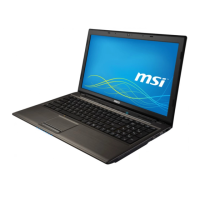
• This built-in webcam can be used for picture taking, video recording or
conferencing, and so on.
• Webcam LED indicator, next to the webcam, blinks when webcam function is
activated; LED goes out when this function is turned off.
• The built-in microphone shares the same function with an external one.
2. Power Button / Power LED/ GPU Mode LED
Power
Power Button
• Press this key to turn the notebook power ON.
• While the notebook is turned on, quick press this key to
force the computer into sleep state. Press again to wake up
the system from sleep state.
• Long press this key to reset the notebook if needed.
Power LED/ GPU Mode LED
• Glowing white when the notebook power is turned on, and
the UMA GPU mode is selected.
• Glowing amber when the optionally supported discrete GPU
mode is selected.
• LED flashes when the notebook goes to the sleep state.
• LED goes off when the notebook is turned off.
3. Keyboard
The built-in keyboard provides all the functions of a notebook keyboard. Refer to How
to Use the Keyboard for details.
4. Touchpad
This is the pointing device of the notebook.
5. Fingerprint Sensor (optional)
Use the fingerprint sensor to set up user’s fingerprints on the notebook, and use it to
unlock the notebook. Refer to “How to Set Up Windows Hello Fingerprint Login” in
chapter 3 for details.
6. Status LED
Caps Lock
Glows when the Caps Lock function is activated.



 To Next Page