Select the applicable MTC-5000 unit and tap the ‘Mirroring’ toggle so that it turns green. At this point an
AirPlay password is required – this will be the Meeting ID. After tapping ok the screen of the iOS device
will appear on the MTC-5000 screen.
(iv) Connect Apple Macs using AirPlay®
Mac computers can currently join using the Web Client (see point ii) or by using AirPlay®.
To mirror the screen using AirPlay®, make sure the Mac is connected to the same network as MTC-5000,
or is connected to the MTC-5000 Access Point.
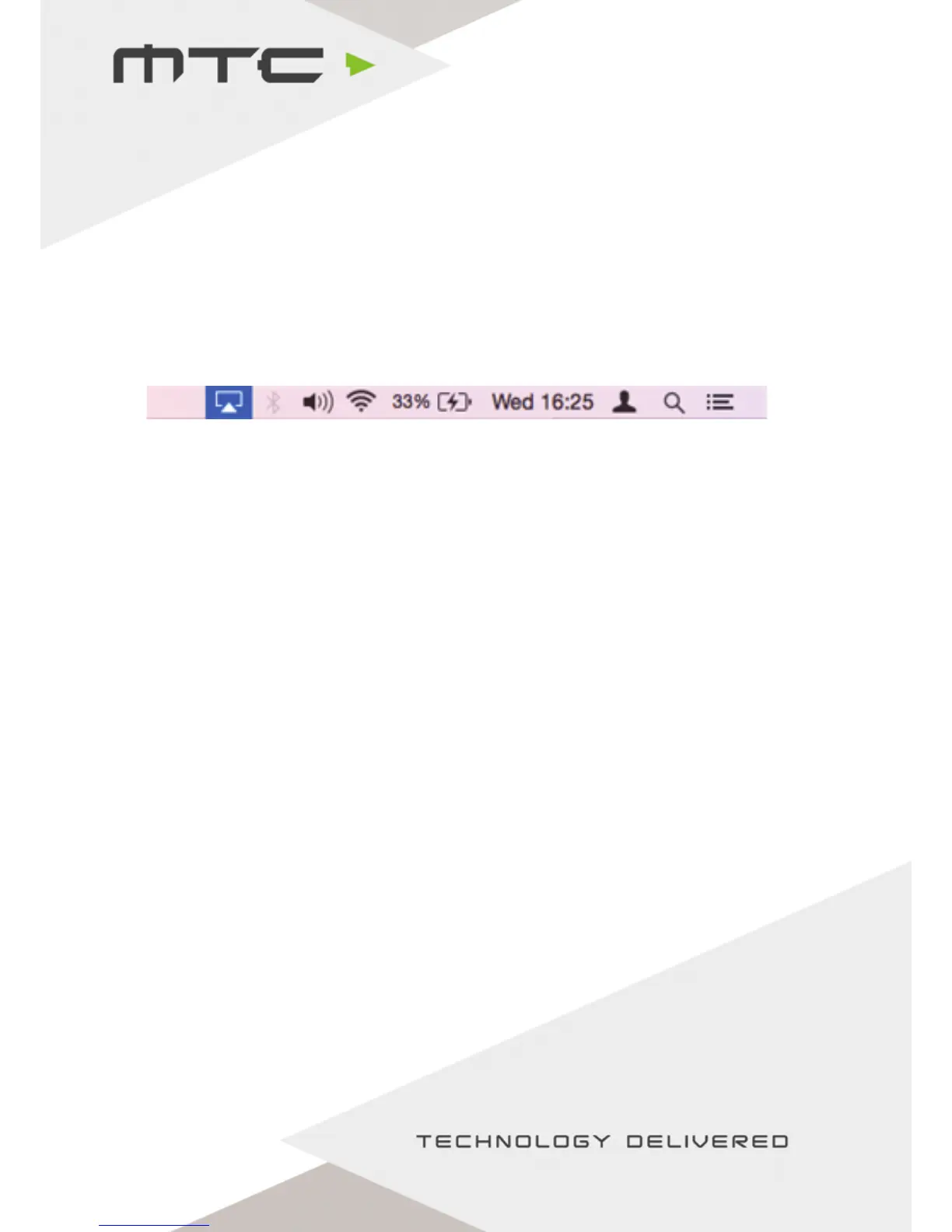
When connected to a valid network with AirPlay®, the AirPlay® icon will be shown in the top right of
the OS X Menu Bar, click this to see a list of available AirPlay® receivers on the local network.
‘MTC-5000’ will be in this list (or the name of the MTC-5000 network, if you have renamed it). At this
point, AirPlay® will prompt for a password - this will be the Meeting ID. Enter this and the attendee will
appear on the MTC-5000 screen.
(v) Connect an Android device using Miracast®
To use Miracast® you will need:
• A supported device running Android 4.4+
• Miracast® enabled in your MTC-5000 settings
• The Access Point disabled, under ‘Access Point’ in the MTC-5000 settings
Steps to connect via Miracast® vary dependent on device, please check with your manufacturer for
instructions on how to share the device screen.
www.mtc-technologies.com info@mtc-technologies.com


 To Next Page
 Loading...