172
www.multilaser.com.br
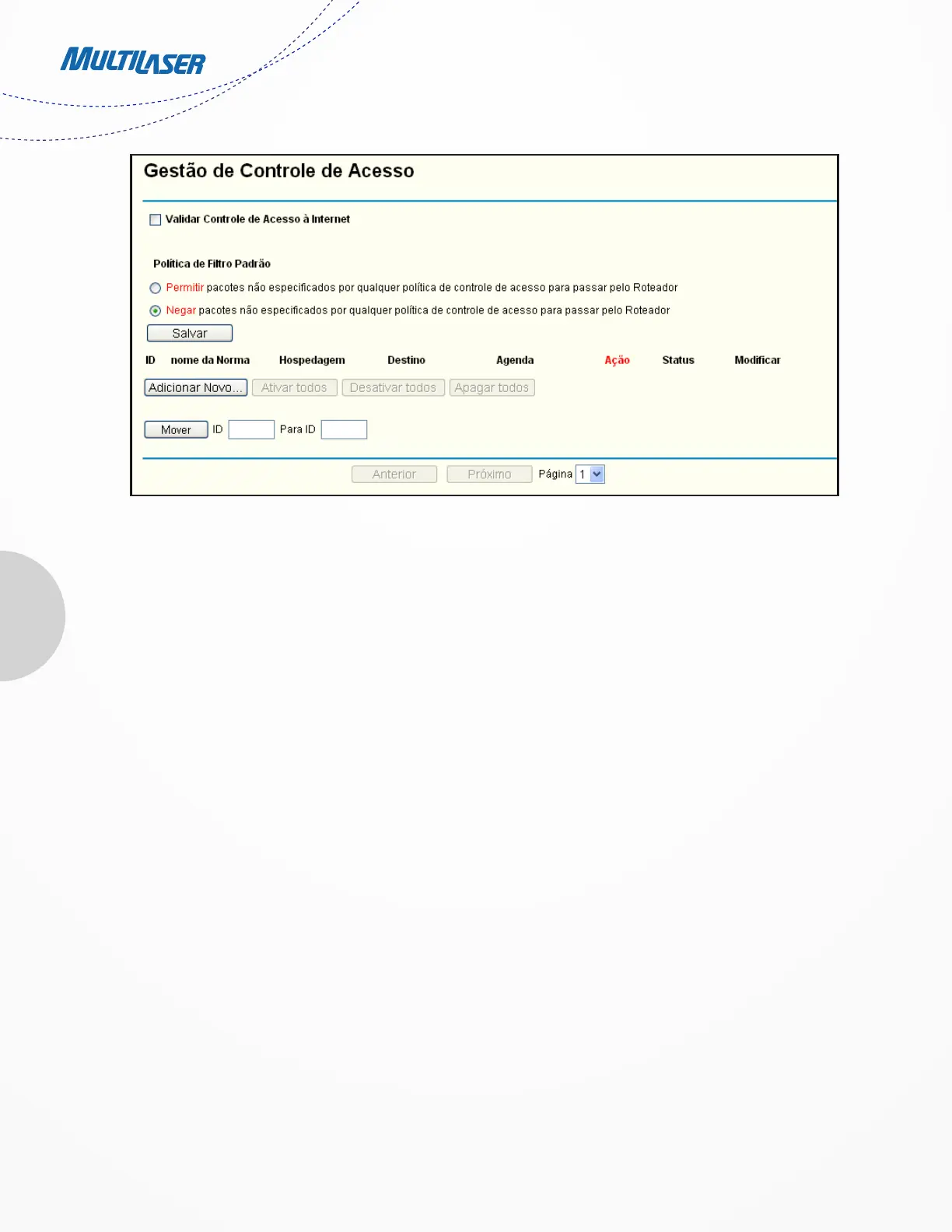
Figure 4-47 Access Control Rule Management
Filter Policy can take effect.
• Rule Name - Here displays the name of the rule and this name is unique.
• Host - Here displays the host selected in the corresponding rule.
• Target - Here displays the target selected in the corresponding rule.
• Schedule - Here displays the schedule selected in the corresponding rule.
• Action - Here displays the action the Router takes to deal with the packets. It could be Allow or Deny. Allow means that
the Router permits the packets to go through the Router. Deny means that the Router rejects the packets to go through
the Router.
• Status - This field displays the status of the rule. Enabled means the rule will take effect, Disabled means the rule will
not take effect.
• Modify - Here you can edit or delete an existing rule.
To add a new rule, please follow the steps below.
1. Click the Add New… button and the next screen will pop-up as shown in Figure 4 48.
2. Give a name (e.g. Rule_1) for the rule in the Rule Name field.
3. Select a host from the Host drop-down list or choose “Click Here To Add New Host List”.
4. Select a target from the Target drop-sown list or choose “Click Here To Add New Target List”.
5. Select a schedule from the Schedule drop-down list or choose “Click Here To Add New Schedule”.
6. In the Action field, select Deny or Allow.
7. In the Status field, select Enabled or Disabled to enable or disable your entry.


 To Next Page
 Loading...