EasyManua.ls Logo

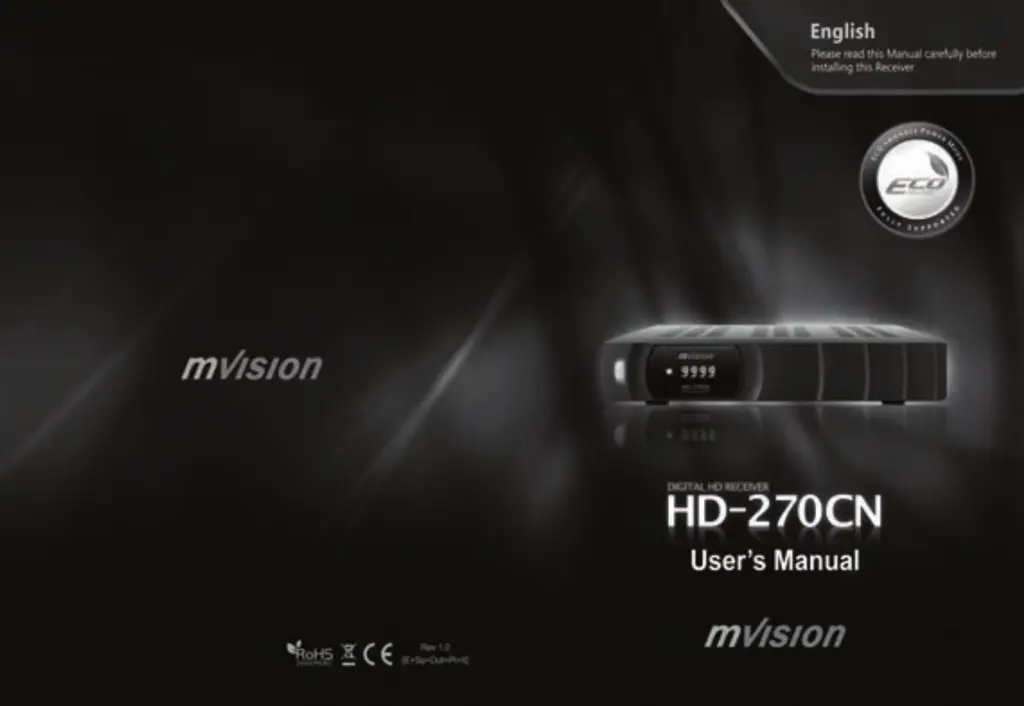
Mvision HD-270CN - User Manual

Mvision HD-270CN
181 pages
Print Icon
To Next Page IconTo Next Page
Loading...

Questions and Answers

  • A
    Abigail BrownAug 4, 2025
    What to do if my Mvision Remote Control Unit does not work?
    • T
      taylor53Aug 4, 2025
      If the Mvision Remote Control isn't working, try these steps: * First, replace the batteries. * Next, make sure you're aiming the remote directly at the receiver. * Finally, check that nothing is blocking the front panel of the receiver.
  • A
    alicia05Aug 8, 2025
    Why does my Mvision show “No Signal” on the screen?
    • C
      Christopher HowardAug 8, 2025
      If you see a “No Signal” message on your screen using Mvision, try the following: 1. Check the signal strength and quality in the menu. 2. Inspect the LNB cable. 3. Check the dish and adjust it. 4. If necessary, replace the LNB.
  • H
    Heather LeeAug 14, 2025
    How to fix no picture on Mvision?
    • L
      Lori JonesAug 14, 2025
      If there's no picture on your Mvision, make sure to: * Check and adjust the dish. * Check and correct the cable connection. * Check the channel and video output settings.
  • J
    Jessica MeyersAug 18, 2025
    What to do if there is no sound on my Mvision?
    • M
      Mr. Charles Jackson Jr.Aug 19, 2025
      If your Mvision has no sound, please check: * The volume level of both the TV and the receiver. * The mute status of both the TV and the receiver. * The cable connections, ensuring they are correctly connected.
  • M
    Maria WrightAug 25, 2025
    What to do if Mvision service is not running or scrambled?
    • C
      Christopher WelchAug 25, 2025
      If the service is not running or scrambled on your Mvision, verify that the Conditional Access Module and smart card are appropriate for the selected service and correctly inserted.
  • L
    Linda SmithAug 28, 2025
    How to troubleshoot no power supply on Mvision?
    • S
      Scott LongAug 28, 2025
      Ensure that the power cable is properly plugged into the power socket.

Summary

General Safety

General Information

II. Features

Lists the main features and capabilities of the receiver.

III. Remote Control Unit (RCU)

Details the functions of each button on the remote control.

IV. How to Setting RCU for TV

Provides instructions for configuring the remote control to operate the TV.

Installing Equipment

I. Connecting the Receiver to TV

Explains how to connect the receiver to a TV set.

Channel List Guide

1. Normal Live Mode

Explains how channel information is displayed and accessed.

2. Simple Channel List

Instructions to access and navigate the simple channel list view.

3. Detail Channel List

Instructions to access and navigate the detailed channel list view.

4.EPG (Electronic Program Guide)

Explains how to use the Electronic Program Guide to view program information.

Menu Guide

MAIN PAGE

Describes how to access and navigate the main menu screen.

I. CHANNEL MANAGER

Explains how to organize and manage channels on the receiver.

1-2. Rename

Instructions for renaming channels within the Channel Manager.

II. Installation

II-1. Satellite Search

Guide to searching for satellite channels.

II-2. DiSEqC Switch

Configuration for DiSEqC switch settings.

II-3. Motor Setup

Instructions for setting up a satellite dish motor.

II-4. Terrestrial Search

Guide to searching for terrestrial channels.

III. Options

III-1. OSD Setup

Configuration for On-Screen Display language and settings.

III-2. Control Panel

Settings for video output, aspect ratio, and display adjustments.

III-3. Time Adjust

Instructions for setting the receiver's local time.

IV. Utility

IV-1. System Information

Displays current software/hardware versions and product name.

IV-2. Timer

Functionality for setting automatic power on/off times.

V. Accessory

V-1. USB

Instructions for using USB devices for software or data.

V-2. Smart Card

Information on inserting and using smart cards for pay services.

PVR Guide

II. Record Function

Details how to record programs using the PVR.

III. Playback Function

How to play back recorded programs.

VI. Format

Instructions for formatting USB drives or hard disks.

IX. Software Upgrade

Instructions for upgrading the receiver's software.

Troubleshooting

Specifications

Brand List

Mvision HD-270CN Specifications

General IconGeneral
BrandMvision
ModelHD-270CN
CategoryRemote Control
LanguageEnglish