User and Safety guide4
Device light indication
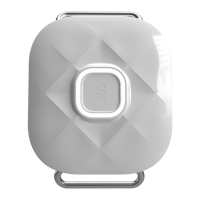
If you press the SOS button on MyKi™ SPOT once, the same lights up briey with blue
or white light (depending on whether the Device is connected or not).
• Blue light indicates that the Device is not connected. Please check the steps below again:
1. A SIM card is inserted into the Device as shown in Fig. 2
2. The SIM card has the PIN disabled.
3. The SIM card has active mobile data
• The white light indicates that the Device has successfully connected.
• The red light means the device has a low battery.
Charging the battery
Connect the device to the original charger:
А) The device is charging if the LED indicator ashes in green.
B) The device is fully charged when the LED indicator lights up permanently in green.
Note: Full battery charging takes up to 2 hours. It is possible during this time the
device to warm up.
THE MYKI™ SPOT APPLICATION
How do I create a MyKi™ SPOT account?
• Install the MyKi™ SPOT app for Android, iOS and AppGallery.
• Open the app and create an account.
• Select the app language
• Select “Create Account”
• Agree with the Privacy Policy and Terms and Conditions
• Enter your e-mail (user name)
• Enter the password (must contain six or more characters, one uppercase, one low-
ercase, and one special character, such as: @, $, &, etc.).
• Conrm the password.
• Enter your mobile number and go to the next step.
• Scan the barcode from the package.
• Enter the name of the tracker.


 To Next Page
 Loading...