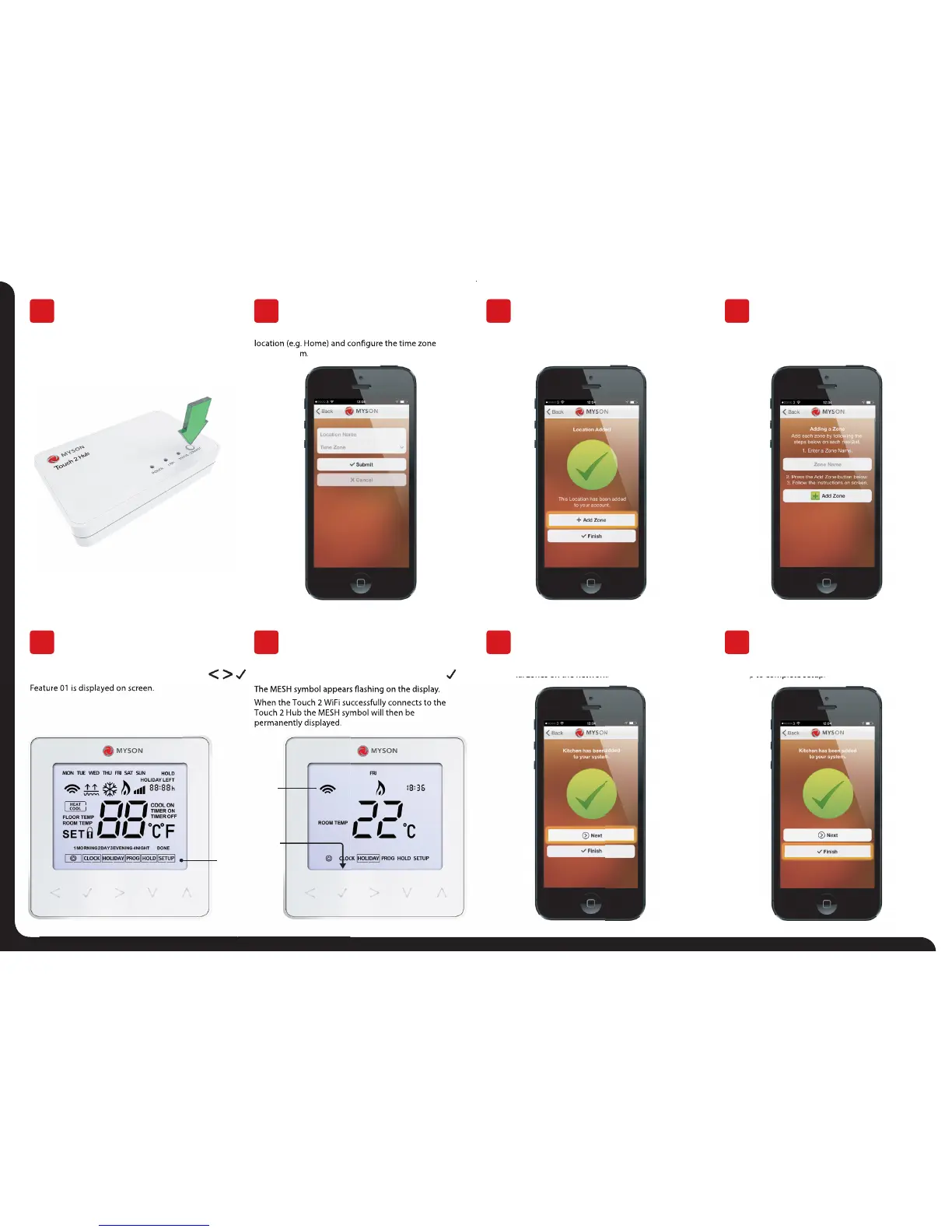
Press the connect button on the Touch 2 Hub to add
the Location to your Account.
When successfully connected, add a title for the new
for the system.
You should now enter the name for this new zone and
then press Add Zone.
The next step is to join Touch 2 WiFi Thermostats to the
Touch 2 Hub. Select Add Zone in the Touch 2 App.
When complete, press Next and repeat these steps for all
additional zones on the network.
When all zones have been added, press Finish on
the app to complete setup.
Connect To Touch 2 Hub
Pair Your Touch 2 WiFi
Name Your Touch 2 Hub
Pair Your Touch 2 WiFi
Add Zone
Add Another Zone
Assign A Zone Name
Complete Setup
4
8
5
9
6
10
7
11
On the Touch 2 WiFi, use the Left / Right keys to select
SETUP and press Tick ....................................................
Feature 01 is displayed on screen.
Press the Tick key to pair the Touch 2 WiFi to
the Touch 2 Hub ............................................................................
When the Touch 2 WiFi successfully connects to the
Touch 2 Hub the MESH symbol will then be
permanently displayed.


 To Previous Page
 Loading...