NATEC GENESIS RX66 9
EN – NATEC GENESIS RX66 – USER MANUAL
A. INTRODUCTION
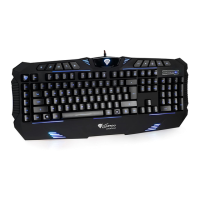
Genesis RX is a programmable gaming keyboard with built-in memory, driver and keys backlight.
B. fEATURES
− Anti-ghosting function – no conicts among all keys;
− Every key with more than kinds of function available to set in gaming software;
− Equipped with built-in memory to store user-dened functions into keyboard;
− Total user-dened keys – in proles each having keys (with special Prole change button);
− Separate logo light – colors – indicating active prole;
− Key route: .mm;
− Key switch operating force: g;
− Long life keys million times;
− Large comfortable palm rest;
− Unique shape and gaming design;
− Total keys;
− Multimedia keys;
− Windows key lock function (by hotkey);
− Whole keyboard backlight - selectable color - Red/Violet/Blue;
− Four-level adjustable backlight (by hotkey) – Breathing///O;
− Macro record (by hotkey);
− Adjustable response time (by hotkey) - ms/ms/ms/ms.
C. DRIvER DESCRIPTION
I. System
− Compatible with Windows XP/Vista// operation system;
− USB (./.) port;
− CD-ROM drive;
− MB of hard disk space.
II. Windows XP/Vista/7/8 installation guide
. Insert the Genesis RX gaming keyboard USB plug into the computer USB port.
. Insert the Genesis RX driver CD into the CD-ROM drive (you can also download the driver from the
website www.genesis-zone.com).
. When the screen shows “install the program”, click “next”.
. Select the install path, then click “next”.
. Installing.
. When the screen shows “installation nished”, click “nish”.
. The keyboard is ready to use.


 To Next Page