EasyManua.ls Logo

NEC EA244WMi-BK - User Manual

NEC EA244WMi-BK
26 pages
Print Icon
To Next Page IconTo Next Page
Loading...
MultiSync EA244WMi
Users Manual
Question and Answer IconNeed help?

Do you have a question about the NEC EA244WMi-BK and is the answer not in the manual?

Summary

Safety and Compliance

General Safety Warnings

Critical warnings regarding fire, shock hazards, and cabinet opening.

Electrical Safety Precautions

Measures to prevent electric shock and handle voltage components safely.

Power Cord and Usage Guidelines

Guidelines for proper power cord selection and usage across regions.

Product Information and Trademarks

Details on product trademarks, energy standards, and intended use.

Registration and Compliance

Canadian Compliance Statement

Statement regarding compliance with Canadian safety regulations and standards.

FCC Information and Guidelines

Details on FCC compliance, cable usage, and interference prevention.

Declaration of Conformity

Official declaration of equipment conformity to FCC rules and technical standards.

Recommended Use, Ergonomics, and Placement

General Handling and Safety

Precautions for handling the monitor, avoiding liquids, objects, and damage.

Environmental and Placement Tips

Advice on placement, temperature, humidity, and ventilation for optimal performance.

Image Persistence Management

Explanation and mitigation of image persistence for LCD displays.

Ergonomic Setup Guidelines

Recommendations for comfortable and healthy monitor usage and setup.

Monitor Setup and Adjustments

Quick Start Guide

Step-by-step instructions for initial connection and setup of the monitor.

Monitor Adjustments

Procedures for adjusting screen height, rotation, tilt, and swivel.

Alternative Mounting Options

Flexible Arm Installation

Instructions for mounting the monitor using a flexible arm.

Removing and Re-attaching the Stand

Procedures for detaching and reattaching the original monitor stand.

Monitor Controls and OSD

OSD Control Key Functions

Detailed explanation of each button on the monitor's control panel.

ECO TOOLS Features

Explanation of ECO MODE, Brightness, and Contrast adjustments.

Display Settings and Features

Advanced Display Settings

Configuration of Auto Brightness, Power Management, and DV MODE.

Screen and Color Adjustments

Tuning image position, resolution, and color settings.

Monitor Tools and Settings

Audio/video adjustments, OSD customization, and other utility functions.

Advanced Features and Information

Hot Keys and Information Display

Features like Hot Key, Signal Information, Sensor Information, and Key Guide.

Data Copy and Settings Management

Procedures for data copying and storing/restoring custom settings.

Environmental and Cost Savings

Information on carbon footprint, usage, savings, and currency settings.

Information and Warnings

Information Display

Display of current resolution, technical data, model, and serial numbers.

OSD Warning Messages

Explanation of warning messages like "NO SIGNAL" and "OUT OF RANGE".

Monitor Specifications

LCD Module Details

Specifications of the LCD panel, including size, resolution, and brightness.

Input Signal and Connectors

Details on supported input signals, ports, and cables.

Synchronization and Viewing Specs

Horizontal/vertical sync ranges and viewing angle specifications.

Resolution and Timing Specs

Supported resolutions and image formation time.

Physical and Environmental Specs

Dimensions, weight, operating temperature, and humidity.

Product Features

Display Connectivity (DisplayPort, HDMI)

Features related to digital display connectivity standards.

User Interface and Ergonomics

OSD controls, ergonomic design, and user-friendly features.

Power Management and USB Hub

Intelligent power saving and USB hub functionality.

Environmental and Content Protection

Environmental impact, HDCP, and ControlSync features.

Troubleshooting

Common Issues and Solutions

Troubleshooting for no picture, power, image quality, and brightness problems.

Advanced Troubleshooting Topics

Solutions for audio, USB hub, sensor, and ControlSync issues.

Specialized Functions

Auto Brightness Function

Setup and operation of the automatic brightness adjustment feature.

ControlSync Multi-Monitor Setup

Connecting and configuring monitors for synchronized control.

Sustainability and Compliance

TCO Certified Sustainability

Overview and criteria of TCO Certified for sustainable IT products.

Environmental Information

Details on product recycling, energy saving modes, and WEEE compliance.

Overview

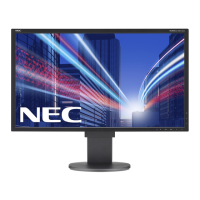
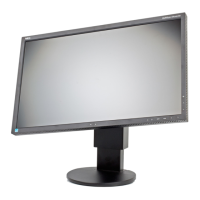
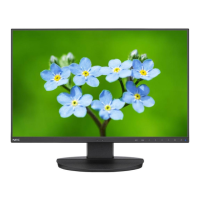
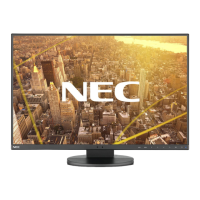
The NEC MultiSync EA244WMi is a display monitor designed for use as Information Technical Equipment in an office or domestic environment. It is intended to be connected to a computer and is not for the display of television broadcast signals.

Function Description:

The MultiSync EA244WMi is an LCD color monitor that provides high-performance digital display connectivity. It supports various input signals, including DVI, DisplayPort, and HDMI, allowing for connection to a wide range of computer systems. The monitor features an On-Screen Display (OSD) control menu for quick and easy adjustment of screen image elements. It also incorporates an Intelligent Power Manager System for energy saving and Multiple Frequency Technology to automatically adjust to the display card's scanning frequency. The monitor is equipped with a human sensor and an ambient light sensor for automatic brightness adjustments and power-saving modes. A USB 2.0 hub is integrated for connecting peripheral devices.

Usage Features:

  • Optimal Setup: For optimal performance, the display should be allowed to warm up for 20 minutes. The monitor height should be adjusted so the top of the screen is at or slightly below eye level, with eyes looking slightly downward when viewing the middle. The optimal viewing distance is 50 cm (19.69 inches), with a range of 40 cm (15.75 inches) to 70 cm (27.56 inches). To minimize glare and reflections, the monitor should be positioned at a 90° angle to windows and other light sources, and its tilt should be adjusted to avoid ceiling light reflections.
  • Ergonomics: To maximize ergonomic benefits, users are advised to adjust brightness to a moderate setting, use preset Size and Position controls with standard signals, and utilize preset Color Settings. Non-interlaced signals with a vertical refresh rate of 60 Hz are recommended. Avoiding primary color blue on a dark background is also suggested to prevent eye fatigue due to insufficient contrast.
  • OSD Controls: The monitor features front-bezel control keys for accessing the OSD menu. These keys allow users to adjust brightness, contrast, ECO Mode, Auto Brightness, Black Level, OFF Mode Setting, Human Sensing, DV Mode, Screen (Auto Adjust, Auto Contrast, Left/Right, Down/Up, H.Size, Fine, Input Resolution), Color (Color Control System, R, G, B, Color Gain), and Tools (Volume, Sound Input, Video Level, Over Scan, Video Detect, Expansion Mode, Response Improve, Off Timer, LED Brightness, DDC/CI, Factory Preset).
  • Auto Brightness Function: This feature automatically adjusts the LCD screen's brightness based on ambient light levels or white content in the display area. It can be set to respond to ambient light, white content, or a combination of both. Users can set the maximum brightness level for bright room conditions and the minimum brightness level for dark room conditions.
  • ECO Mode: This function helps decrease power consumption by reducing the brightness level. It offers different settings, including "OFF," "1 (ENERGY STAR SETTING)" for brightness variable range from 0% to 60%, and "2 (40% POWER SAVINGS)" for brightness variable range from 0% to 30%. When ECO Mode is active, a "CARBON FOOTPRINT" bar appears.
  • Human Sensing: The human sensor on the front of the monitor detects human movement. If no person is detected for a period, the monitor can shift to a low brightness mode or power-saving mode to reduce power consumption. Users can adjust the threshold level and the wait time for these actions.
  • DV Mode (Dynamic Visual Mode): This allows users to select from various display settings optimized for different content types: Standard, Text, Movie, Gaming, Photo, and Dynamic.
  • ControlSync: This feature enables the synchronization of settings across multiple monitors. By connecting a master monitor to sub-monitors via a ControlSync cable, settings from the master monitor can be copied and automatically applied to up to five sub-monitors.
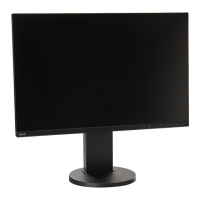
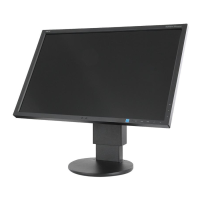
  • Screen Adjustments: The monitor offers tilt, swivel, pivot, and height adjustment capabilities. The screen can be raised or lowered by placing hands on each side and lifting or lowering. For screen rotation (landscape to portrait or vice versa), the screen must first be raised to its highest position and tilted to avoid obstruction.
  • Hot Key Function: When activated, ECO MODE, BRIGHTNESS, and VOLUME can be adjusted directly using the front keys without entering the OSD menu.
  • Data Copy: This function allows for initiating data copy from the master monitor to sub-monitors in a ControlSync setup.
  • Customize Setting: Users can store current monitor settings for easy recovery and restore them by holding the MENU key.

Maintenance Features:

  • Cleaning the LCD Panel: When the LCD is dusty, it should be gently wiped with a soft cloth. Users should avoid rubbing the panel with hard or coarse material, applying pressure to the surface, or using OA cleaner, as these can cause deterioration or discoloration.
  • Cleaning the Cabinet: The cabinet should be gently wiped with a soft cloth after unplugging the power supply. For deeper cleaning, the cloth can be dampened with a neutral detergent and water, followed by a dry cloth. Harsh cleaning agents like benzene, thinner, alkaline detergent, alcoholic system detergent, glass cleaner, wax, polish cleaner, soap powder, or insecticide should not be used. Contact with rubber or vinyl for extended periods should also be avoided, as these can cause paint deterioration, cracking, or peeling.
  • Image Persistence Prevention: To prevent residual or "ghost" images from prolonged display of static patterns, the monitor should be turned off for a duration equal to the time the previous image was displayed. NEC DISPLAY SOLUTIONS recommends using a moving screen saver or turning off the monitor when not in use.
  • Troubleshooting: The manual provides guidance for common issues such as no picture, unresponsive power key, image persistence, "OUT OF RANGE" messages, unstable or unfocused images, unlit LED, insufficient brightness, improperly sized images, and no video. It also covers issues related to no sound, brightness variations over time, USB Hub malfunction, human sensor not working, and ControlSync issues.
  • Monitor Stand Removal: The monitor stand can be removed for alternate mounting purposes, such as with a flexible arm. This involves disconnecting all cables, placing the monitor face down on a non-abrasive surface, and removing specific screws. Care must be taken when handling the monitor and supporting the stand during screw removal.
  • Environmental Responsibility: The monitor is designed with environmental protection in mind, featuring energy-saving capabilities and compliance with TCO Certified Displays 6. Information on proper disposal and recycling procedures for the product is provided, aligning with EU-wide legislation (WEEE Mark) and other regional guidelines.

NEC EA244WMi-BK Specifications

General IconGeneral
Screen Size24 inches
Resolution1920 x 1200
Panel TypeIPS
Aspect Ratio16:10
Brightness300 cd/m²
Contrast Ratio1000:1
Viewing Angle178°/178°
ConnectivityDisplayPort, HDMI, DVI-D, VGA
SpeakersYes
Color Support16.7 million colors
USB HubYes
Response Time5 ms
VESA MountYes (100 x 100 mm)
Power Consumption30 W

Related product manuals