EasyManua.ls Logo

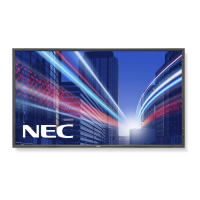
NEC L460U6 - User Manual

NEC L460U6
43 pages
Print Icon
To Next Page IconTo Next Page
Loading...
Users Manual
MultiSync P402
MultiSync P462
MultiSync P552

Questions and Answers

  • C
    carrnathanAug 19, 2025
    How to fix selected resolution not displayed properly on NEC L460U6 Monitor?
    • N
      Nathan HunterAug 19, 2025
      If the selected resolution is not displayed properly on your NEC monitor, use the OSD Display Mode to enter the Information menu and confirm that the appropriate resolution has been selected. If not, select the corresponding option.
  • J
    Joshua LeonardAug 21, 2025
    How to fix no picture on my NEC L460U6?
    • A
      Amanda WrightAug 22, 2025
      If there is no picture on your NEC monitor, ensure the signal cable is fully connected to both the display card and the computer. Also, verify that the display card is properly seated in its slot. Confirm that the main power switch, front power switch, and computer power switch are all in the ON position. Check that a supported mode is selected on the display card or system. Ensure compatibility between the monitor and display card, and verify the recommended settings. Finally, inspect the signal cable connector for bent or pushed-in pins.
  • J
    James JohnstonAug 23, 2025
    Why is the LED on my NEC L460U6 not lit?
    • S
      Samuel LaraAug 23, 2025
      If the LED on your NEC monitor isn't lit, ensure the power switch is in the ON position and the power cord is properly connected. Also, check the main power switch on the back of the monitor. Make sure your computer isn't in a power-saving mode by touching the keyboard or mouse. Finally, verify that the power indicator option in the OSD is set to ON.
  • J
    Julie JohnsonAug 26, 2025
    How to troubleshoot no sound on NEC Monitor?
    • A
      Allen OrtizAug 26, 2025
      If there is no sound from your NEC monitor, check that the audio cable is properly connected. Ensure that mute is not activated and the volume is not set to the minimum. Verify that your computer supports an audio signal through DisplayPort. Also, check if SURROUND is ON and verify the Internal/External speaker switch.
  • E
    elizabeth60Aug 28, 2025
    What to do if image is unstable on NEC L460U6 Monitor?
    • V
      Vanessa EstradaAug 28, 2025
      If the image on your NEC monitor is unstable, unfocused, or swimming, ensure the signal cable is completely attached to the computer. Use the OSD Image Adjust controls to focus and adjust the display by increasing or decreasing the fine adjustment. Check the monitor and your display card for compatibility and recommended signal timings. If your text is garbled, change the video mode to noninterlace and use a 60Hz refresh rate.
  • S
    Sheila NortonAug 30, 2025
    What to do if power button does not respond on NEC L460U6?
    • K
      Katie SaundersAug 30, 2025
      If the power button on your NEC monitor doesn't respond, unplug the power cord from the AC outlet to turn off and reset the monitor. Also, check the main power switch on the back of the monitor.
  • J
    Jessica DavisSep 1, 2025
    How to adjust display image size on NEC Monitor?
    • M
      Makayla NortonSep 1, 2025
      If the display image on your NEC monitor is not sized properly, use the OSD Image Adjust controls to increase or decrease the coarse adjustment. Also, ensure that a supported mode has been selected on the display card or system being used.
  • S
    susancrawfordSep 3, 2025
    Why is the remote control not working on NEC L460U6 Monitor?
    • R
      Ronald FreemanSep 3, 2025
      If the remote control for your NEC monitor isn't working, check the batteries' status and ensure they are inserted correctly. Make sure the remote control is pointing at the monitor's remote sensor. Verify the Remote Control Mode status. Note that direct sunlight or strong illumination may interfere with the remote control sensor.
  • R
    Richard JohnsonSep 5, 2025
    Why is RS-232C or LAN control not available on NEC L460U6 Monitor?
    • L
      Lynn ArnoldSep 5, 2025
      If RS-232C or LAN control is not available on your NEC monitor, check the RS-232C or LAN cable connection. Also, check the “CONTROL” setting in “EXTERNAL CONTROL” and the “ID=ALL REPLY” setting in “EXTERNAL CONTROL.”
  • K
    Kathryn SandersSep 7, 2025
    Why is the “SCHEDULE”/“OFF TIMER” function not working properly on NEC L460U6 Monitor?
    • M
      matthew65Sep 8, 2025
      The “SCHEDULE” function will be disabled when the “OFF TIMER” is set on your NEC monitor. If the “OFF TIMER” function is enabled and the power to the LCD monitor is turned off unexpectedly, then the “OFF TIMER” will be reset.

Summary

Declaration of Conformity

Important Safety Information

Warning and Caution Statements

Critical safety warnings regarding electrical shock, hazards, and proper handling.

Manufacturers Declaration

Manufacturer's declaration of compliance with EU directives and safety standards.

Safety Precautions and Usage Guidelines

General Safety Precautions

Lists essential safety measures for operating the monitor to prevent hazards.

Recommended Use and Ergonomics

Guidance on optimal monitor positioning, eye care, and comfortable usage.

Cleaning and Maintenance

Instructions for safely cleaning the LCD panel and monitor cabinet.

Installation and Mounting

Mounting Guidelines and Precautions

Procedures and warnings for safely mounting the monitor on walls or ceilings.

Location, Orientation, and Ceiling Mounting

Factors for choosing a location, orientation, and requirements for ceiling mounting.

Periodic Maintenance Checks

Regular checks for mounting apparatus integrity and location stability.

Mounting Accessories and Ventilation

Attaching VESA Mounts

Steps for attaching mounting accessories using the VESA interface.

Tabletop Stand Installation

Instructions for installing and removing the optional tabletop stand.

Ventilation Requirements

Guidelines for ensuring adequate airflow around the monitor for heat dissipation.

Preventing Monitor Tipping

Methods to secure the monitor to a wall to prevent accidental tipping.

Control Panel Overview

Control Panel Button Functions

Detailed description of each button on the monitor's control panel and their functions.

Power Indicator and Ambient Light Sensor

Explanation of the power indicator light and the ambient light sensor's purpose.

Control Key Lock Mode

How to activate and deactivate the control key lock function.

Terminal Panel Connections

Input Ports Explained

Detailed description of all input connectors and their functions.

Output and Control Ports

Explanation of audio output, speaker terminals, and control interface ports.

Additional Terminal Features

Speaker and Security Features

How to switch speakers and use the Kensington lock for security.

Option Board Slot Information

Details about available option boards and installation.

Wireless Remote Control Functions

Basic Button Functions

Explanation of primary buttons like Power, Input, and Menu.

Picture, Sound, and Menu Navigation

Buttons for picture/sound adjustments, aspect ratios, and menu navigation.

Input Selection and Special Functions

Buttons for selecting input sources and special functions like Still and PIP.

Advanced Remote Control Features

PIP and Remote ID Functions

How to use Picture-in-Picture and set up Remote ID for individual control.

Remote Control Operation Guidelines

Instructions for proper handling and optimal operating range of the remote control.

Initial Setup Procedures

Installation Location Selection

Guidance on choosing the best location for monitor installation.

Remote Control Battery Installation

Steps for inserting batteries into the remote control.

Connecting External Equipment

Instructions for connecting other devices like computers and DVD players.

Power Cord Connection

How to properly connect the monitor's power cord to the outlet.

Finalizing Setup and Adjustments

Attaching the Cable Cover

Steps for attaching the cable cover for a tidy setup.

Powering Up and Basic Adjustments

Sequence for turning on devices, adjusting sound, screen, and image.

Image Persistence Recommendations

Settings to minimize image persistence based on application use.

Video and Audio Connections

Connection Precautions and Diagram

Important notes before making connections and a visual guide for wiring.

Input Signal and Audio Mapping

Table detailing input signals, terminals, and corresponding audio/remote buttons.

Connecting Video Sources

Connecting a Personal Computer

How to connect a PC and supported resolutions/frequencies.

Connecting HDMI and DisplayPort Devices

Guidelines for connecting via HDMI and DisplayPort, noting limitations.

Basic Operation Modes

Power ON;OFF and Indicator Lights

How to turn the monitor on/off and interpret the power indicator.

Power Management and Input Selection

Explanation of energy-saving features and how to select video input sources.

Picture Settings and Power States

Power Indicator Status Details

Table detailing the meaning of the power indicator light colors and states.

Picture Aspect Ratio Adjustments

How to adjust the image aspect ratio for different input signals.

Display Modes and Ambient Settings

Information OSD and Picture Mode

How to display monitor info and select picture modes for various content.

Ambient Light Sensor Function

How the monitor adjusts brightness based on ambient light.

OSD Control Navigation

OSD Menu Structure

Overview of the OSD menu items and their organization.

Navigating the OSD Menu

How to use the remote control or panel buttons to navigate OSD menus.

Picture and Adjustment Settings

Picture Menu Options

Detailed explanation of PICTURE settings like Backlight, Contrast, and Color.

ADJUST Menu Options

Explanation of ADJUST settings such as Auto Setup, H/V Position, Clock, and Phase.

Display, Audio, and Schedule Settings

Advanced ADJUST Menu Details

Further ADJUST settings including resolution, aspect ratio, and zoom.

Audio Settings and Input Selection

Configuration for volume, surround sound, and audio input sources.

Schedule and Timer Functions

How to set power timers and create usage schedules.

Advanced OSD Features

PIP and Text Ticker Configuration

Settings for Picture-in-Picture and Text Ticker display.

OSD Language and Display Settings

Options for changing OSD language and controlling its display behavior.

Display Information and Control

Information and Monitor Settings

Options for OSD display, monitor information, and input name customization.

Multi-Monitor and External Control

Setup for multi-monitor control and external interface settings (RS-232C/LAN).

Network and Display Protection Settings

LAN Network Configuration

Settings for IP address, subnet mask, and DHCP for network control.

Display Protection Features

Options for power save, screen saver, and security password settings.

Advanced Input and Signal Settings

Input Detection Methods

How the monitor detects and switches between video input sources.

Terminal and Signal Configuration

Settings for DVI mode, BNC signals, HDMI, deinterlacing, and color systems.

Advanced Option Configurations

Scan Mode and Option Settings

Adjustments for over scan, option board power, and PC settings.

Resetting Configuration Settings

Procedures for resetting various advanced settings to factory defaults.

Scheduling and Image Care

Creating a Schedule

Step-by-step guide to programming automatic power on/off schedules.

Understanding Image Persistence

Explanation of image persistence and methods to prevent it.

Public Display Usage Recommendations

Tips for long-term use, especially for public display applications.

Remote Control ID and PC Control

Remote Control ID Setup

How to set and use Remote Control ID for selective monitor control.

PC and Monitor ID Configuration

Connecting a PC via RS-232C and setting Monitor IDs for daisy-chain control.

Wired Remote Control Functionality

Connecting for Wired Control

How to connect the monitor for wired remote control using a stereo mini plug cable.

RS-232 C Control Interface

RS-232 C Connection Setup

How to connect a PC to the monitor for RS-232C control.

RS-232 C Interface Specifications

Details on protocol, baud rate, data length, and cable types for RS-232C.

LAN Control and Network Setup

Connecting to a Network

How to connect the monitor to a network using a LAN cable.

HTTP Browser Network Settings

Steps for accessing and configuring network settings via a web browser.

Network Configuration Details

Browser Access Preparation

Notes on using proxy servers and handling hostnames for browser access.

IP Address Settings

Configuration options for IP address, subnet mask, gateway, and DNS.

Alert Mail Configuration

Email Notification Setup

How to enable and configure email alerts for monitor errors.

Alert Error Message Reference

Error Code Explanations

Table listing error codes, alert messages, explanations, and measures to take.

Monitor Features Overview

Image Quality and Color Features

Details on Reduced Footprint, OmniColor, and sRGB color controls.

Usability and Connectivity Features

Explanation of OSD, Plug and Play, IPM, VESA mounting, and DVI-D.

Advanced Display and Control Features

Features like Tile Matrix, Zoom, RS-232C, Self-diagnosis, HDCP, and Option slots.

Troubleshooting Common Issues

Picture and Power Issues

Solutions for 'No Picture', 'Power Button Not Responding', and 'LED Not Lit' problems.

Image and Sound Problems

Troubleshooting steps for image persistence, instability, and sound issues.

Remote Control and Connectivity Issues

Solutions for remote control failures and RS-232C/LAN control problems.

Specifications - P402

LCD Module and Signal Specifications

Details on pixel pitch, resolution, brightness, contrast, viewing angle, and input signals.

Output, Control, and Environment Specs

Specifications for output signals, control interfaces, power, and operating environments.

Physical and Accessory Details

Information on dimensions, weight, VESA mounting, and included accessories.

Specifications - P462

LCD Module and Signal Specs (P462)

Technical details for the P462 model, including display and input specifications.

Output, Control, and Environment (P462)

Specifications for output signals, control interfaces, power, and environments for P462.

Physical and Accessory Specs (P462)

Dimensions, weight, VESA mounting, and accessories for the P462 model.

Specifications - P552

LCD Module and Signal Specs (P552)

Technical details for the P552 model, including display and input specifications.

Output, Control, and Environment (P552)

Specifications for output signals, control interfaces, power, and environments for P552.

Physical and Accessory Specs (P552)

Dimensions, weight, VESA mounting, and accessories for the P552 model.

Pin Assignment Details

RS-232 C Connector Pinout

Detailed pin assignment for the RS-232C D-SUB 9P connector.

Remote IN;OUT Connector Pinout

Pinout details for the REMOTE IN and REMOTE OUT stereo mini jack connectors.

Environmental and Energy Information

Product Recycling and Disposal

Information on recycling NEC products and proper disposal methods.

Energy Saving Features

Details on the monitor's energy-saving capabilities and power consumption modes.

WEEE Mark Compliance

Information regarding the WEEE mark and its implications within the EU.

NEC L460U6 Specifications

General IconGeneral
BrandNEC
ModelL460U6
CategoryMonitor
LanguageEnglish

Related product manuals