This document is a user manual for the Necvox Premium Series car audiovisual navigation system. It provides detailed instructions on how to operate the device, its various functions, and important safety information.
General Overview
The Necvox Premium Series is a car audiovisual navigation system designed to offer a comprehensive in-car entertainment and navigation experience. It runs on an Android system, featuring a high-resolution HD-1080P 1024x600 display, Wi-Fi internet connectivity, a high-quality radio module, and compatibility with Steering Wheel Controls (SWC). The device includes 32GB of internal memory, 3D navigation functionality, a high-sensitive external microphone, DAB+ radio, and a capacitive multi-touch screen.
Safety Warnings and Notices
To ensure safe operation and prevent accidents or property damage, users are advised to read and adhere to the following:
- Driving Safety: Do not use functions other than navigation while driving, as watching display images in a car can be illegal in some areas.
- Manual Care: Read and keep the manual for future reference, complying with all warnings and operating instructions.
- Installation: Installation and wiring require specialized skills. It is recommended to have professional technicians perform these tasks.
- Repair: The product contains no user-serviceable parts. All repairs and replacements should be handled by qualified technicians.
- Ventilation: Do not block any ventilation cooling vents or openings, as these are crucial for heat dissipation and stable operation. Overheating can lead to fire or other dangers.
- Heat and Moisture: Avoid installing the product in direct sunlight or high-temperature areas, and keep it away from heat sources. The device should not be exposed to water or moisture, such as rain or during car washing.
- Cleaning: Before cleaning, power off the device. Use a soft cloth and avoid volatile chemicals like gasoline or thinner.
- Foreign Objects: Prevent foreign objects or liquids from entering the device through cooling holes or other openings, as this can cause electric shock or short circuits.
- Mounting: Install the unit securely using the provided fittings to prevent it from falling during sudden braking, which could cause personal injury.
- Power Off: Disconnect power during prolonged rain or lightning.
- Troubleshooting: In case of power wire damage, liquid splashes, moisture exposure, physical damage from a fall, or abnormal operation, turn off the power and contact a professional technician.
- LCD Display: Avoid dropping the device to prevent LCD screen fragmentation. If liquid crystal leaks, do not touch it. Do not heat or scratch the LCD with sharp objects. The effective pixel rate is over 99.99%, with a small percentage of pixels potentially lighting up normally.
Main Menu and Navigation
The main menu allows users to switch between pages by sliding left and right. Icons can be rearranged by long-pressing and dragging them.
Main Menu Functions:
- Main Menu Switch: Returns to the main menu from any sub-menu; music playback continues.
- Screen Brightness: Adjusts display brightness.
- Radio Function: Accesses the radio player.
- Music Player: Opens the music player.
- Video Player: Opens the video player.
- Background Applications: Shows and closes all running background applications.
- Equalizer Function: Accesses sound equalizer settings.
- BACK Icon: Returns to the previous menu; stops all sounds when returning to the main menu.
- Application Page: Enters the application list.
- Navigation Function: Accesses navigation.
- Bluetooth Phone Function: Opens Bluetooth phone features.
- Page Indicator: Shows the current page number.
- DAB+ Function: Accesses DAB+ radio.
- Settings Page: Opens device settings.
- Easy Connection Page: For mirrorlink functionality.
- Web Browser Page: Opens the web browser.
- Magazine Play Page: Accesses Magazine Play.
- File Manager Function: Opens the file manager.
- Calculator Function: Opens the calculator.
- Gallery Page: Opens the image gallery.
Navigation Features:
- New Route: Enter destination information.
- Multiple Destinations: Plan routes with multiple stops.
- Useful Information: Find location, FAQ, and country information.
- Settings: Adjust language, sound, warning, and other settings.
- About: View version and map date information.
- Exit: Exit the map page.
- Favorite Addresses: Access saved addresses.
- Guide Voice: Turn ON/OFF navigation voice guidance.
- Zoom: Change map zoom level.
- Profile: Enter profile page and reset settings.
- Voice Guidance: Music stops automatically during navigation voice guidance and resumes afterward. Guide voice continues even when switching menus. To cancel, mute navigation sound.
- Map Updates: Updates are available via www.naviextras.com. Users need to sign up, select their device under the ESSEGRUP tab, download the Toolbox, and connect a USB with navigation files to update.
- IGO Next Gen: The device uses IGO Next Gen navigation software. Detailed instructions are available at http://www.necvoxdestek.com/igo_next_gen.pdf.
The radio menu provides comprehensive control over radio functions.
- LOC-DX Switch: Toggles between local and distant station reception.
- Stereo/Mono Switch: Changes audio output mode.
- PTY Function: Selects stations by program type.
- TA Function: Activates traffic announcement reception.
- AF Function: Enables alternative frequency switching for stronger signals.
- Magnifier Icon: Previews saved frequencies for a few seconds.
- Save Frequency: Saves the current frequency.
- Radio Settings: Adjusts radio settings and ON/OFF RDS function.
- FM/AM Switch: Toggles between FM and AM bands.
- Backward Scan: Short press for manual search, long press for auto search.
- Manual Frequency Input: Allows direct input of frequencies.
- Frequency Scan: Slide left/right to scan frequencies.
- Forward Scan: Short press for manual search, long press for auto search.
- Save Favorite Frequencies: Press and hold to save frequencies to favorites.
- Frequency Naming: Users can name favorite frequencies.
Music Player
The music player offers various playback options.
- List Icon: Displays all music files.
- Repeat/Shuffle: Toggles repeat and shuffle play options.
- Sound Settings: Accesses sound equalizer settings.
- Previous Song: Plays the previous track.
- Progress Bar: Slides left/right to fast forward or rewind.
- Play/Pause: Toggles playback.
- Next Song: Plays the next track.
Video Player
The video player supports various video playback features.
- List Icon: Displays all video files and folders.
- Progress Bar: Slides left/right to fast forward or rewind.
- Previous Video: Plays the previous video.
- Play/Pause: Toggles video playback.
- Next Video: Plays the next video.
- Repeat Options: Toggles repeat video and repeat file options.
- Screen Options: Switches between full screen and small screen modes.
- Video Information: Displays video details.
- Safety Note: Watching videos while driving is dangerous and forbidden. The "video watch during drive" option is OFF by default. Users assume full responsibility if they change these settings.
Bluetooth Functions
The device offers comprehensive Bluetooth connectivity.
Bluetooth Main Menu:
- Bluetooth Music Page: Accesses Bluetooth audio streaming.
- Call History: Views missed, incoming, and outgoing calls.
- Keyboard: For making and answering calls.
- Phonebook: Synchronizes phonebook and allows calling contacts.
- Bluetooth Settings: Accesses Bluetooth settings.
- Keyboard: For making and answering calls.
- Sound Transfer: Transfers sound between the device and mobile phone.
- Disconnect/Connect: Disconnects and reconnects Bluetooth.
- Available Phones: Shows a list of available mobile phones.
- Answer Icon: Answers incoming calls.
- Hang Up Icon: Ends calls.
- Microphone Location: Ensure microphones are correctly positioned for optimal sound transfer.
Bluetooth Phonebook:
- Search Names: Search for contacts.
- Magnifier Icon: Enter names via keyboard.
- Download Phonebook: Downloads phonebook to the device (requires synchronization permission).
- Save Icon: Saves the downloaded phonebook for future connections.
- Delete Phonebook: Deletes the phonebook from the device.
- Scrolling: Slide the phonebook page up/down and press a name to call.
Bluetooth Pairing:
- Method 1: Turn on Bluetooth on the mobile phone, scan for the device, select it, and pair. Enter "0000" if a password is requested.
- Method 2: On the device, press the "Bluetooth pairing" icon to see available phones. Select a phone and connect.
- Disconnect: Disconnects the paired device.
- Start Scan: Initiates a scan for Bluetooth devices.
- Connect: Connects to a selected device.
- Delete Phone List: Removes phones from the list.
Bluetooth Call History:
- Incoming Calls: View received calls.
- Outgoing Calls: View dialed calls.
- Missed Calls: View missed calls.
- Delete Call History: Clears call history.
Bluetooth Music:
- Previous Song: Plays the previous song.
- Play/Pause: Toggles music playback.
- Stop: Stops music playback.
- Next Song: Plays the next song.
Bluetooth Settings
The Bluetooth settings page allows customization of Bluetooth functions.
- Change Bluetooth Name: Modify the device's Bluetooth name.
- Change Password: Change the Bluetooth pairing password.
- Auto Answer Option: Enable or disable automatic call answering.
- Reset All Settings: Resets all Bluetooth settings to default.
System Settings
The settings menu provides access to various device configurations.
- Wireless Settings: Configure Wi-Fi, data usage, SIM card, and other network settings.
- Factory Settings: Access door information, start/stop function, front camera selection, and calibration settings.
- Personal Settings: Adjust sleep mode, screen light, sound, video watching during drive, navigation, camera, and button light settings.
- System Settings: Configure location info, security settings, language, account info, date, time, etc.
- Password: A password is required for after-sales repair service (for technician use only).
Screen Light Setting:
- Brightness Option: Adjusts screen brightness.
- Daylight Brightness: Adjusts light when headlights are OFF.
- Night Brightness: Adjusts light when headlights are ON.
Navigation Settings:
- Map Application: Adjust the map application for the navigation shortcut icon by pressing the map application name.
GPS Signal:
- GPS Signal Setting: View GPS signal status.
- Coverage: GPS signal may be lost in indoor areas.
Date and Time Setting:
- Date and Time Adjustment: Adjust date and time.
- Auto Time Zone: Should be ON.
- GPS Sync: Time is updated via GPS signal. If GPS signal is unavailable, time may not update.
Sound Settings
The sound settings page offers extensive audio customization.
- Equalizer Settings: Adjust bass, treble, and fader settings.
- Speaker Levels: Adjust front, rear, right, and left speaker levels.
- DSP Equalizer (Surround): Adjust surround sound settings.
- DSP Equalizer (Bass/Frequency): Adjust bass effects and frequency levels.
Slide the screen from top to bottom to access quick adjustments for Wi-Fi, mobile data, screen brightness, reset, and standby mode.
Background Image
To change the background image, enter personal settings and then wallpaper settings, or long-press any empty part of the screen. Choose any picture to set as wallpaper.
FAQ (Frequently Asked Questions)
- Device Not Turning On: Check power connection. Consult authorized service or seller.
- No Sound: Check and adjust volume in sound settings. Consult authorized service or seller.
- Bluetooth Connection Failure:
- Ensure the mobile phone was previously paired.
- If paired, delete device info from the phone and re-pair.
- Ensure Bluetooth is ON on both the mobile phone and the device.
- Check the Bluetooth name on the device.
- Try with another mobile phone.
- Consult authorized service or seller.
- Navigation Not Getting GPS Signal:
- Ensure the car is not in a closed area (parking, tunnel).
- Check GPS signal status in settings.
- Consult authorized service.
- Wi-Fi Connection: Enter settings, turn on Wi-Fi, select network, enter password, and connect.
- Radio Scanning Frequency Itself: Ensure TA traffic function and AF alternative frequency function are OFF.
- Wrong Time Display:
- Auto time and date option in settings should be ON.
- Auto time zone option should be OFF; choose the correct time zone manually.
- Time updates via GPS signal; if no GPS signal, time may not update. Consult authorized service if issues persist.
- No Rear View Camera Image: If a black screen appears when shifting to reverse, consult authorized service.
- Mirrorlink Failure:
- Check mobile phone and software version compatibility.
- Try another mobile phone or connection cable (not needed for iOS).
- Ensure USB debug option is ON for Android phones (Settings > About phone > Version info > press 5 times on product number to enter developer settings).
- Ensure Mirrorlink application is properly installed on the mobile phone.
- Ensure Easyconnect application on the device is up-to-date.
- Ensure Wi-Fi hotspot of iPhone mobiles is properly connected to the device.
- Ensure Android mobile phones are connected via the original data cable.
- Consult authorized service or seller.
- Connecting Hard Disk: Android devices can connect hard disks via file management. FAT32 formatted flashes work well. NTFS formatted hard disks, due to their size, may open slowly or not be readable.
Technical Specifications
Battery Voltage Working Range:
- Working Temperature: ~20°C to 70°C
- Working Voltage Range: 6.5V to 16V
- Current (Maximum): 5A
- Current (Off/Standby): <0.5mA
- Note: In standby mode, the product draws a maximum of 0.5mA. Prolonged vehicle inactivity may drain the car battery.
Maintenance Features
- Software Updates: The manufacturer provides updates for the device. Users can check for free updates, map updates, and premium content through the Naviextras Toolbox.
- Technical Support: The manual emphasizes contacting authorized service or the seller for any issues or repairs, as users are not meant to repair the device themselves.
- Copyrights: The manual's information is protected by copyright. Unauthorized copying or photocopying is prohibited. The company reserves the right to final explanation regarding warranties and information in the manual.

 Need help?
 General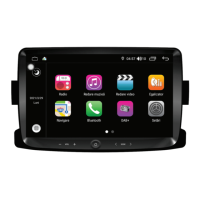

 To Next Page