Need help?
Do you have a question about the Nektar Panorama P4 and is the answer not in the manual?
Connect the Panorama to your computer via USB for power and data transfer.
Connect the unit to an external USB power supply for operation without a computer.
Learn to navigate the Internal mode, using faders, encoders, and menu buttons.
Adjust the keyboard's response to touch for optimal playing feel.
Set how quickly encoders adjust parameter values.
Configure the MIDI Out jack to function as a USB MIDI interface or internal.
Assign MIDI CC numbers and ranges to controls in Internal mode.
Configure up to four zones on the keyboard for different MIDI channels.
Program the range and settings for each keyboard zone.
Access GM2 channel strip functions and assign MIDI CC for the motorized fader.
Select one of seven velocity response options for the pads.
Learn notes onto pads for custom percussion or melodic assignments.
Apply scales to pads for melodic playing and experiment with root notes.
Spread a note assignment across all pads with varying velocity values.
Program pads to trigger ASCII, MIDI commands, or CC values via pressure.
Instructions for downloading and installing the driver for Reason integration.
Steps to connect and configure Panorama with the Reason software.
Overview of the four control surfaces: Mixer, Instrument, Transport, and Internal.
Understanding the status information displayed in the Info-Bar.
Use navigation buttons to change tracks, patches, and mixer banks.
Control mixer channels, Pan, Width, Sends, Mute, and Solo using faders and encoders.
Control assigned instruments and their parameters, including envelopes.
Control transport functions, locators, tempo, and song position.
Assign any Reason parameter to controls using the Remote Override Mapping.
Control volume, solo, mute, pan, and sends for the selected track in Reason.
Use pads for drums, percussion, synths, sequences, and beats within Reason.
 General
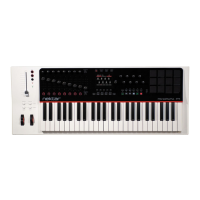
| Number of Keys | 49 |
|---|---|
| Key Type | Synth-action |
| Faders | 9 |
| Type | MIDI Controller |
| Key Action | Velocity Sensitive |
| Pedal Inputs | 2 |
| MIDI I/O | In/Out |
| USB | USB 2.0 |
| Power | USB |
| DAW Integration | Yes |

 To Next Page