The provided manual describes the Total WellNES System, a bio-energetic health system designed to assess, rejuvenate, and re-imprint the body-field for improved health and well-being. The system comprises several key components: the NES ProVision software, the NES miHealth device, the ProVision Scanner, and Infoceuticals.
Function Description
The Total WellNES System aims to address health concerns by working with the body's energy and information fields. It operates on a three-step process:
- Reassess: The NES ProVision software, in conjunction with the ProVision Scanner or miHealth device, assesses the flow of energy and information in the body-field, highlighting distortions and imbalances. This provides a detailed overview of the client's energetic state.
- Rejuvenate: The NES miHealth device is used to rejuvenate the body's energy flow by releasing energy blockages or trigger points. It offers various functions, including "Energetic Rejuvenators" (ERs), to target specific anatomical points and promote energetic balance.
- Re-imprint: Infoceuticals, which are liquid remedies imprinted with bio-information, are recommended to re-imprint the body-field back towards its original blueprint. These are ordered through the NES Portal based on the ProVision scan results.
The system is designed for practitioners to conduct client scans, analyze results, and provide a comprehensive protocol for energetic health.
Important Technical Specifications
NES ProVision Software Requirements:
- Operating System: Windows XP (Service Pack 2 or higher), Windows Vista, Windows 7, Windows 8, Windows 8.1. It can also run on Apple Mac via dual boot with Windows or a virtual PC application like VMWare Fusion.
- Screen Resolution: 1024x768 minimum.
- USB Port: One free USB port.
- RAM: 2GB (recommended).
- Hard Disk Space: 5GB free (recommended).
NES miHealth Device:
- Display: Touch Screen.
- Controls: Side buttons (for energy amplitude), back button (reduce energy amplitude), forward button (increase energy amplitude), start & stop/activation button, power button.
- Connectivity: Micro USB connection for charging and data transfer, external electrode port, accessory port.
- Electrodes: Edge Electrodes (on the sides), Main Electrodes (on the back).
- Power: Rechargeable battery.
ProVision Scanner:
- Connects to the computer via USB.
- Used for scanning the human body-field by placing a hand on the scanner.
Usage Features
NES ProVision Software:
- Installation: Uses a USB key for installation. Requires internet connection for initial setup and updates.
- Licensing: Requires a license number for activation.
- Client Management: Features for adding new clients, managing client details, and viewing scan history.
- Scanning: Initiated by clicking a 'Scan' button after the client places their hand on the scanner. Displays scan results on an "ER screen" showing energetic blockages on a human body diagram.
- Information Feed: Provides an "Online Information Feed" with details like total clients, total scans, credits to download, and downloaded credits.
- Media: Includes "NES Media" with "NES Explained" videos and "NES Imprinted Music."
- Support: Links to Practitioner Forum, Support, NES Health Portal, Quantum Health Training, and The Living Matrix.
NES miHealth Device:
- Battery Insertion: Battery compartment is located on the back and slides out.
- Power On/Off: Pressing the Power button.
- Calibration: Requires electrode calibration upon first use, accessed via the Settings icon on the touch screen.
- ER Functions: Access "ER functions" from the Home screen. Scroll through functions using the scroll bar or side buttons. Select a function by touching it.
- Run Screen: Displays the selected ER function. Allows toggling between "on-body" and "off-body" modes. Start/stop treatment with a dedicated button. Navigate between ERs using "Previous Button."
- Client Scanning: Can be used as an alternative to the ProVision Scanner for client scans.
NES Portal:
- Access: Web-based portal accessed via a web browser (e.g., Google Chrome) at www.neshealth.com/portal.
- Login: Requires email address and password. Password reset option available.
- Shop: Allows ordering Infoceuticals and other products (CDs, DVDs, books).
- Ordering Infoceuticals: Browse by product categories. Add items to a basket. Adjust quantities. Review basket items. Requires billing and shipping addresses. Payment processing.
- Useful Links: Provides links to Forum, Support, Training, and Facebook for community engagement and resources.
Maintenance Features
- Software Updates: The ProVision software includes an "Update" button in the "Software Information" section, indicating that updates are available.
- Battery Charging: The miHealth device battery needs to be charged for 3 hours if the charge level is low, using the provided Micro USB cable.
- Backup/Restore Clients: The ProVision software settings include a "Backup/Restore Clients" option, allowing practitioners to safeguard client data.
- Troubleshooting: The manual directs users to www.neshealth.com/contact-us for missing items and provides links to a "Support" portal (http://help.neshealth.com) for clinical or technical questions.
- Training: Emphasizes the importance of training by directing users to www.quantumhealthtraining.com for videos, webinars, courses, and training materials to perfect scanning techniques and enhance knowledge.

 Need help?
 General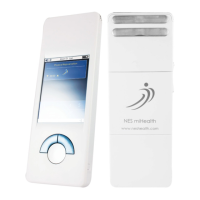

 To Next Page