NessM1Z‐WaveGatewaySetupGuide Page17
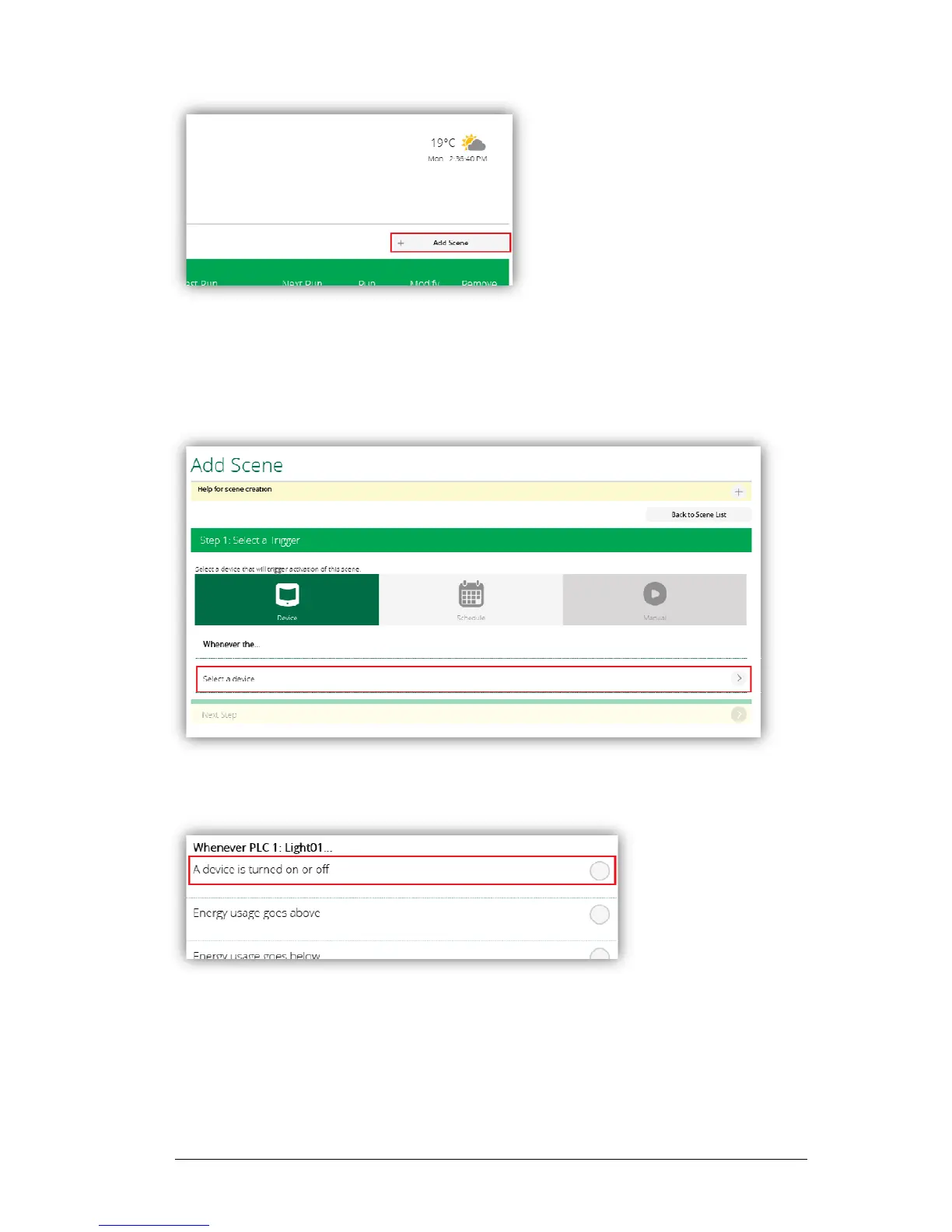
Next,clickonthe‘AddScene’buttonlikeshownbelow.
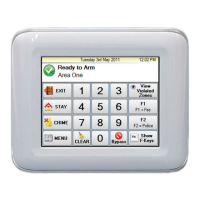
Clickon‘Selectadevice’,andthenselectthedeviceyouwanttouseasatrigger.
Forexample,ifyouwantaZ‐WavelighttoturnonwhenaM1lightturnson,thenyou
wouldneedtoselecttheM1Lightfromthislist.(Thisactsasa‘Whenever’trigger)
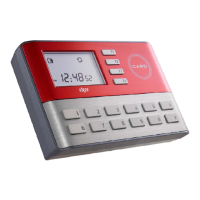
Clickon‘Adeviceisturnedonoroff’.
Youthenhavetheoptiontoselectwhenthedeviceturnsonorturnsofffromthedrop
downbox.Choosetheoneyourequireandthenclickonthe‘Validate’buttondownthe
bottomofthepage.


 To Next Page