EasyManua.ls Logo

nest Detect - Installation tips; Mounting with adhesive strips; Mounting with screws

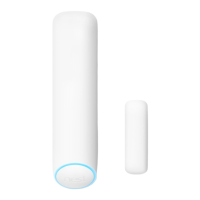
nest Detect
23 pages
Print Icon
To Next Page IconTo Next Page
To Previous Page IconTo Previous Page
Loading...
Installation
tips
Use
the
Nest
app
During setup,
the
Nest
app
will
show you
where
to
put
Nest
Detect
and
its
open-
close magnet so
they
work
properly.
Here are more
things
to
consider before
you install
Nest
Detect
on
a wall, window
or
door.
Mounting with adhesive strips
Nest
Detect
and
the
open-close magnet
should be
installed
on smooth,
flat
surfaces
only.
1.
Make sure
the
surface
is clean
and dry.
2.
Peel
the
protective
cover
off
the
adhesive
strip.
3.
Press evenly
with
your palm and
hold in place
for
at
least
30
seconds.
The
adhesive
strips
shouldn't
be
used
on
surfaces
painted
with
low-VOC
or
zero-VOC
paint
or
any
surfaces
not
listed
on
page
15.
,IMPORTANT:
Nest
Detect's
adhesive
strips
are very
strong
and
can't
be
easily repositioned. Before you press
and hold
it
for
30
seconds. be sure Nest
Detect is
straight
and in
the
right spot.
1'i
Mounting
with
screws
Install
Nest
Detect
with
screws
if
your
walls,
windows
or
doors have rough
surfaces, are contoured or dirty, are prone
to
heat
or
high
humidity,
or
are painted
with
low-VOC
or
zero-VOC
paint. For
best
results
use a
Phillips
#2
screwdriver.
1.
Remove
Nest
Detect's
mounting
backplate and you'll see the screw hole.
2.
Remove
all
the
adhesive
material
from
the
backplate.
3.
Screw
the
backplate
onto
the
surface.
Drill
a
3/32"
pilot
hole
first
if
you're
attaching
it
to
wood
or
other
hard
material.
4.
Snap the Nest Detect onto
its
backplate.
To
install
the
open-close magnet:
1.
Snap
off
the
backplate
and
you'll
see
the
screw
hole.
2.
Remove
all
the
adhesive
material
from
the
backplate.
3.
Screw
the
backplate
onto
the surface.
Dri lt a 1
/16"
pilot
hole
first
if
you're
attaching
it
to
wood
or
other
hard
material.
4. Snap
the
open-close
magnet
onto
its
backplate.

Related product manuals