
 Need help?
Do you have a question about the NETGEAR Nighthawk CAX30 and is the answer not in the manual?
Explains the status and meaning of Power, Downstream, Upstream, Internet, and Ethernet LEDs.
Details the status and meaning of 2.4 GHz, 5 GHz WiFi, and USB port LEDs.
Describes the function of the WPS and WiFi buttons for network joining and radio control.
Provides contact information for installation and connection troubleshooting with NETGEAR support.
Directs users to regulatory compliance information for the device.
Provides specific installation guidelines for CATV system installers regarding grounding.
Instructions to download and use the Nighthawk app for modem router setup.
Lists the items included in the product package.
Step-by-step guide to setting up the modem router using its web interface.
Process and information required to activate your internet service with your ISP.
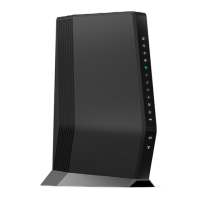
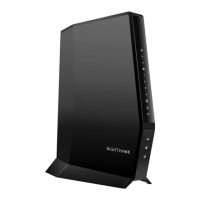
The NETGEAR Nighthawk AX2700 WiFi Cable Modem Router, model CAX30, is a comprehensive networking device designed to provide high-speed internet access and robust WiFi connectivity within a home or small office environment. This device integrates a cable modem and a WiFi router into a single unit, simplifying setup and management.
At its core, the CAX30 serves as a gateway to the internet, receiving data from a cable internet service provider (ISP) and distributing it wirelessly or via Ethernet to connected devices. The cable modem component is responsible for modulating and demodulating signals over the coaxial cable, translating internet data into a format usable by your local network. The router component then manages the local network, assigning IP addresses, routing traffic, and providing WiFi access.
The device supports the AX2700 WiFi standard, indicating its capability to deliver advanced WiFi performance. This includes support for both 2.4 GHz and 5 GHz WiFi bands, allowing for flexible connectivity options. The 2.4 GHz band offers wider coverage and better penetration through obstacles, while the 5 GHz band provides faster speeds and lower latency, ideal for demanding applications like streaming and online gaming. The router also features multiple Ethernet ports, enabling wired connections for devices such as desktop computers, gaming consoles, or smart TVs, ensuring stable and high-speed data transfer. A USB port is also included, which can be used for connecting external storage devices, allowing for network-attached storage (NAS) functionalities or sharing files across the network.
Setting up and managing the CAX30 is designed to be user-friendly, with options for both mobile app and web interface configuration. The recommended method for initial setup is through the Nighthawk app, available for download on both the App Store and Google Play. This app guides users through the process of connecting the modem router, activating internet service with their ISP, and configuring WiFi settings. For users who prefer a traditional approach, the device can also be set up using a web browser by navigating to routerlogin.net or 192.168.1.1. This web interface provides comprehensive control over all router settings, including advanced network configurations, security protocols, and parental controls.
The device features several LED indicators on its front panel, providing quick visual feedback on its operational status. These LEDs include indicators for power, downstream and upstream internet connection, internet connectivity, Ethernet port activity, 2.4 GHz and 5 GHz WiFi radio status, and USB port activity. For instance, a solid white Power LED indicates normal operation, while a blinking white Downstream LED signifies that the modem router is scanning for a downstream channel. Similarly, a solid white Internet LED means the modem router is online, and a blinking white LED indicates synchronization with the cable provider's CMTS. Ethernet LEDs show the speed of connected devices (white for Gigabit, amber for 100/10 Mbps) and blink when traffic is being sent or received. WiFi LEDs indicate when the respective radios are operating and blink when sending or receiving traffic. The USB LED shows when a device is connected and ready.
For enhanced security and convenience, the CAX30 includes a WPS (WiFi Protected Setup) button, allowing users to easily connect WPS-compatible devices to the WiFi network without manually entering the password. Additionally, a dedicated WiFi button allows users to quickly turn the 2.4 GHz and 5 GHz WiFi radios on or off by pressing it for two seconds, offering a simple way to manage wireless access.
The CAX30 is designed for minimal maintenance, with most operational aspects handled automatically. However, understanding the LED indicators is crucial for troubleshooting. For example, if the Power LED turns solid red, it indicates that the modem router is too warm or might be overheating, suggesting a need to check its placement for adequate ventilation.
Regular firmware updates are important for maintaining optimal performance, security, and compatibility. While the manual does not explicitly detail the firmware update process, such updates are typically managed through the Nighthawk app or the web interface, often with options for automatic updates or manual initiation.
In case of installation issues or connection problems, NETGEAR provides support resources, including a dedicated support website with access to downloads, user manuals, and community forums. For direct assistance, a customer support hotline is available. It is also important for users to verify compatibility with their cable internet provider, as some customer-owned cable modems might not be supported on all networks. The manual advises checking with the ISP to confirm that the NETGEAR cable modem is allowed on their network.
The device also includes a note for CATV system installers, reminding them of Section 820-93 of the National Electrical Code, which pertains to proper grounding of the coaxial cable shield to the building's grounding system, ideally close to the point of cable entry. This detail, while primarily for installers, underscores the importance of proper installation for device longevity and safety.
Overall, the NETGEAR Nighthawk AX2700 WiFi Cable Modem Router (CAX30) is a robust and user-friendly device that combines essential internet connectivity functions with advanced WiFi capabilities, designed for ease of use and reliable performance in a modern connected home.
 General
| Device Type | Cable Modem Router |
|---|---|
| WiFi Technology | WiFi 6 (802.11ax) |
| DOCSIS | 3.1 |
| Ethernet Ports | 4 x Gigabit Ethernet |
| USB Ports | 1 x USB 3.0 |
| Beamforming+ | Yes |
| MU-MIMO | Yes |
| OFDMA | Yes |
| Compatible ISPs | Xfinity, Spectrum, Cox |
| Processor | 1.5GHz Quad-core processor |
| Security | WPA3 |










 To Next Page