Quick Start Guide
09/2006
We first want to thank you for purchasing a Neuros OSD the first open source
media hub/mpeg4 recorder that will allow you to bridge the gap between all your
digital media content, your handheld devices and your entertainment center.
Very Important – Upgrade Firmware Immediately!
As you may know, the Neuros OSD is an open source device that will continually
evolve and be updated with bug fixes and new features developed by both our
engineers and our ever growing user community. We will make these new
capabilities available to you via regular firmware upgrades that can be
downloaded from our web site and loaded onto your OSD. These upgrades are
free and can be done in minutes by users of any level.
By the time you’ve purchased this unit, there’s a good chance there’s already a
superior firmware version waiting for you. Once you’ve figured out how to hook
up your OSD using the instructions below, we strongly suggest that you visit
our website to download the latest firmware and continue to do so often as
we hope to keep surprising you with new functionality for your device.
Firmware can be found at:
www.neurostechnology.com/support/support.asp
Complete User’s Manual
A more detailed User's Manual with FAQ’s is available at the link shown below. We
will update this User’s Manual every time there is a new firmware version, so be
sure to use the User’s Manual corresponding to your firmware version. We will
also keep archived copies of the User’s Manual corresponding to older firmware
versions, in case you for some reason you choose not to keep your firmware
upgraded to the latest level.
www.neurostechnology.com/support/support.asp
Features
Video Recorder - Record video (.asf, .avi, .mp4) from any video source such as
VCR, DVD player, Satellite receiver, Cable box, etc.
Video Player – Playback video (.asf, .avi, .mp4, .mpeg) from memory cards,
external HD, home network/internet* on your TV.
Image Viewer - View pictures (.jpg, .bmp, .gif) on your TV from memory cards
or digital camera plugged into the USB port.
Music Player – Play MP3, WMA, OGG and AAC files directly from your MP3
player, memory cards or home network.
Additional Features to be Added via Firmware Upgrades – In the future you
can look forward to upgrades enabling streaming media from PCs to home
entertainment systems; wireless networking; support for more USB peripherals;
and more. Some of these capabilities may already be available by the time you
get your OSD home and open the box (see above to upgrade firmware). To see
an up-to-date list of working features or to find out how to join our community,
go to:
www.osd.neurostechnology.com
Neuros OSD Left side
Neuros OSD Right side
Remote Control
5 6
7 8
USB Port
The USB port on your OSD will allow you to read/write to many different devices
such as iPods, USB thumbdrives, external hard drives, other portable media
players (including MP3 and MP4)and other USB enabled devices (essentially any
device that shows up as a removable disc when plugged into the USB port of a
PC). The ability to record to them means that any recordings you make with the
Neuros OSD can be saved directly to the USB device of choice when plugged into
the USB port. You can also read files from your USB devices directly on your
TV/Entertainment center. This will allow you to view photos from your digital
camera and play video and music from your iPod or other MP3/Video player and
other USB enabled external devices.
The USB port can also be used for other USB devices such as WiFi dongles. Please
visit www.osd.neurostechnology.com for additional details.
Step 5–Introduction to the OSD Menus
1. Press the Home button to bring up the main menu or return to it at
any time (Note: when no buttons are pressed for a period of time, the
menu will disappear and show only the source video, if any, on the
screen).
2. There are four main menu options on the home page: FILE BROWSER,
RECORDER, SETTINGS and APPLICATIONS.
3. Other menu options will be available from within each of these main
menu options.
4. You can highlight menu options by browsing with the UP / DOWN
keys. You can enter the highlighted menu option by pressing
Enter or Right Arrow .
5. Hit Back Arrow to return to the previous menu.
6. You can get help from any menu screen by pressing the Help
button. Note that this information will be added over time and may not
be available or complete in earlier firmware versions.
7. If the Xi ICON is visible on the right side of a given menu selection, you
can press the Xi button on the remote for additional options or
information. These, too, will be added or enhanced over time.
Step 6-Recording Video
Once you’ve completed the above steps, you’re ready to start recording.
Quickstart Recording: You can take a leap of faith and simply press record
on the remote while in any menu to begin recording immediately at the
default recording settings (resolution, etc). These settings may or may not be
right for your intended use.
Standard Recording:
Use this mode if you want to check or change the default settings.
1. Enter the RECORDER menu.
2. Default recording settings will be listed. If the recording settings are
acceptable, press Record or select Start at the bottom of the screen to
begin recording.
3. If you wish to change any recording settings, select “CHANGE” at the
bottom of the screen to enter the RECORDER SETTINGS menu. To change
a given recording setting, highlight it using the Left / right buttons,
and then press Up /Down to select the new value.
a. Note: If you are comfortable with more technical terminology (like
QVGA, VGA, etc) and want more choices, you can enter the RECORDER
ADVANCED SETTINGS menu by selecting “ADVANCED” at the bottom of
the RECORDER SETTINGS menu screen. Make any changes you’d like in
this menu. Once you’re satisfied, select SAVE at the bottom of the
screen to save your changes and return to the RECORDER SETTINGS
menu or select EXIT to return to this menu without saving changes.
4. Once you’re satisfied with the recording settings in the RECORDER
SETTINGS menu, select “Save” on the menu screen to keep your new
settings (which will be the new default settings) and return to the OSD
RECORDER menu or select Exit to return to the menu without saving
changes.
5. Begin recording by highlighting the START button on the menu screen and
pressing Enter (or, as always, by pressing record button on the
remote).
6. Press stop button to stop recording at any time (or recording will stop
automatically after the time limit selected in the RECORDER SETTINGS
menu).
Step 7-Playing Back Video from Memory Cards or External
Drives
1. Make sure device is plugged in and memory card is in slot or external drive
connected.
2. Enter the FILE BROWSER menu.
3. Browse to desired card or drive.
4. Select file.
5. Press Play on remote.
6. Standard remote control functions such as fast-forward and rewind work
like they would on a typical VCR or DVD player.
Other Connections
Please see the complete OSD User’s Manual for more details (on-line at:
www.neurostechnology.com/support/support.asp)
IR blaster
This feature will allow you to control other devices such as your
cablebox,DVR,VCR and TV by emulating the remote control signals of these
devices. See full user’s guide for details.
Serial Port
To conrol tuner boxes and connection to PC for developer debugging.
LAN
This Ethernet port will allow you to connect your OSD to a network. Functionality
for this port is limited at the time of launch but will be added in future firmware
releases (see above).
3. Make sure the power supply and TV are connected (as per the 2 previous
steps) and the OSD is turned on.
4. Start playing video on your source device. You should see the video appear
on your TV.
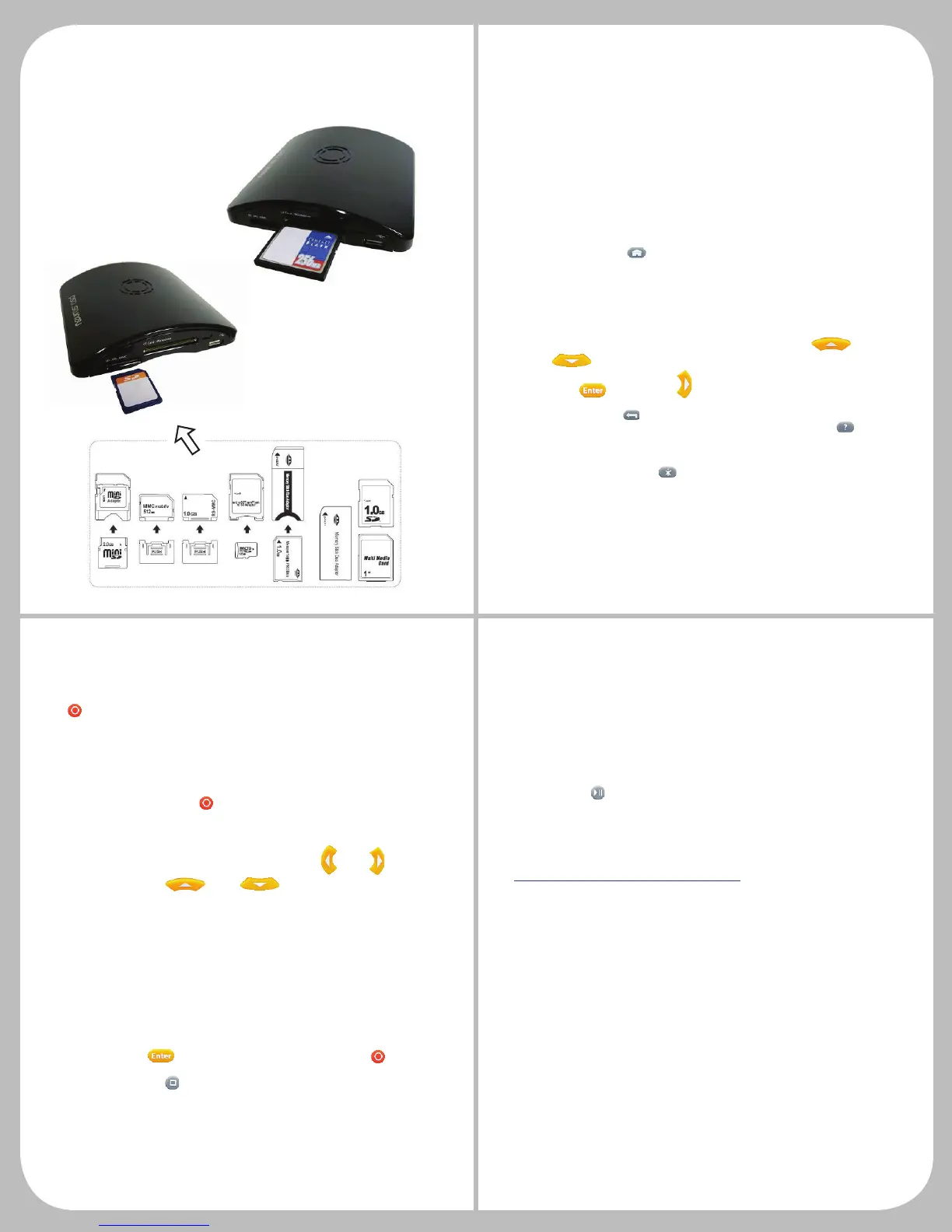
Step 4-Inserting Memory Cards or other storage devices
CF.Microdrive Slot
The CF.Microdrive slot is designed for
Compact Flash type cards and
Microdrives. Insert as shown on right.
SD.MS.MMC slot
The Neuros OSD accepts a variety
of memory cards. The SD.MS.MMC
slot will accept Secure Digital, MS
Duo / MS Pro Duo and Multimedia
Cards. Insert as shown on left.
In addition to the standard size
cards, you will also be able to use
MiniSD, Micro SD, MMC Mobile and
RS-MMC type cards with the proper
adapter. Please reference the chart
below.



 To Previous Page
 Loading...