Thank you for choosing our product. Please read this user
manual carefully and follow relevant rules before using the
product to ensure correct and safe use.
Ⅰ. Product Overview
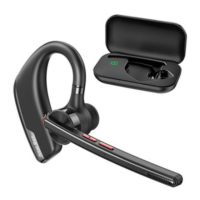
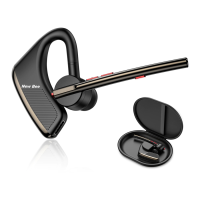
This is a stylish business Bluetooth headset with a built-in
Qualcomm Bluetooth chip, which provides stable connec-
tion, HD voice calls and clear music listening. Besides, it
features up to 15 hours battery life and 6 months standby
time, brings more convenience to your life.
It should be noted that the Bluetooth connection may be
blocked by walls, affected by electronic interference, or
interrupted due to over-distance.
Ⅱ. Product Description
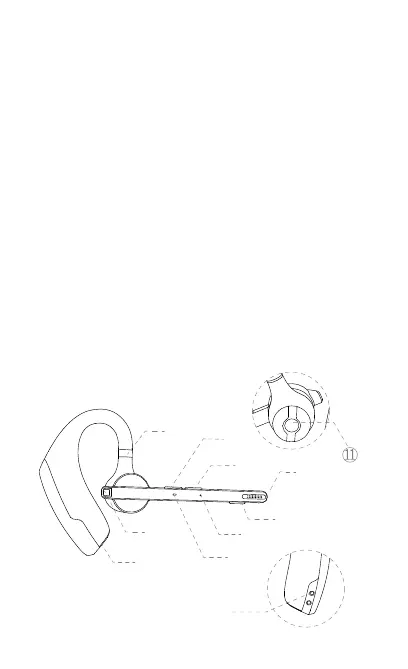
1. Headset
① Retractable Ear Hook
② Multifunctional Button
③ Volume Up Button
④ Volume Down Button
⑤ Main Microphone
⑥ Microphone Mute Button
⑦ Secondary Microphone
⑧ Headset Indicator
⑨ Type-C Charging Port
⑩ Headset Charging Contact Point
Speaker
2. Charging Case
①Charging Case Indicator
②Type-C Charging Port
③Digital Display Screen
Ⅲ. Packing List
Headset*1
Charging case * 1
Charging cable * 1
User manual * 1
Ear cap (S) * 1
Ear cap (M) * 1
Ear cap (L) * 1
Ⅳ. Wearing Instruction
1.Wearing on the Right Ear
① Take out the headset from the charging case. As the
picture shows, adjust the length of the ear hook according
to your needs, slide the headset from above the ear to
behind the ear, then gently press it toward the ear.
NOTE:
• In order to achieve the most comfortable wearing
condition, please take off your glasses before wearing the
headset. After wearing the headset, then put on glasses.
• The adjustment range of ear hook length is 0-3.2mm.
Do not use excessive force when adjusting the length of
the ear hook.
② Rotate the microphone boom to ensure the
microphone is towards your mouth.
2. Adjustment of Wearing Style (Wearing on the Left
Ear )
① Rotate the microphone boom upwards and twist, make
the earbud turn to another side, and then rotate the ear
hook clockwise.
② Slide the headset from above the ear to behind the ear,
then gently press it toward the ear. Rotate the microphone
boom downwards to ensure the microphone is towards
your mouth.
NOTE:
• The maximum rotation Angle of the microphone boom is
270°.
• The maximum rotation Angle of the ear hook is 180°.
Ⅴ. Usage and Operation
1. Bluetooth Connection
① Take out the headset from the charging case or press
and hold the multifunctional button for 3 seconds to turn on
the headset. The headset emits the voice prompt of “pairing”
immediately after it emits the voice prompt of “power on”,
indicating that the headset automatically enters the pairing
mode. The headset indicator keeps flashing in red and blue
alternately.
② Turn on Bluetooth function of cellphone (or other devices)
, and then search for new devices.
For iPhone, “Settings” > “Bluetooth” > “Open”
For Android phones, “Setting” > “Bluetooth” > “Search
new device”
Note: The menu contents may vary from different
devices.
③ Find "M51" in the list of Bluetooth devices and click to
connect. If the connection is successful, the headset will
emit the voice prompt of “connected” and the headset
indicator will go out.
NOTE: When using the headset again, it automatically
connects to the last two devices. If there is no paired
device within 5 minutes, the headset will automatically turn
off.
④ Two Devices Connection
This headset can connect to two devices at the same time.
After successfully connecting to phone A, turn off the
Bluetooth function of phone A and headset. Next, restart
the headset and connect to phone B. Keep phone B
connected, turn on the Bluetooth function of phone A, find
the “M51” in the list of Bluetooth devices and click to
connect. ( NOTE: Although the headset can connect to two
phones at the same time, only one of the phones can play
music through M51, the headset cannot play music from
two phones at the same time. )
⑤ Motorola Series Walkie Talkie Connection Instruc-
tion
Step 1: Turn on the headset and make it enter pairing
mode, the headset indicator keeps flashing in red and blue
alternately.
Step 2: Turn on the walkie-talkie, click on the menu and
find Bluetooth Settings.
Step 3: Search for the device "M51" in Bluetooth
settings, then click and connect.
Step 4: If the walkie-talkie displays that the connection
is successful, the headset emits the voice prompt of
"connected". Click the multifunctional button of the
headset, the headset indicator goes out, and then start
to use.
NOTE:
(1)When using two walkie-talkies, they must be set to the
same communication channel, otherwise it is not possible to
communicate via the headset.
(2)It is required to press and hold the dialogue button on the
walkie-talkie to communicate.
(3)When using the headset again, it automatically connects
to the last device.
(4)Only walkie-talkies with Bluetooth function are supported.
(5)Other types of walkie-talkies with Bluetooth function can
be operated and used according to the user manual of the
walkie-talkie.
2. Button Function Description
① Multifunctional Button
• Power On: In the power off state, press and hold the
multifunctional button for 3 seconds.
• Power Off: In the power on state, press and hold the
multifunctional button for 5 seconds.
• Play/Pause: In the music playing state, click the
multifunctional button once.
• Answer A Call: click the multifunctional button once when
there is an incoming call.
• Hang Up: Click the multifunctional button once during a
call.
• Reject A Call: Press and hold the multifunctional button
for 2 seconds when there is an incoming call.
• Redial Last Phone Number: Double click the multifunc-
tional button.
② Volume Up Button
• Volume Up : Click the volume up button to increase
the volume.
• Next Song: Press and hold the volume up button for 3
seconds to skip to next song.
③ Volume Down Button
• Volume Down: Click the volume down button to
decrease the volume.
• Previous Song: Press and hold the volume down
button for 3 seconds to skip to previous song.
④ Microphone Mute Button
• Mute On/Mute Off: Click the button to turn on the
mute function during a call, click the button again to turn
off the mute function.
• Voice Assistant: Press and hold the button for 3
seconds to activate voice assistant.
3. Headset Indicator / Voice Prompt
4. Restore Factory Settings
In power-on state, press the multifunctional button and
volume up button at the same time for 6 seconds, when
hearing the voice prompt of “power on, pairing”, the
headset has been restored to factory settings.
5. Charge the Headset
(1)Low Battery Reminder
When the headset emits the voice prompt of “battery
low”,
it indicates that the headset is in low battery state.
Please charge the headset immediately.
(2)Charging Instructions
① Charge the headset with charging case
Place the headset into the charging case for charging.
The digital display screen of the charging case is on for
10 seconds and then goes out.
When charging, the headset indicator is red. When fully
charged, the headset indicator stays on in blue for 10
seconds and then goes out.
NOTE: Please place the headset flat and keep the
charging contact point clean, otherwise the headset
will not be charged.
② Charge the headset with Type-C charging cable
When charging, the headset indicator is red. When fully
charged, the headset indicator stays on in blue for 10
seconds and then goes out.
6. Charge the Charging Case
(1)Low Battery Reminder
The digital display screen of the charging case flashes for
about 10 seconds, indicating that the charging case is in
low battery state. Please charge the charging case
immediately.
(2)Charging Instruction
Please charge the charging case with Type-C charging
cable.
When charging, the charging case indicator is red. When
fully charged, the charging case indicator turns blue.
Ⅵ. Product Specifications
1. Bluetooth version: V5.2
2. Bluetooth chip: QCC3040
3. Supported protocols: Headset, HFP, A2DP, AVRCP
HSP
4. Speaker unit: Φ13mm
5. Transmission distance: 15m
6. Headset battery capacity: 115mAh
7. Charging case battery capacity: 500mAh
- 2 -
①
②
⑧
⑨
③
④
⑤
⑦
⑥
⑩
8. Standby time: 6 months
9. Music playback time: 15 hours
10. Headset charging time: 1.5 hours
11. Charging time of charging case: 1.5 hours
12. Charging port: Type-C
13. Working temperature: -5 ° C-50 ° C
14. Headset weight: 16.5g
15. Charging case weight: 64.1g
Ⅶ. Common Problems
1. Low battery may cause disconnection, in order not to
affect normal use, please charge the headset in time.
2. If the headset fails to turn on, please try to charge it up
first, and turn it on when the battery is sufficient.
3. No sound can be heard from the headset when in a
call.
—— Make sure you choose the M51 for audio input/out-
put when in a call, but not the speaker on your cellphone.
—— Check whether your cellphone has been connected
to other Bluetooth devices.
—— Make sure the distance between the headset and
the cellphone does not exceed the effective distance of
15 meters.
4. The other end cannot hear your voice when in a call.
——Please keep the microphone hole of headset clean,
so as not to affect the call and noise reduction effect,
resulting in the other end can not hear your voice.
5. The headset cannot be charged.
——Please wipe the charging contact point of the
headset and the charging case with alcohol.
Ⅷ. Safety Notes
1. Disassembling personally may damage the headset
and this is not covered by warranty.
2. Please clean the headset with a clean, soft, and dry
cloth.
3. Please do not use the headset in a dusty and humid
environment.
4. Do not let your children play with the headset. They
may be injured or damage the headset.
5. Do not place the headset in an extreme environment,
otherwise, it may be temporarily unavailable for use. The
normal use temperature is -5°C to 50°C.


 To Next Page
 Loading...