
 Need help?
Do you have a question about the Nexigo Meeting 360 and is the answer not in the manual?
Provides website, manufacturer, email, phone, and address for support.
Highlights customized lenses for better image quality and lifelike color reproduction.
Displays the whole room, automatically recognizing and highlighting presenters.
Offers high-quality resolution and clear image capture for optimal video conferencing.
Features eight microphones with noise cancelling and echo reduction for high-quality sound.
Simple to use with no driver downloads required via a standard USB-C to USB-A cable.
Lists all items included in the product package for setup and use.
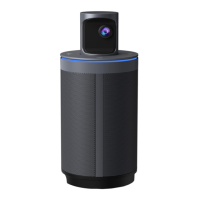
Provides a visual breakdown of the camera's main components and their locations.
Details the buttons for volume, mute, and mode switching on the camera's control panel.
Identifies the DC and USB-C ports for power and data connection to the device.
Explains how to use the volume, mute, and mode switch buttons on the control panel.
Describes the meaning of different LED light colors and patterns for status indication.
Guides users on how to change camera display modes for different meeting scenarios.
Explains Discussion, Presentation1, and Presentation2 modes for various meeting views.
Details Global and Patrol modes for comprehensive attendee views and sequential attendee display.
Lists resolution, format, bitrate, ISO, white balance, exposure, lenses, and microphones.
Details buttons, speakers, USB interface type, and power adapter requirements.
Guides on connecting power and USB, activating the camera, and selecting it in apps.
Instructions for Windows and macOS privacy settings to enable camera usage.
Step-by-step guide to downloading, installing, and applying firmware updates.
Crucial information on using authorized firmware and correct naming for updates.
Advises on handling, power, environment, and avoiding misuse to prevent damage.
Instructions for cleaning the camera body and lenses to maintain image quality.
Highlights that lens scratches are not covered by warranty and how to avoid them.
The NexiGo Meeting 360 Camera (N2000) is a sophisticated video conferencing device designed to provide an immersive and inclusive meeting experience. Its primary function is to capture high-quality video and audio, ensuring that all participants in a meeting are seen and heard clearly, regardless of their position in the room. The camera boasts advanced features that streamline the setup and operation of virtual meetings, making it an ideal solution for various professional environments.
One of the core functions of the NexiGo Meeting 360 Camera is its ability to capture video at up to 8K resolution. This is achieved through customized lenses with specialized optics, which not only deliver superior image quality but also ensure lifelike color reproduction. The high resolution contributes to a more engaging and realistic video conferencing experience, allowing remote participants to feel more connected to the in-room discussion. For video export, the camera provides 1080P Full HD resolution, striking a balance between quality and compatibility with various platforms.
A standout feature of this camera is its 360° panoramic view. This capability allows the camera to display the entire room, providing a comprehensive visual context for all meeting attendees. Beyond simply capturing the full room, the camera intelligently recognizes and highlights active presenters. This automatic reframing ensures that the focus remains on the speaker, enhancing engagement and making sure that everyone is visible and actively participating in the meeting. This dynamic adjustment is crucial for maintaining a smooth and natural flow in discussions.
Audio capture is equally robust, thanks to eight integrated omnidirectional microphones. These microphones are equipped with noise-canceling and echo-reduction technology, which work in tandem to deliver high-quality sound. The full duplex audio specification means the camera can transmit and receive sound simultaneously, preventing awkward interruptions and ensuring that conversations flow naturally. This allows all participants to hear and be heard with crisp, clear audio, creating a true face-to-face meeting experience, even when participants are geographically dispersed.
The NexiGo Meeting 360 Camera is designed for ease of use, featuring a "Plug and Play" functionality. This means there is no need to download any drivers; users can simply connect the camera using a standard USB-C to USB-A cable and begin their meeting. This simplicity makes the camera accessible to users with varying technical proficiencies and ensures quick setup in any meeting space.
The device offers several distinct display modes, which can be switched by touching the "Mode" button on the control panel. These modes cater to different meeting scenarios and preferences:
The control panel, located on top of the camera, provides intuitive controls for managing the meeting experience. It includes buttons for:
LED indicators provide clear status updates for the camera:
Setting up the NexiGo Meeting 360 Camera is straightforward. First, the camera is plugged into an electrical outlet using the provided 12V power adapter. Next, it is connected to a computer via the provided USB cable. It's important to ensure the computer has a stable internet connection for optimal performance. To activate the camera, users press down on the camera lenses housing, which causes the lenses to pop out. A flashing blue LED light confirms that the camera is ready for use. When not in use, pressing down on the lenses housing again turns off the camera.
For software integration, users need to open their preferred video conferencing application and ensure that the NexiGo Meeting 360 Camera, its built-in microphone, and speaker are selected in the application's settings. Specific setup instructions are provided for Windows and macOS to ensure proper privacy and device access. On Windows, users navigate to Settings > Privacy > Camera and enable "Let apps use my camera." On macOS, the process involves going to Apple menu > System Preferences > Security & Privacy, selecting the Privacy tab, and then choosing Camera from the options. In both operating systems, it's crucial to enable the camera for the specific applications intended for use.
Maintenance of the NexiGo Meeting 360 Camera involves several key considerations to ensure its longevity and optimal performance. Users are advised to read all instructions to prevent damage from misuse. The product should be placed on a stable and even surface to prevent falls and potential damage. When using a third-party charger, it's essential to adhere to all safety rules to avoid fire, electric shock, or damage. The camera lenses are made of glass and should be handled carefully to prevent damage and kept out of reach of children.
During operation, the camera's temperature may rise. If it overheats, users should turn off the camera and allow it to cool down before further use. It's important to remember that this product is not a toy, and users are responsible for complying with all local laws and regulations regarding its use. The camera should not be used or stored in extremely cold or hot environments, as such conditions can cause malfunction or damage. If the unit is damaged, users should exercise the warranty rather than attempting independent repairs. Contacting NexiGo Customer Support is recommended for warranty claims.
For cleaning, the device should be wiped with a soft, dry cloth. The lens specifically requires a dry microfiber cloth or a lens cleaner. If a mild detergent is necessary, only a small amount should be used to avoid scratching the lens and affecting image quality. Strong or corrosive detergents are strictly prohibited.
A critical warning pertains to lens scratches, which are not covered by the warranty. The camera lacks built-in protection for its lenses, similar to higher-end photography equipment. Users must exercise caution to avoid scratching the lenses, particularly by not placing them directly onto any surface. It is crucial to close the camera (by pressing down the lens housing) when it is not in use to protect the lenses.
Firmware updates are an important aspect of maintaining the camera's performance and accessing new features. Users are strongly advised to download authorized firmware only from nexigo.com or through NexiGo customer service, as unauthorized firmware can damage the operating system. It's also critical to ensure that the firmware version being upgraded to is the latest one, as downgrading can also cause system damage. The update process involves downloading the firmware, installing a specific USB driver, connecting the camera to a PC, and then entering USB mode by holding the Mode button for five seconds. The firmware file, which must be named "update" (without suffixes or modifications), is then copied to the camera's internal shared storage. After the transfer, restarting the camera by pressing down the lens housing and then pressing it again to turn it back on initiates the automatic upgrade, indicated by a rapidly flashing blue light. A slower flashing blue light confirms a successful upgrade.
 General
| Resolution | 1080P |
|---|---|
| Connectivity | USB |
| Compatibility | Windows, macOS |
| Sensor Type | CMOS |
| Frame Rate | 30fps |
| Field of View | 360 degrees |
| Microphone | Omnidirectional |

 To Next Page
